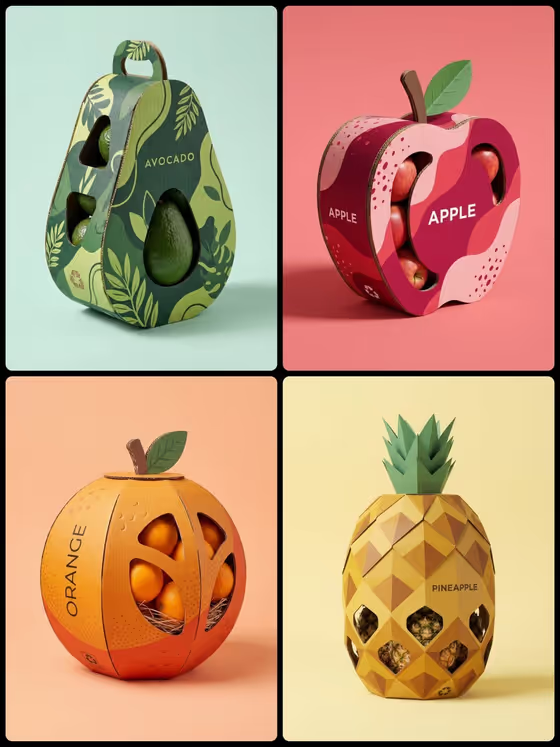
This template turns a fruit or produce idea into a structural cardboard package shaped like the fruit itself, shown as a studio product photo. The cover collection shows the look: an avocado, an apple, an orange and a pineapple, each with a die-cut window revealing real produce, visible corrugated edges and a dimensional cardboard stem, leaf or crown on a pastel background.
It suits packaging designers, small food brands, students and anyone pitching a concept who wants to see a branded produce package quickly. You choose the product, the silhouette, the printed pattern and the name, and the output is a single 3:4 image.
What works best as input
- For Packaging Product, a short text description like "premium oranges" or "tropical pineapples" works well. You can also add a visual reference photo of the produce if you want a specific variety or look.
- Package Shape also accepts a photo reference. Use one that shows a clear silhouette (round, curved, elongated or faceted) rather than a busy scene, so the form reads cleanly.
- Because the template asks for 2 or more photos, upload clear, well-lit images where the fruit or shape is the main subject and not hidden behind clutter.
- Printed Pattern and Product Name are text-only fields, so describe the pattern briefly (for example "organic wavy lines" or "botanical line art") and type the name exactly as you want it printed.
- Keep the Product Name short and in capitals, like ORCHARD or GROVE, so it fits the printed surface and stays legible.
How to use it
- Open the Fruit-Shaped Cardboard Packaging template in Phosphene.
- Fill in Packaging Product by typing the produce or adding a reference photo, then set Package Shape using the options or a photo reference.
- Choose a Printed Pattern and type your Product Name, then add your photos to meet the upload requirement.
- Generate the image, then review the package shape, window, pattern and printed name before saving or trying again.
Tips for a better result
- Match the pattern to the fruit's personality. The cover pairs botanical line art with the avocado, wavy lines with the apple, dotted stippling with the orange and geometric forms with the pineapple.
- Try a faceted geometric fruit shape for fruits with a textured skin, and a rounded silhouette for smooth fruits like apples and oranges.
- Change only one field at a time, such as the pattern or the name, so you can see exactly what shifted between versions.
- Name specific produce ("ripe pears" instead of just "fruit") so the window shows the right contents and the package form fits.
Common mistakes
- Using a long or lowercase Product Name. Long names can get cramped on the package, so keep it to one short word.
- Picking a Package Shape that does not suit the produce, such as a faceted geometric form for something that is naturally smooth, which can make the fruit hard to recognize.
- Uploading cluttered or dark reference photos, which give the template little clear shape or color information to work from.
FAQ
Do I have to upload photos?
The template is set to take 2 or more photos. Packaging Product and Package Shape accept photo references, while Printed Pattern and Product Name are text only.
Can I put my own brand name on the package?
Yes. Type it into the Product Name field and it is used as the printed name on the package.
What will the result look like?
A 3:4 image of a corrugated cardboard package shaped like a fruit, with a die-cut window, a dimensional stem, leaf or crown, small recycling details and a clean pastel studio backdrop.
Can I make packaging for fruits other than the ones on the cover?
Yes. The examples include strawberries, pears and pineapples, and you can describe other produce in the Packaging Product field.