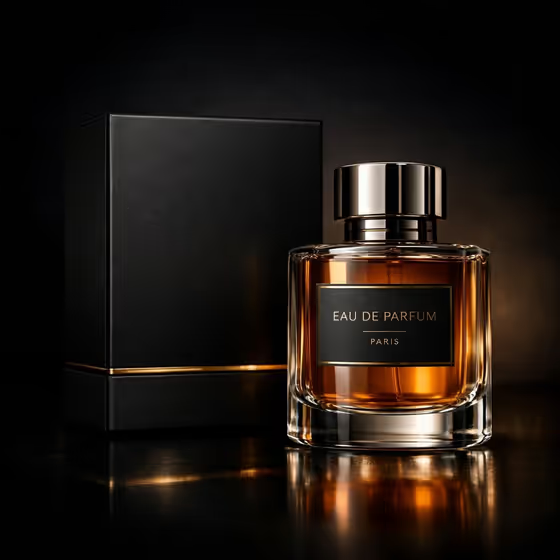
Amber Perfume Set creates a dark, low-key studio image of a fragrance bottle placed in front of a matte black box. The glass catches warm amber tones, the box has fine gold accents, and everything sits on a glossy surface that mirrors the products below them.
It suits anyone who wants an advertisement-style fragrance shot: small perfume brands, makers of personal or concept products, and people mocking up packaging. The output is a 3:4 image, so it fits portrait placements.
What works best as input
- For the "black perfume bottle and box product or object" field, you can either type a short description or upload a photo of your exact product. A photo is the better choice when the bottle shape or label has to match a real item.
- Use a clear, evenly lit photo where the bottle and box are both visible and not cropped. Plain backgrounds make the product easier to read.
- If you describe instead of upload, be specific about what matters: bottle shape, cap finish, box colour, and any label wording. The placeholder "a black perfume bottle and box" shows the level of detail to start from.
- Avoid photos with heavy glare, motion blur, or other objects crowding the frame, since these can muddy what the template treats as your product.
How to use it
- Open the Amber Perfume Set template in Phosphene.
- In the "black perfume bottle and box product or object" field, describe your product or upload a photo of it.
- Pick an option in "Product presentation", such as the dark cinematic studio framing or one of the other listed styles like clean studio hero.
- Generate the image, then check the bottle, box, label and reflections. Adjust your description or choice and run it again if something is off.
Tips for a better result
- Keep the product description short but concrete. Naming the cap material, glass thickness or label colour gives the result more to hold onto.
- Try the different "Product presentation" options to see how the same product reads as a dark cinematic shot versus a clean studio hero.
- If your real label has specific wording, mention it, since the template's default look uses a minimal label with gold typography.
- Run a few variations and compare how the amber glow and reflections fall, then keep the one that best shows your bottle.
Common mistakes
- Uploading a photo where the bottle and box overlap awkwardly or are partly cut off, which leaves the template guessing at the shape.
- Writing a vague description like "perfume" and expecting your exact bottle design to appear.
- Expecting the label text to be reproduced perfectly without checking it. Always review small typography in the result.
FAQ
Can I upload a photo of my own perfume?
Yes. The product field accepts either a text description or an uploaded reference, so you can use a photo of your own bottle and box.
What shape is the final image?
The template produces a 3:4 portrait image.
Do I need to have a box as well as a bottle?
The template is built around a bottle paired with its matte black box, so describe or show both for the closest match to the intended look.
Can I change the mood of the shot?
Use the "Product presentation" field. Its options include the dark cinematic studio look, a clean studio hero, dynamic material interaction and an annotated product breakdown.