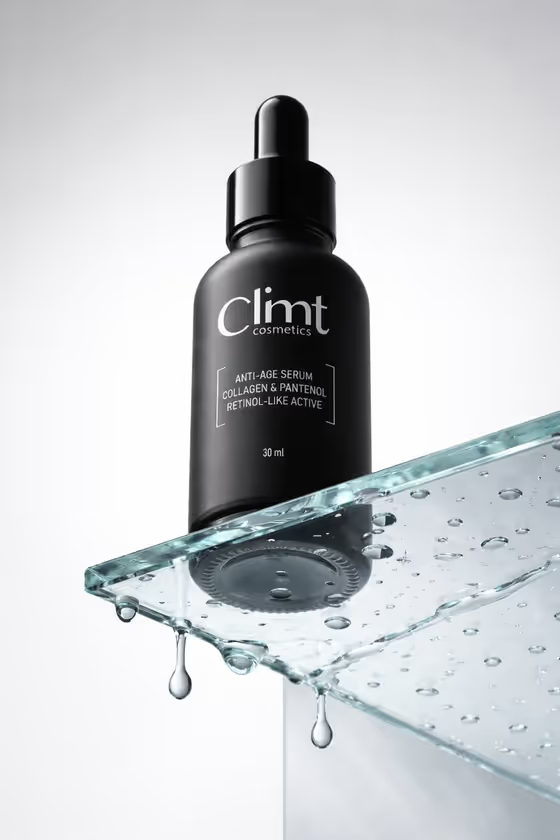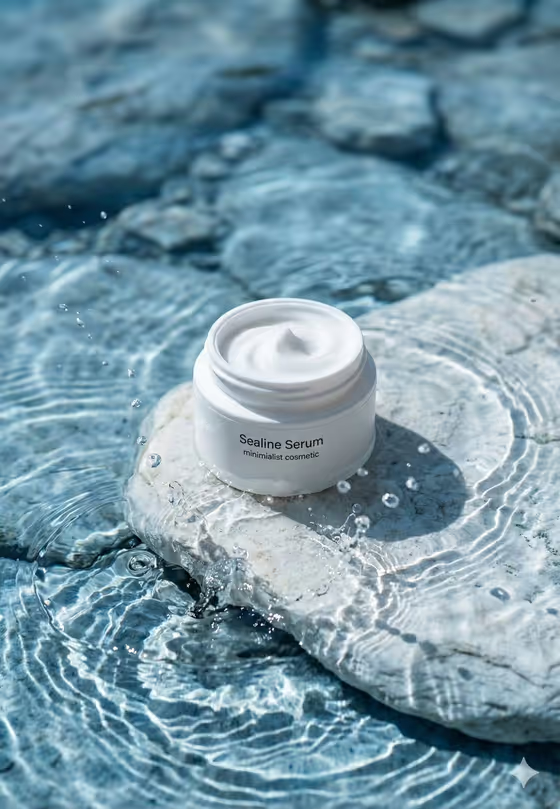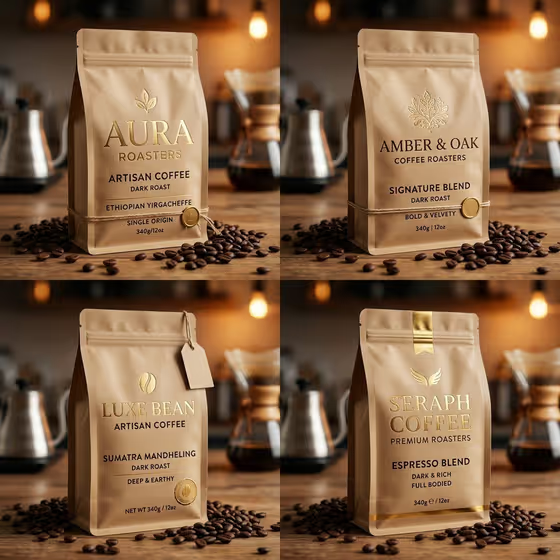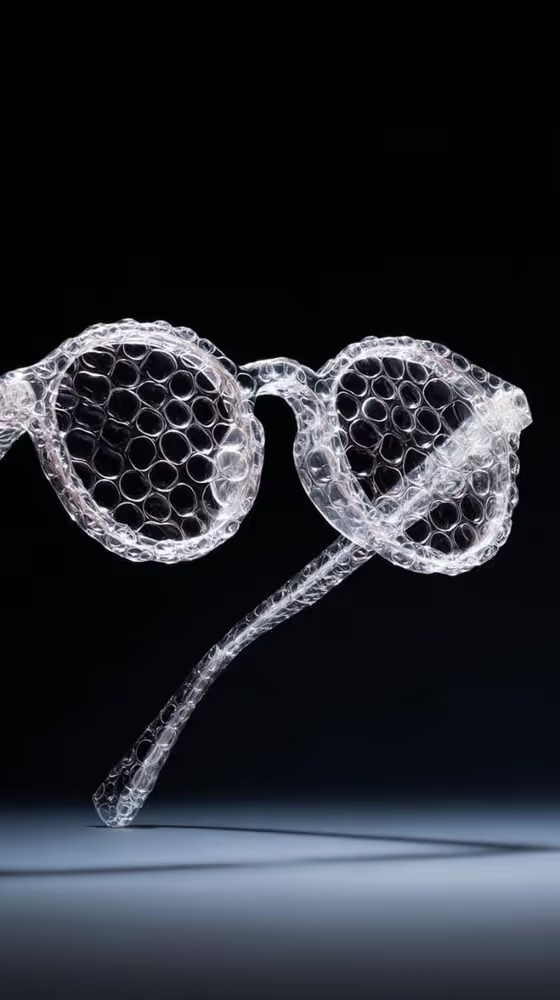
This template turns a product or object into a minimalist studio shot where the subject is formed from or wrapped in soft, transparent bubble wrap. The cover shows a pair of round glasses rendered in clear bubble texture, floating against a dark backdrop with a pale floor and a soft shadow.
It suits anyone who wants a polished product visual with a quiet, elegant feel, such as small brands, sellers, designers, or creators who want a distinctive image of an everyday object. The output is a single 3:4 image.
What works best as input
- Use a photo of a single object with a clear, readable outline. The cover works because the glasses have a simple silhouette that the bubble texture can follow.
- Pick an object with a distinctive shape, like an accessory, bottle, or compact device, so the result keeps its character after the bubble wrap treatment.
- Make sure the photo is well lit and the object is not cut off at the edges. A clean background in your source makes the subject easier to read.
- If you prefer to describe the object instead, write a short, concrete phrase in the Featured product or object field, like the placeholder 'a premium beverage bottle'.
How to use it
- Open the Bubble Wrap Studio Product template in Phosphene.
- In Featured product or object, add your photo of the item or type a short description of it.
- In Creative direction, choose or write a mood. The examples include Clean editorial, Cinematic dramatic, Playful colorful, and Quiet premium.
- Generate the image, then review the 3:4 result and adjust your inputs if you want a different look.
Tips for a better result
- Try Quiet premium or Clean editorial for a restrained look close to the cover, with soft light and a neutral backdrop.
- Switch the Creative direction to Cinematic dramatic or Playful colorful to see how the same object changes in mood while keeping the bubble wrap texture.
- Keep the object description specific, for example 'a sculptural fashion accessory' rather than just 'a thing', so the shape stays recognizable.
- Run the same object with two or three different directions and compare, then keep the one that fits your use.
Common mistakes
- Describing several objects at once. The template is built around one featured product, so a crowded description can muddy the shape.
- Using a dark, blurry, or heavily cropped photo, which makes the object's outline hard to follow in the bubble wrap treatment.
- Leaving the Creative direction vague. A clear direction like Quiet premium gives a more consistent mood than an empty or contradictory one.
FAQ
Do I have to upload a photo?
No. The Featured product or object field accepts a photo or a typed description, so you can use whichever is easier.
What kind of objects work best?
Objects with a clear, distinctive shape, like glasses, bottles, accessories, or compact devices, tend to show the bubble wrap treatment most clearly.
What does Creative direction change?
It sets the overall mood of the image. You can pick one of the examples, such as Clean editorial or Playful colorful, or describe your own.
What size is the result?
The template produces a single image in a 3:4 aspect ratio.