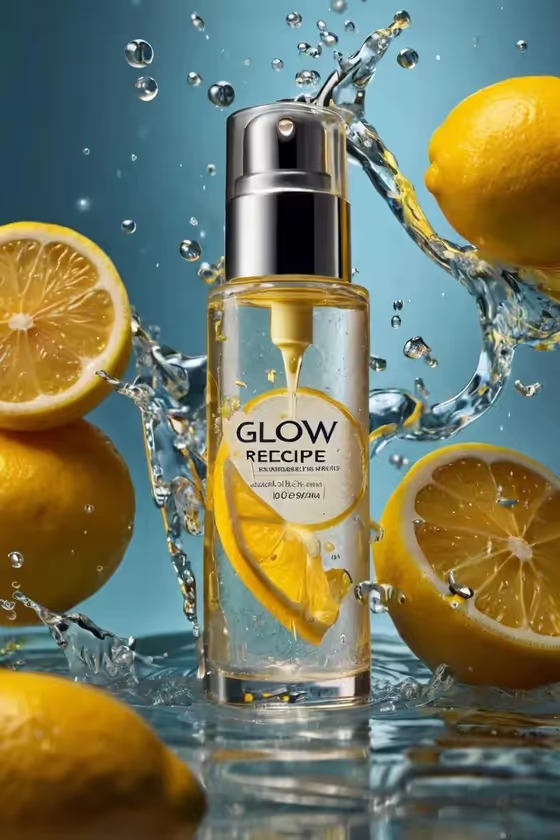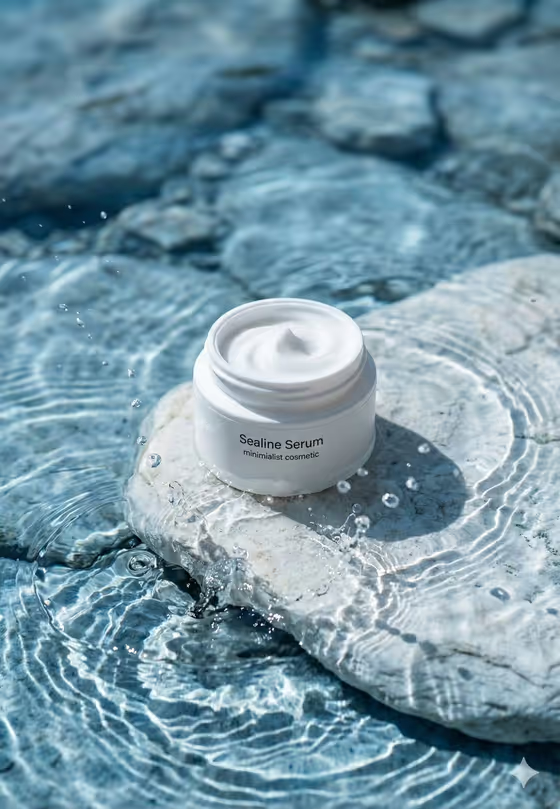
Shallow-Water Skincare turns a cosmetic jar or bottle into a clean, minimalist beauty shot. Your product sits centered on a partly submerged stone, surrounded by clear rippling water, small droplets and soft caustic light patterns, all in cool whites and blues with bright diffused daylight.
It suits skincare founders, small beauty brands and anyone who needs a hydration-themed product visual without setting up a photo shoot. The result is a 3:4 image with your brand name on the label, ready to use as a product listing or social post visual.
What works best as input
- In the Skincare Product field, describe the item as specifically as you can, for example the type of container (jar or bottle), its color and whether it is open. The examples include an open white moisturizer jar and a frosted facial oil bottle.
- This field also accepts a photo, so you can add a reference of your real product. Choose one clear, well-lit shot of the product on its own so the shape and color carry over accurately.
- Type the Brand Name exactly as it should appear on the label, such as SEALINE SERUM. Keep it short, since a few words stay crisp and easier to read on the jar.
- The brand name field is text only, so enter the wording there rather than relying on a photo to supply it.
- Pick a Water and Stone Setting that matches the mood you want, such as pale stone in crystal-clear shallow water or white marble in a calm blue pool.
How to use it
- Open the Shallow-Water Skincare template in Phosphene.
- Fill in Skincare Product by describing your jar or bottle, or by adding a reference photo of it.
- Type your Brand Name, then choose a Water and Stone Setting from the options.
- Generate the image, then check the label text, the product shape and the water and stone details. Adjust your inputs and run it again if something is off.
Tips for a better result
- Mention the product's finish in your description, such as frosted, clear or pale-blue. The template aims for silky cream or liquid texture, so naming the product's material helps it match your item.
- Try each Water and Stone Setting with the same product. Travertine under gentle ripples and a smooth river pebble in luminous water give noticeably different backdrops from the pale stone default.
- Keep the product description to one item. A single jar or bottle fits the centered, balanced composition this template is built around.
- If you use a reference photo, pick one that shows the product's true color, since the scene is built in cool tones and a clear reference keeps your product recognizable.
Common mistakes
- Writing a long brand name or tagline in the Brand Name field. Short names are easier for the label to render crisply.
- Describing several products at once. The scene is designed around one product centered on the stone.
- Leaving the product description vague, like just "skincare". Without a container type and color, the result may not resemble your actual item.
FAQ
Can I use a photo of my product?
Yes. The Skincare Product field accepts a photo reference as well as a text description. The Brand Name and Water and Stone Setting fields do not take photos.
What size is the image I get?
The template produces a single image in a 3:4 aspect ratio, which suits portrait-style product shots.
Can I change the water and stone look?
Yes. The Water and Stone Setting field lets you choose from options like pale stone in crystal-clear shallow water, white marble in a calm blue pool, a smooth river pebble, or a travertine slab.
Will the label show my exact brand name?
You enter the brand name in its own field and the template places it on the product label. Check the generated text, and rerun with a shorter or simpler name if it does not read cleanly.