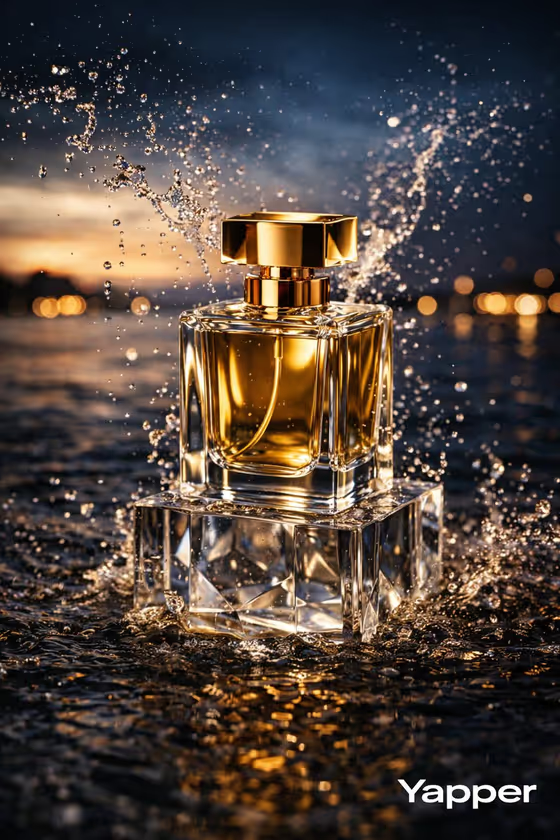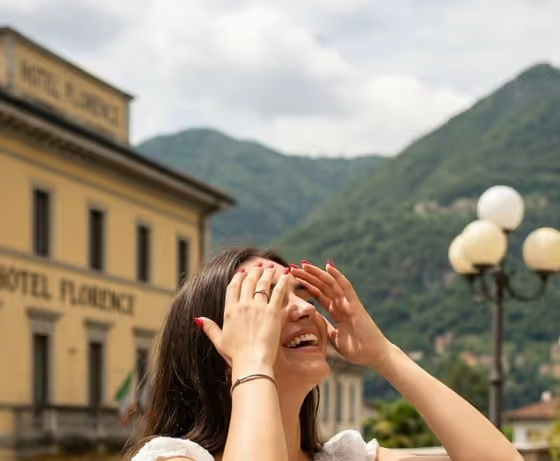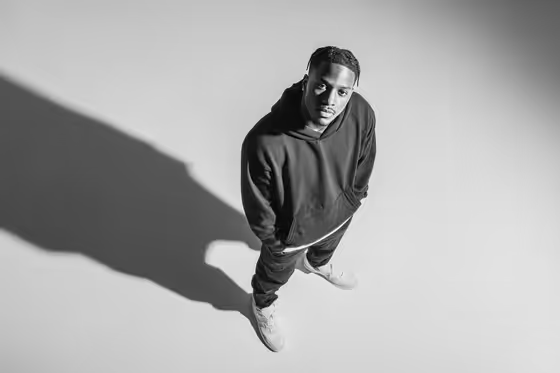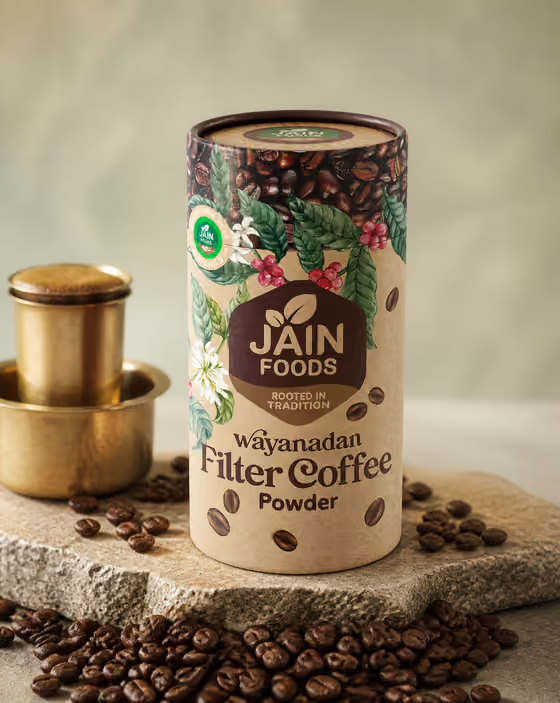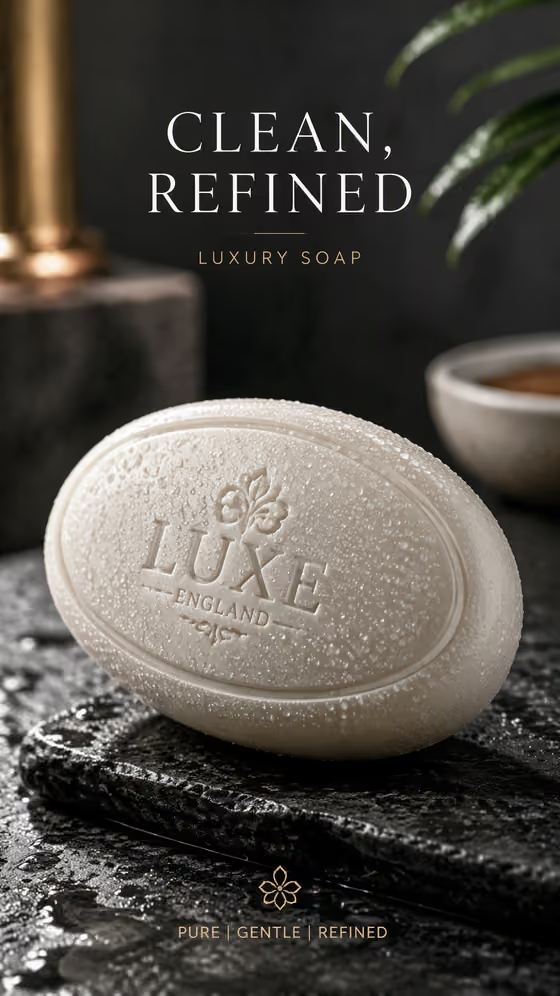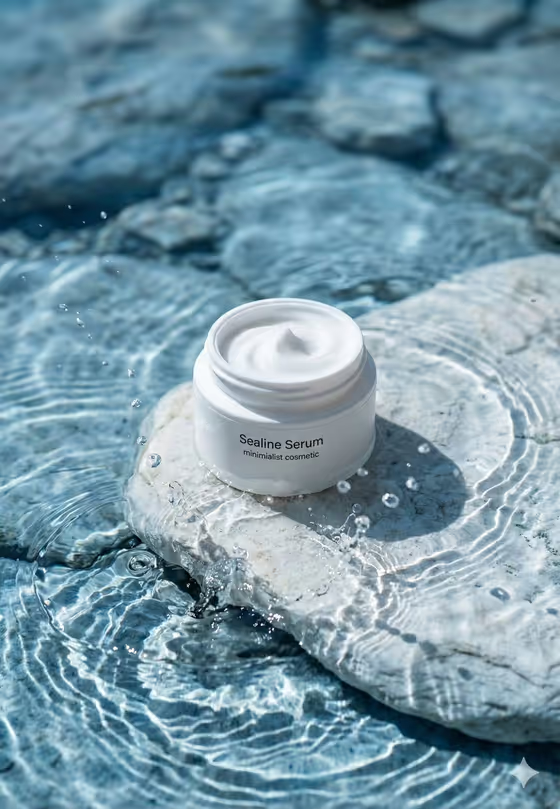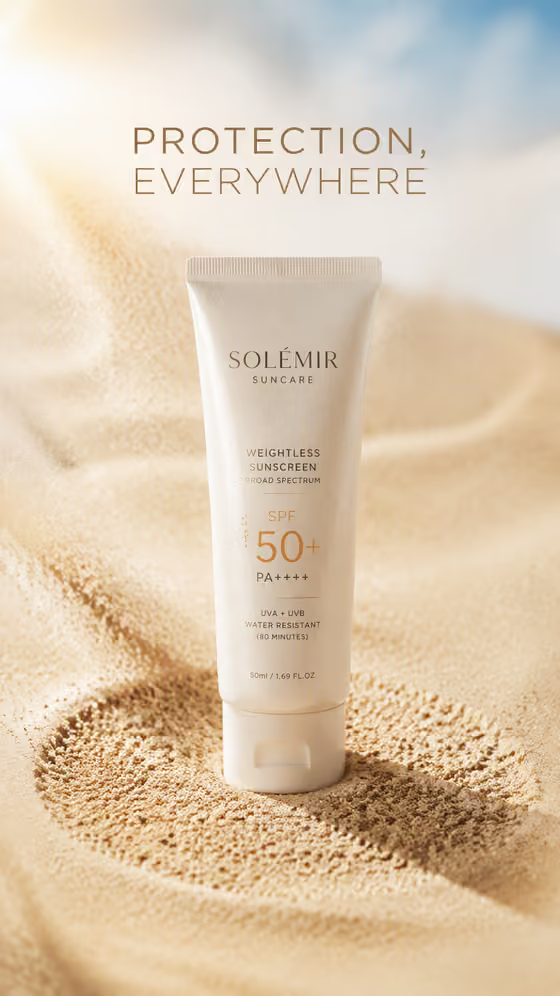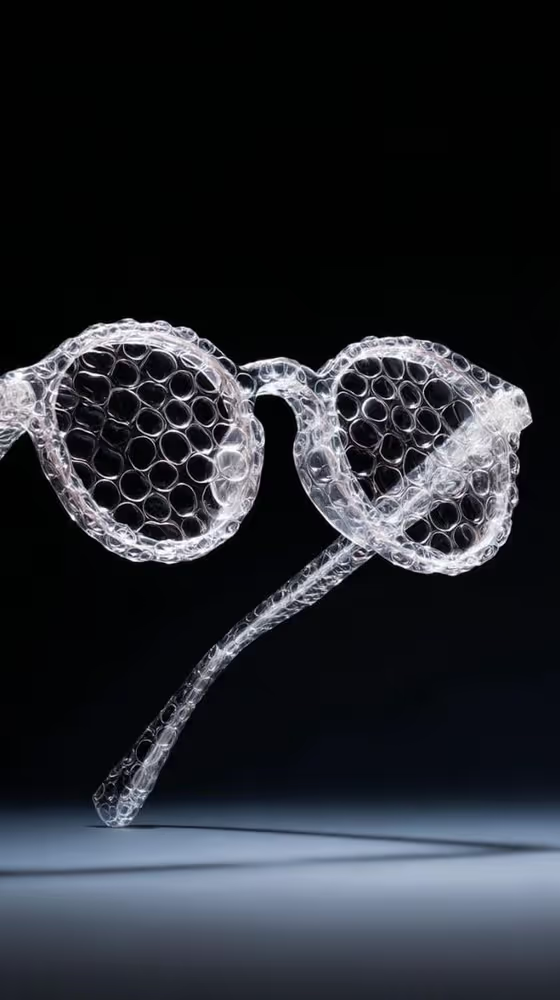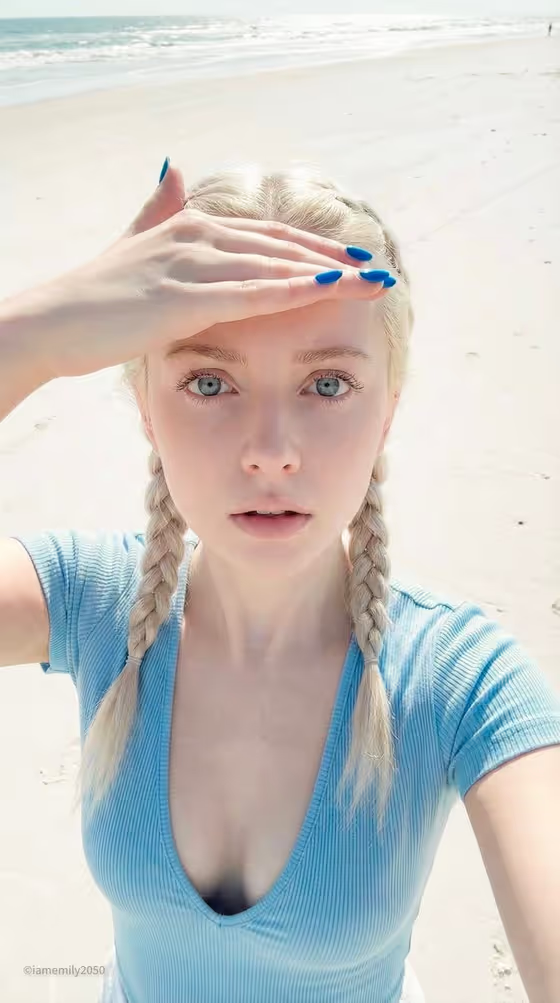
Editorial Bottle Portrait makes a vertical, magazine-style product image that puts a person and a featured product or garment together in one composed frame. It suits creators, small brands and anyone who wants a polished product visual without organizing a studio shoot.
You supply a portrait subject, a featured product or garment, and pick a creative treatment. The template keeps the portrait framing and a clear focal point, so the result reads as a styled editorial shot rather than a random collage.
What works best as input
- For Portrait subject, use a photo where the face is clearly visible and well lit. A simple, sharp, front-facing shot gives the template the most to work with.
- Pick a portrait with a framing close to what you want in the final image, since the template keeps the source portrait framing. A head-and-shoulders or upper-body shot in vertical orientation fits the 9:16 output best.
- For Featured product or garment, upload a clean photo of the exact item on a plain background, or type a short description such as 'a premium beverage bottle' if you do not have a photo.
- If you want your real item to appear, use a photo and keep labels, shape and color clearly visible. The 'my exact product' example signals that a photo is the way to go for a specific item.
- Use only photos of people who are happy to be featured, and avoid heavy filters or cropped faces that hide key features.
How to use it
- Open the Editorial Bottle Portrait template in Phosphene and upload at least two photos: one for the Portrait subject and one for the Featured product or garment (or describe either in the text field).
- Choose a Creative treatment from the options, such as Clean editorial, Cinematic dramatic, Playful crafted or Quiet premium.
- Generate the image and wait for the 9:16 result to appear.
- Review the portrait and product together. Check that the subject looks right, the product is easy to read and the mood matches your chosen treatment, then adjust your inputs and run it again if needed.
Tips for a better result
- Try the same portrait and product with different Creative treatments. Clean editorial and Quiet premium give a calmer look, while Cinematic dramatic and Playful crafted push the mood harder.
- Use a product photo with clear edges and visible details so materials like glass, metal or fabric come through believably.
- If you describe rather than upload, be specific in the text field. 'A premium beverage bottle' gives a clearer direction than just 'a drink'.
- Keep the portrait and product visually compatible in lighting. Two photos with very different light direction are harder to blend into one believable frame.
Common mistakes
- Uploading a low-resolution or heavily cropped portrait, which leaves the template with little facial detail to preserve.
- Using a cluttered product photo where the item is small or partly hidden, so the featured product loses its role as the focal point.
- Leaving the text descriptions vague, such as 'a thing', when you are not uploading a photo, which makes the product and subject less defined.
FAQ
Do I have to upload photos for both subject and product?
Not necessarily. Both the Portrait subject and Featured product or garment fields accept either a photo or a short text description, though the template is set up for two or more uploads.
What shape is the final image?
The output is a vertical 9:16 image, which suits phone screens, stories and portrait-format layouts.
Can I use it for something other than a bottle?
Yes. The Featured product or garment slot also lists examples like a compact consumer device or a sculptural fashion item, so you can feature other products or clothing.
What does the Creative treatment change?
It sets the overall mood of the shot. Options include Clean editorial, Cinematic dramatic, Playful crafted and Quiet premium, so the same subject and product can look quite different.