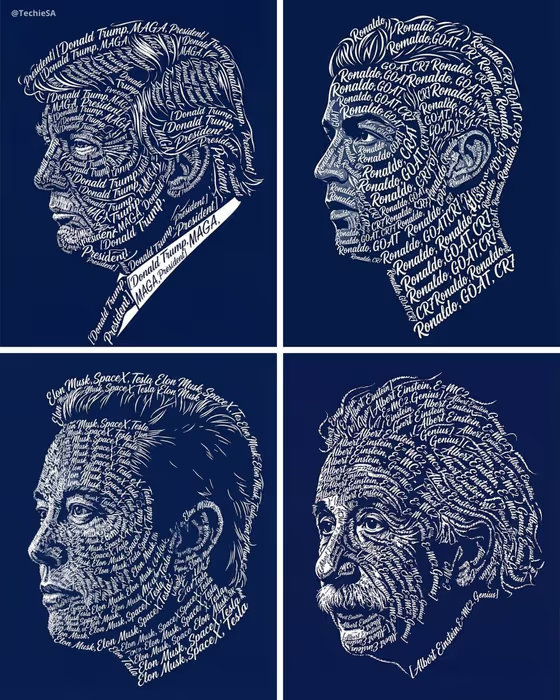
This template turns a person into a side-profile portrait made entirely of repeated calligraphic text. The face, hair and features are all built from your chosen phrase in crisp white lettering on a deep navy background, as in the cover image where each profile is formed from a few repeated words.
It suits anyone who wants a personal, typographic piece: a name and a few meaningful words for a gift, a poster, a profile image or a keepsake. You provide the subject, the phrase and a material finish, and the template handles the layout and lettering.
What works best as input
- In the Subject field you can either describe the person or add an exact reference photo. A photo gives the profile something specific to follow, so use one if you want the result to resemble a real person.
- Pick a clear photo of someone you have permission to portray, ideally a side view or a face with defined features and a visible hairline. Strong lighting that shows the outline of the nose, chin and hair helps the lettering follow the contours.
- If you describe instead of upload, be concrete. The placeholder 'A confident adult' and the examples such as 'A charismatic performer' show the kind of short, descriptive wording that works.
- Keep the photo uncluttered. A plain background and no hats or heavy shadows make it easier to read the silhouette.
How to use it
- Open the Calligraphy Profile Portrait template in Phosphene.
- Fill in Subject by describing the person or adding a reference photo, then type your text into Phrase, exactly as you want it to appear.
- Enter a Material Finish, for example 'Polished metallic lettering' or one of the other suggested variations, then generate the image.
- Review the result for a readable profile, clean lettering and your phrase spelled correctly. Adjust the fields and generate again if needed.
Tips for a better result
- Use a short phrase of one to four words. Repeated short phrases fill the contours more cleanly, as the cover examples show with names plus a couple of keywords.
- Try the different Material Finish examples to vary the mood, such as a refined classic or a bold contemporary variation, while keeping the same subject and phrase.
- Write the phrase exactly as you want it, including capitalization and punctuation, since it is rendered as given.
- Generate a few times with small changes to the Subject wording or photo to compare how the silhouette and hair come out.
Common mistakes
- Using a long sentence as the Phrase. Long text gets harder to read when repeated and can look cluttered along the face.
- Choosing a photo that is blurry, heavily shadowed or has a busy background, which makes the profile outline harder to follow.
- Leaving the Subject too vague when not using a photo, which gives the template little to shape the profile around.
FAQ
Do I have to upload a photo?
No. The Subject field accepts either a written description or a reference photo. A photo is useful when you want the portrait to follow a specific person.
What colors will the portrait use?
The template is set up for crisp white calligraphic lettering on a deep navy blue background, with no additional colors.
Which direction does the portrait face?
The template builds a left-facing side profile.
What does Material Finish change?
It sets the finish or style for the lettering variation. You can type your own or start from examples like 'Polished metallic lettering' or 'A bold contemporary variation'.