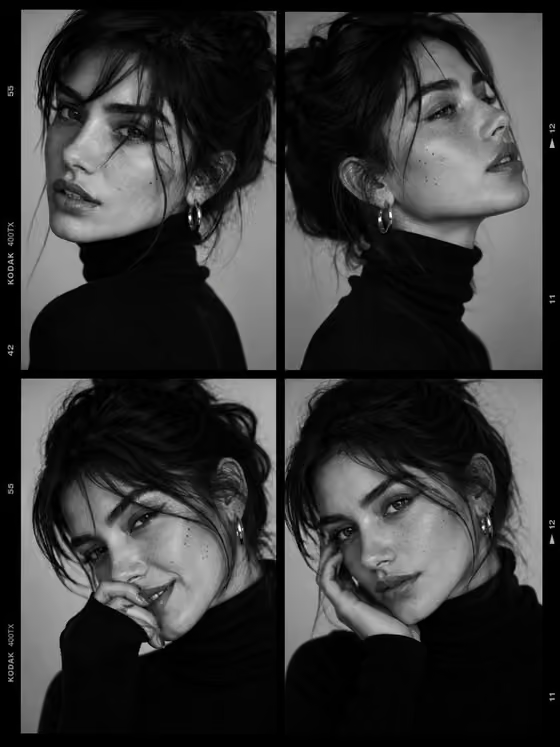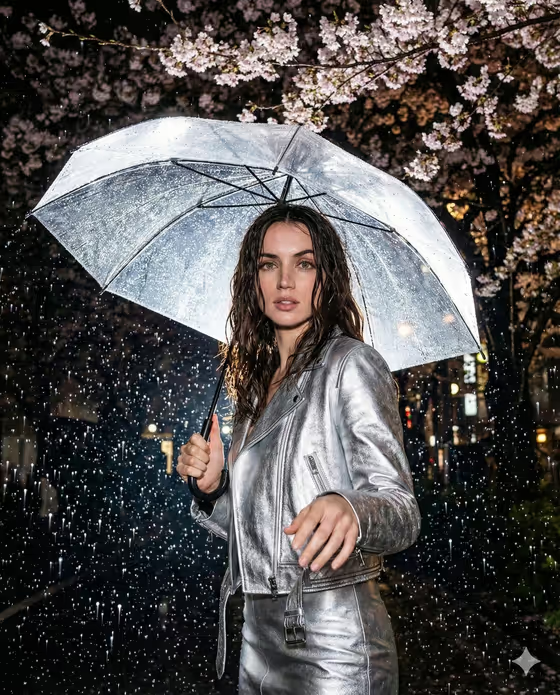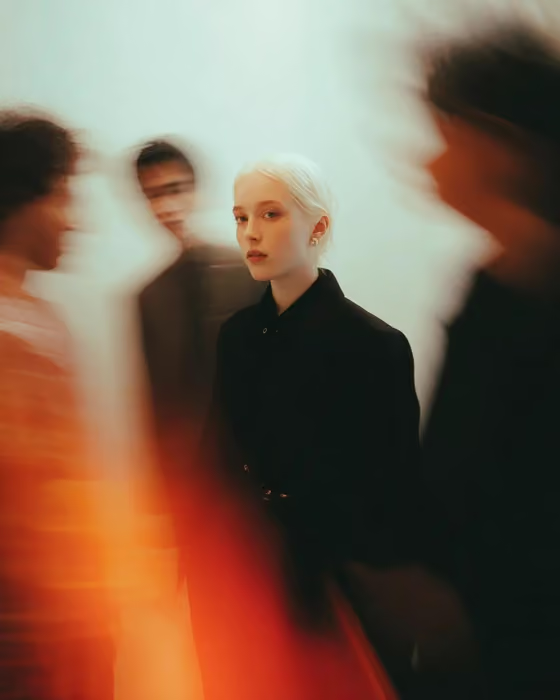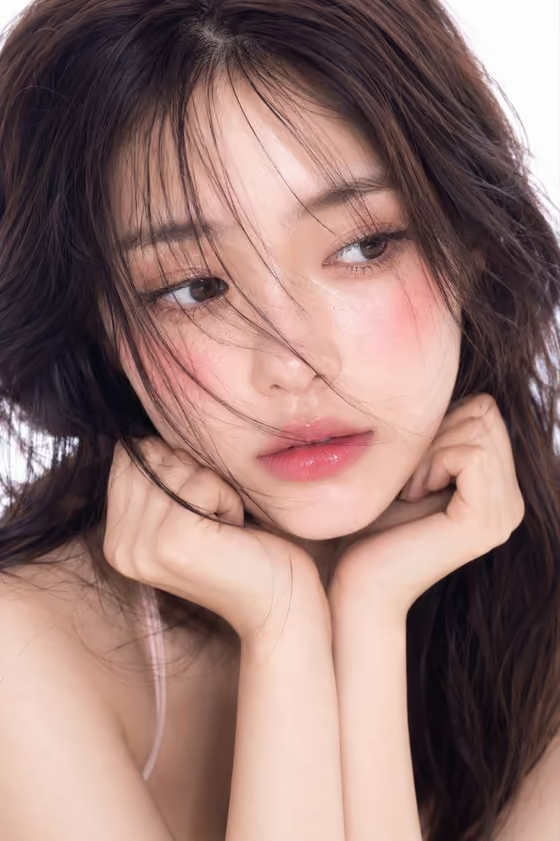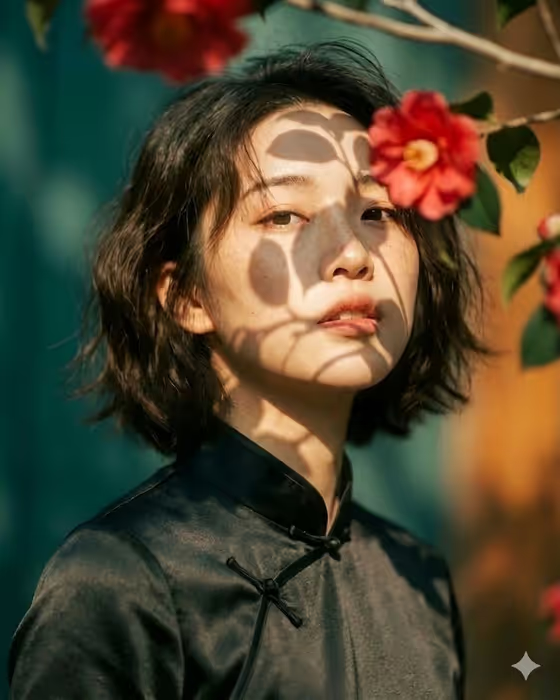
Camellia Qipao Portrait turns a reference photo into a garden portrait of a person in a black silk qipao, surrounded by red camellia branches. The light is soft and warm, with leaf shadows falling across the face, and the result is a 3:4 image with a shallow depth of field and a blurred teal and amber background.
It suits anyone who wants a fine art, editorial look for a profile picture, a creative project or a personal keepsake. You describe or choose the subject and the expression, and the template handles the wardrobe, setting and lighting.
What works best as input
- Use a clear, well-lit photo of one adult, with the face fully visible and not covered by sunglasses, a mask or heavy shadow.
- A front-facing or slightly angled shot works best, since the result is a close portrait and the face is the main focus.
- Pick a sharp photo without motion blur or heavy filters, so the features carry over cleanly into the new scene.
- The Portrait subject field also accepts text. If you prefer to describe the person instead, a short phrase like the provided example 'an adult woman with a distinctive presence' gives the template something to work with.
- Keep to one person in the frame so there is no confusion about who the portrait should show.
How to use it
- Open the Camellia Qipao Portrait template in Phosphene.
- In Portrait subject, upload your photo or type a short description of the person.
- In Pose or expression, choose an option such as 'calm direct gaze' or 'quiet introspection', or write your own. Leaving the default keeps the gaze and expression from your source.
- Generate the image, then review the 3:4 result and adjust your fields if you want a different mood.
Tips for a better result
- Try different expressions for different moods. 'Intense focused gaze' feels more dramatic, while 'quiet introspection' matches the dreamy, calm feel of the garden setting.
- If the first result drifts from the person you had in mind, use a sharper, more front-facing source photo and generate again.
- Keep the subject description short and concrete. The template already sets the qipao, the camellias and the golden light, so extra scene details are not needed.
- Run the same photo with two or three different expressions and compare them to find the one you like best.
Common mistakes
- Uploading a group photo or a heavily cropped image, which makes it harder to tell who the portrait should show.
- Writing long descriptions that fight the template's setting, such as asking for a beach or a different outfit, when the scene is built around a black qipao and camellia garden.
- Using a low-light or blurry photo and then expecting crisp skin detail and a clear likeness in the result.
FAQ
Do I have to upload a photo?
The Portrait subject field accepts a photo, and the template's upload requirement is one image. You can also describe the subject in text, using the examples in the field as a guide.
What does the Pose or expression field do?
It sets the gaze and mood of the portrait. You can pick an option like 'calm direct gaze' or 'intense focused gaze', or keep the source gaze and expression.
What size is the result?
The template produces a single image in a 3:4 portrait aspect ratio.
Can I change the outfit or the flowers?
No, the black silk qipao, the red camellias and the warm golden light are fixed parts of this template. You control the subject and the expression.