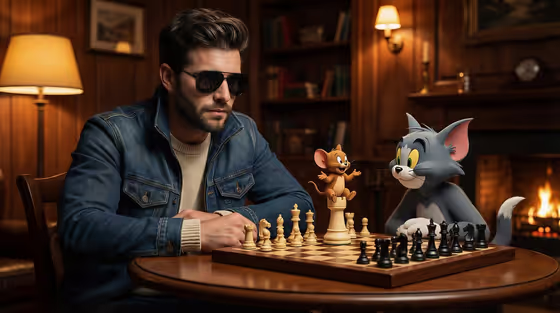
Cartoon Chess Match places your subject at a round wooden table in a warm, wood-paneled study with a fireplace glowing behind them. Across the board sit a grey animated cat and a small brown animated mouse, rendered in a 3D animated style next to a realistic human player.
It suits anyone who wants a playful, cinematic portrait: a personal photo turned into a movie-still moment, an original character given a story scene, or a fun image to share. The output is a 3:4 image in the Style category.
What works best as input
- This template asks for 2 or more photos, so gather several clear shots of the same subject rather than a single image.
- Use photos where the face and any signature look (hairstyle, glasses, jacket) are easy to see, so the result stays recognizable.
- Vary the angles a little, for example one front-facing shot and one slightly turned, so the model has more to work from.
- If you would rather describe than upload, the subject field accepts text. Short phrases like 'a stylish human player' or 'an original character' match the field's own examples.
- Only use photos of people who are happy to appear in the image, and avoid heavy filters that change how they really look.
How to use it
- Open the Cartoon Chess Match template in Phosphene.
- In the 'stylish human player character subject' field, upload your photos or type a short description of the person or character.
- Pick an option in 'Character staging' to choose how the scene is framed, such as a full-body character scene or an environmental story moment.
- Generate the image, then review it. Check that the subject looks right, the chessboard is clear, and the cat and mouse are in place, and run it again if you want another take.
Tips for a better result
- Try different Character staging options. A full-body scene shows more of the table and outfit, while a collectible character portrait keeps the focus on the subject.
- The scene's look is built around sunglasses, a denim jacket and a fireplace-lit study, so subjects with a strong, simple style tend to sit well in it.
- If your subject is an original character, describe the defining features plainly (hair, outfit, colors) so they carry through.
- Generate a few versions and compare them. Small differences in the face and the board layout can make one clearly better.
Common mistakes
- Uploading only one photo. The template expects 2 or more, and a single image gives less to work with.
- Writing a long, vague subject description. Short, concrete details work better than a paragraph of mood words.
- Expecting a different setting. The study, fireplace, chessboard and cat-and-mouse rivals are fixed, so change the staging option rather than the scene.
FAQ
How many photos do I need?
The template is set to 2 or more photos. You can also describe your subject in text using the subject field.
Can I change the setting or the cartoon opponents?
No. The wood-paneled study, glowing fireplace, chessboard and the grey cat and brown mouse are part of the template's fixed direction.
What does Character staging do?
It controls how the scene is framed, for example a collectible character portrait, a full-body character scene or an environmental story moment, without changing the subject's defining look.
What size is the result?
The output is a single image in a 3:4 aspect ratio.