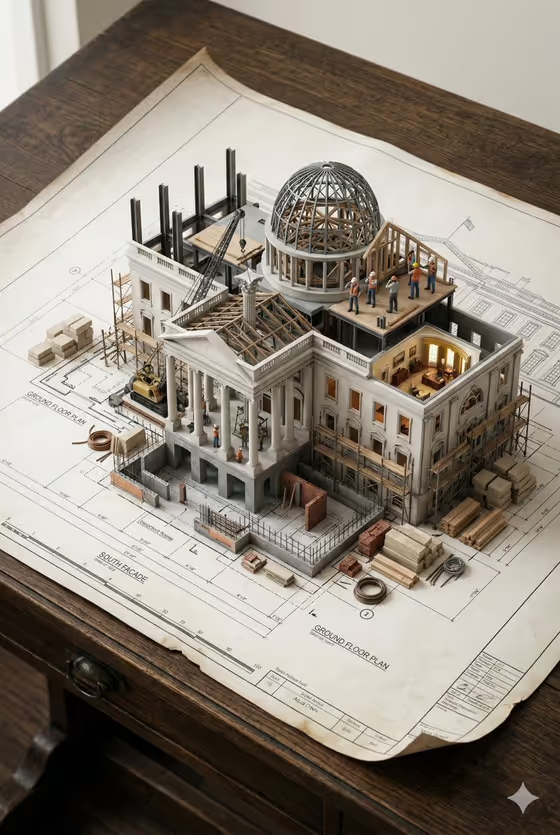
Blueprint-to-Building Diorama turns a building idea into a 3:4 image of a tiny, photoreal structure rising straight out of its own architectural drawing. The cover shows a neoclassical building with a steel dome frame, scaffolding and miniature workers sitting on a sheet of labeled floor plans.
It suits architects, students, designers and anyone who wants to present a concept, a dream house or a landmark as a miniature construction scene on a drafting surface. You describe the building, pick a construction stage, a surface and a worker activity, and the template builds the scene around them.
What works best as input
- In the Building design name or object field you can type a description or upload a reference photo of the building. Both are allowed, so use whichever shows your design best.
- If you type, be specific about style and character, like the examples "a timber mountain lodge" or "a slender city tower". A short phrase with an architectural type and a defining material gives the clearest result.
- If you upload a reference, choose a clear, well-lit photo of the building itself with its main facade visible. Busy backgrounds can compete with the structure.
- Keep the other fields (Construction stage, Blueprint surface, Miniature worker activity) as choices from the offered options. They do not take photos, so describe the scene through those selections instead.
How to use it
- Open the Blueprint-to-Building Diorama template in Phosphene.
- Fill in Building design name or object by typing a description or adding a reference photo of the building.
- Choose a Construction stage, a Blueprint surface and a Miniature worker activity from the options provided.
- Generate the image, then review the result. Check that the structure follows the drawn plan lines and that the workers look believable at miniature scale.
Tips for a better result
- Match the construction stage to the building. A mass-timber structure being assembled suits a lodge, while steel frame and active scaffolding fits a tower or a domed landmark like the one on the cover.
- Change the Blueprint surface to shift the mood. A dark studio workbench feels dramatic, while a sunlit plywood desk feels warmer and more casual.
- Pick a worker activity that reads clearly, such as crane crew lifting one beam or carpenters fitting facade panels, so the tiny figures add story without cluttering the scene.
- Run the same building with different construction stages to compare how much of the structure is finished versus still exposed.
Common mistakes
- Writing a vague building description like "a building". Without an architectural type or material, the result has little to anchor the drawing and the miniature to.
- Uploading a cluttered or heavily cropped reference photo, which can make the building hard to read and the blueprint match less precise.
- Expecting one scene to combine several stages or many different worker actions. The template is built around one construction stage and one readable action.
FAQ
Do I have to upload a photo?
No. The building field accepts a typed description or an uploaded reference, so you can use either. The other fields are choices, not photo uploads.
What aspect ratio does the image come in?
The output is a single image in a 3:4 portrait format.
Can I use my own building design?
Yes. Describe it in the Building design name or object field or upload a reference of it, for example "the building in my reference".
Why do the beams and columns line up with the drawing?
The template is directed so the miniature grows directly from its own blueprint, with structure aligned to the drawn plan lines.