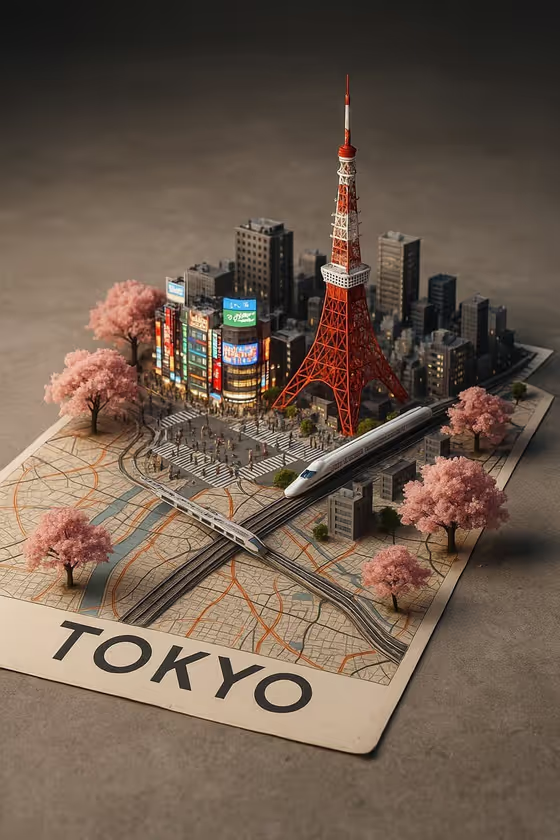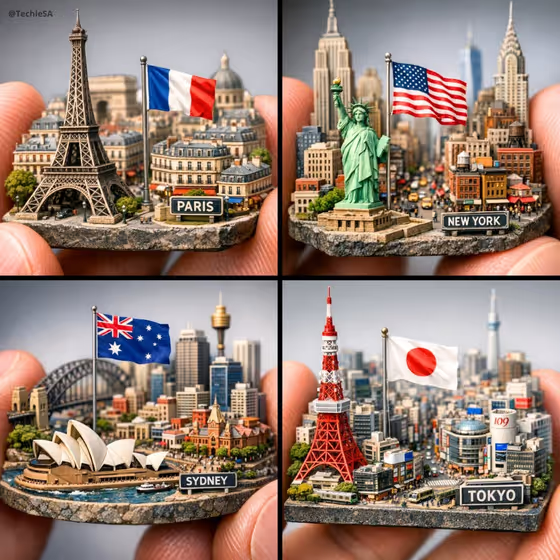
City Between Fingers makes a macro-style image of a handcrafted miniature city held between two fingers. The model sits on a solid base, with a recognizable landmark in front, a national flag behind it, and a small name plaque for the city. The cover shows four examples (Paris, New York, Sydney, Tokyo), each as a tiny diorama with a soft, blurred neutral background.
It suits travel posts, hometown tributes, souvenir-style visuals, or anyone who likes the tiny-world look. You choose the city, the landmark and the architectural character, and the template handles the miniature, the lighting and the fingers.
What works best as input
- The City and country field accepts text or a city reference photo. Write the city and the country together, such as "Tokyo, Japan", so the flag and plaque match the right place.
- For Featured landmark, name one clear landmark, such as "the Eiffel Tower". A single, well-known structure reads better in the foreground than a vague phrase.
- If you use photos as references, pick clear, well-lit shots that show the city or landmark plainly, without heavy crowds or filters covering the subject.
- Make sure the landmark you name actually belongs to the city you entered. A mismatch can confuse the scene.
- The template asks for 2 or more uploads, so have a couple of reference images ready, for example one of the city and one of the landmark.
How to use it
- Open the City Between Fingers template in Phosphene and add your reference photos (2 or more are required).
- Fill in City and country, then Featured landmark, using the placeholder style such as "Paris, France" and "the Eiffel Tower" as a guide.
- Choose a City character, such as Historic urban detail, Modern metropolitan energy, Coastal cultural charm, or Green walkable city.
- Generate the image, then check that the landmark, flag and name plaque are all readable. Adjust your inputs and run it again if something is off.
Tips for a better result
- Match the City character to the place. Modern metropolitan energy suits a skyline city like Tokyo, while Historic urban detail fits older centers like Paris.
- Try the same city with different character options to see how the surrounding buildings and mood change.
- Pick landmarks with a strong, distinctive silhouette so they stand out against the tiny streets behind them.
- Create a small set of different cities, as in the cover's four-panel layout, to compare styles side by side.
Common mistakes
- Typing only a city name with no country. Including the country helps the flag come out correctly.
- Naming several landmarks in the landmark field. The template places one landmark in front, so a single clear name works better.
- Using blurry or cluttered reference photos, which gives the model less to work from for the landmark and city.
FAQ
Do I have to upload photos?
Yes, this template requires 2 or more uploads. The text fields also let you name the city and landmark directly.
Can I use any city in the world?
You can enter the city and country you want, such as Istanbul, Türkiye. Well-known cities with famous landmarks tend to read most clearly.
What is the City character option for?
It sets the style of the surrounding architecture, with choices like Historic urban detail, Modern metropolitan energy, Coastal cultural charm, and Green walkable city.
What shape is the result?
The template outputs a single image in a 3:4 aspect ratio.