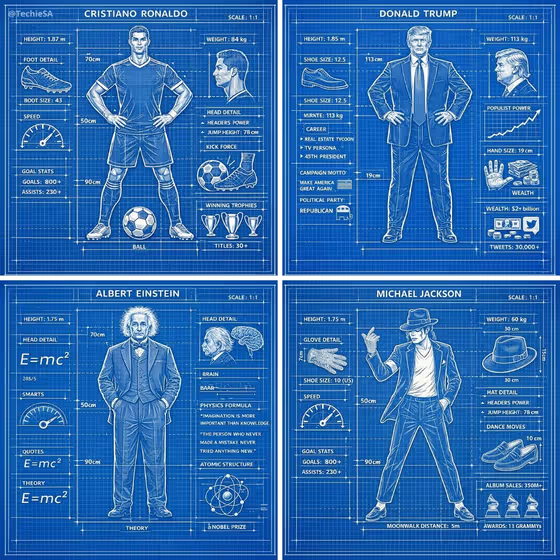
Character Blueprint turns a character into a retro engineering drawing: white linework on a classic blue grid, with the figure centered and surrounded by measurement marks, labels and technical callouts. The cover shows the idea well, with a full-body figure in the middle and small detail panels (such as a head profile, gear close-ups and gauges) arranged around it.
It suits anyone who wants a stylized spec-sheet look for an original character, such as a game character, a mascot, a costume concept or a fictional robot. You describe the figure, pick how busy the annotations should be, and the template handles the blueprint styling.
What works best as input
- In the Character field, name one clear subject with a few defining features, like the examples in the template (a retro space robot, a fantasy knight, a biomechanical dragon, a masked vigilante). Specific silhouettes and props give the blueprint more to measure and label.
- The Character field also accepts a photo reference if you want an exact character. Choose a reference where the whole figure is visible, evenly lit and not cropped, so the linework can follow its real proportions.
- Use references of your own characters, mascots, costumes or original artwork. A clear, front-facing pose works best because blueprints are drawn as clean, symmetrical, centered figures.
- Keep the description focused on the figure itself. Mention costume, gear or distinctive parts you want turned into detail callouts, and leave out background scenery, since the blue grid replaces it.
How to use it
- Open the Character Blueprint template in Phosphene.
- In the Character field, describe your figure or add a reference photo of the exact character. Provide at least two photos as the template requires if you are working from references.
- Set Annotation density to Minimal, Balanced, Detailed or Exhaustive, depending on how many measurements and schematic callouts you want around the figure.
- Generate the image, then review the 3:4 result. Check that the figure is centered, the linework reads clearly, and the annotation level matches what you wanted.
Tips for a better result
- Start with Balanced to see the default look, then rerun with Detailed or Exhaustive if you want a crowded, technical feel like the cover's side panels and gauges.
- Try Minimal when you want the figure to be the hero. It leaves more of the blue grid visible and keeps the drawing calm.
- Give the character distinctive parts, like a helmet, boots, wings or a tool. Those become natural candidates for close-up detail callouts.
- Run the same character at two different densities and compare them. The pair makes it easy to pick the one that fits a poster, a presentation slide or a profile image.
Common mistakes
- Describing a vague character, like just a warrior or a robot. Without distinctive features the blueprint has little to annotate, so add costume, tools or silhouette details.
- Using a cropped, dark or cluttered reference photo. The figure should be fully visible and clearly separated so the linework matches its proportions.
- Choosing Exhaustive for a very simple character. Dense annotations work best when the figure has enough parts to label, otherwise Balanced usually looks cleaner.
FAQ
Can I use a photo instead of a text description?
Yes. The Character field accepts a description or a photo of the exact character you want. The template lists its input as 2+ photos, so provide at least two when working from references.
What does Annotation density change?
It controls how many measurement markings, labels and schematic annotations surround the figure. The options are Minimal, Balanced, Detailed and Exhaustive.
What will the image look like?
A blueprint-style drawing with white linework on a blue grid, a clean centered figure and technical annotations, in a 3:4 image.
Do the labels and numbers have to be accurate?
The annotations are part of the drawing's styled look, so treat the text and figures as decoration rather than real specifications. Check any text in the result before using it.