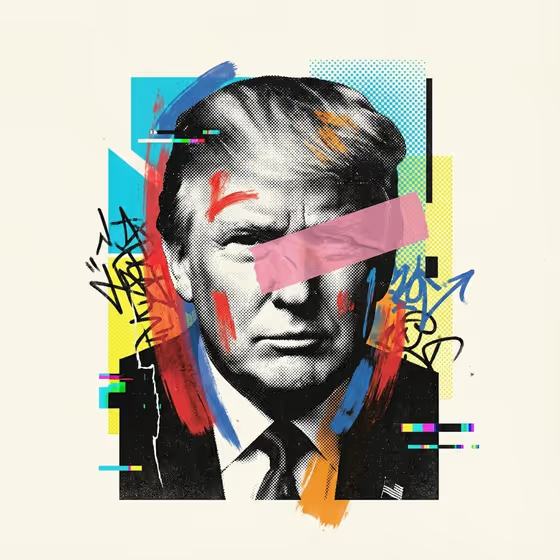
Avant Media Portrait turns a person or brand into a mixed-media collage poster. The subject is rendered in black-and-white halftone and stipple, then layered with risograph-style shapes, graffiti scribbles, digital glitch marks, and a thick strip of colored tape that covers part of the form.
It suits musicians, artists, fashion labels, and anyone who wants a bold editorial portrait for a cover, poster, profile image, or campaign mockup. The result is a 3:4 image, centered on off-white paper with plenty of empty space around the subject.
What works best as input
- The Person or brand field accepts either a text description or a portrait reference photo, so pick whichever fits. A clear, front-facing portrait gives the halftone treatment the most to work with.
- Choose a photo with strong contrast between light and shadow, since the output is rendered in high-contrast black and white. Flat, washed-out lighting gives a less dramatic print look.
- Use a photo where the whole subject is visible and uncluttered. The template keeps the full subject centered and uncropped, so a busy background or tightly cropped shot can work against it.
- If you describe instead of upload, be specific and short, like the examples in the field: 'a visionary musician', 'an avant-garde fashion label', or 'a rebellious artist'.
- Only upload photos of people you have the right to use, and keep the description respectful.
How to use it
- Open the Avant Media Portrait template in Phosphene.
- In Person or brand, type a description of your centerpiece or add a portrait or brand reference photo.
- Pick an Accent palette, such as Cyan, yellow, and hot pink, or Cobalt, orange, and acid green.
- Generate the image, then check the result for how the tape strip, glitch marks, and color shapes sit around the subject. Adjust your inputs and run it again if you want a different feel.
Tips for a better result
- Try each accent palette on the same subject. The colors are the only layer that changes the mood, so Red, cream, and electric blue reads very differently from Violet, teal, and safety orange.
- For a brand or label instead of a person, describe it as a concept (like 'an avant-garde fashion label') and see how the collage builds a centerpiece from it.
- Use a reference photo with a clear face or silhouette if you want the tape strip and scribbles to interact with recognizable features.
- Generate a few versions of the same inputs and compare. The placement of the tape, brush strokes, and glitch bars can differ from run to run.
Common mistakes
- Using a dark, blurry, or low-contrast photo. The halftone look depends on clear tonal range, so muddy lighting leads to a flat portrait.
- Writing a long, detailed description in Person or brand. The template already sets the style, so a short, clear subject works better than stacking extra art directions.
- Expecting the full face to stay uncovered. A thick tape strip is part of the design and will obscure part of the form on purpose.
FAQ
Do I have to upload a photo?
No. The Person or brand field accepts a text description or a reference photo, so you can type something like 'a rebellious artist' instead.
Can I change the colors?
Yes. The Accent palette field sets the vivid colors layered over the black-and-white subject, with options like Cyan, yellow, and hot pink or Cobalt, orange, and acid green.
What shape is the final image?
The output is a 3:4 image with the subject centered on off-white paper and generous empty space around it.
Can I control where the tape and glitch marks go?
Not directly. The template sets the collage style, and the exact placement of tape, scribbles, and glitch artifacts varies, so generate again if you want a different arrangement.