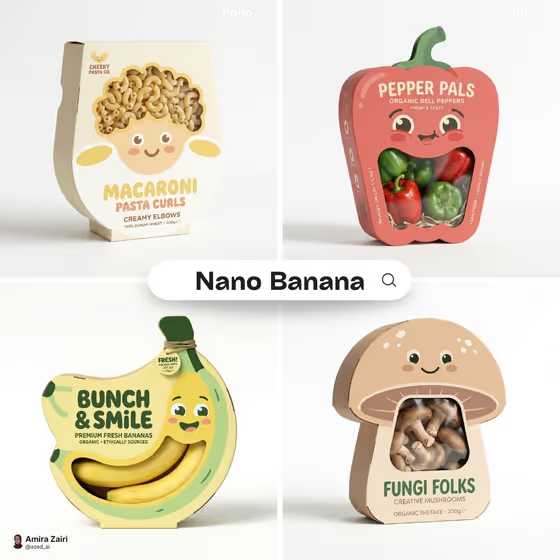
Character Window Packaging turns a product idea into a square 3D retail mockup where the box itself becomes a cartoon character. The die-cut window shows the real contents and completes the face, so a mouth, eyes or belly opening is filled by the product inside, much like the macaroni curls, bell peppers, bananas and mushrooms in the cover image.
It suits small brands, designers, students and anyone pitching a playful packaging concept who wants to see it on a clean white studio background before committing to a real design. You describe the product, pick the expression and window, and choose a limited color palette.
What works best as input
- The template asks for 2 or more photos, so gather reference images of your product or its contents. Clear, well-lit shots against a plain background help the window show believable contents.
- For Product name, name the packaged item plainly, such as berry fruit chews or crunchy veggie bites. The box is shaped around the product category, so a specific name gives a better silhouette.
- Package personality and Die-cut window both accept photos as well as text. If you have a face style or a window shape you like, a reference image can show it better than words.
- For Packaging palette, write two or three colors in a friendly pairing, like coral and sky blue or lavender and lemon. Keeping it to a small flat palette matches the look of the template.
- Make sure the contents in your photos are visible and recognizable, since they become part of the character's face.
How to use it
- Open the Character Window Packaging template in Phosphene.
- Fill in Product name, then set Package personality (for example wide joyful grin or mischievous wink) and Die-cut window (for example oversized smiling mouth or heart-shaped belly window). Add your reference photos where the fields accept them.
- Type your Packaging palette, such as mint and peach, then generate the square image.
- Review the result for how well the window and contents complete the face, then adjust your inputs and generate again if you want a different expression or color mix.
Tips for a better result
- Match the window to the contents. Chunky or colorful items like pasta, fruit or mushrooms read well through a large mouth or belly opening.
- Change only one field at a time, such as swapping a wide joyful grin for a sleepy curious face, so you can see exactly what each choice does.
- Try the example windows as starting points, like large rounded eyes or a playful speech-bubble opening, to get a very different face from the same product.
- Keep the palette limited to two tones. The template is built around a flat color system, so fewer colors usually look cleaner.
Common mistakes
- Describing the product too vaguely. A name like snacks gives the box no category to take its shape from, while crunchy veggie bites does.
- Choosing a window that does not suit the contents, so the visible product does not read as part of the expression.
- Listing many colors in Packaging palette. The design is meant to use a limited flat palette, and a long list can muddy the result.
FAQ
What does the template produce?
A square 3D packaging mockup on a white studio background, with a product-shaped box whose die-cut window completes a cartoon face.
How many photos do I need?
The template asks for 2 or more photos. Product name and Packaging palette are text fields, while Package personality and Die-cut window can take a photo or text.
Can I choose the character's expression?
Yes. Package personality lets you pick the face, with examples like wide joyful grin, sleepy curious face, surprised open mouth or mischievous wink.
Does the box shape change with my product?
Yes. The carton is shaped around the product category, so a banana-style item and a mushroom-style item get different silhouettes.