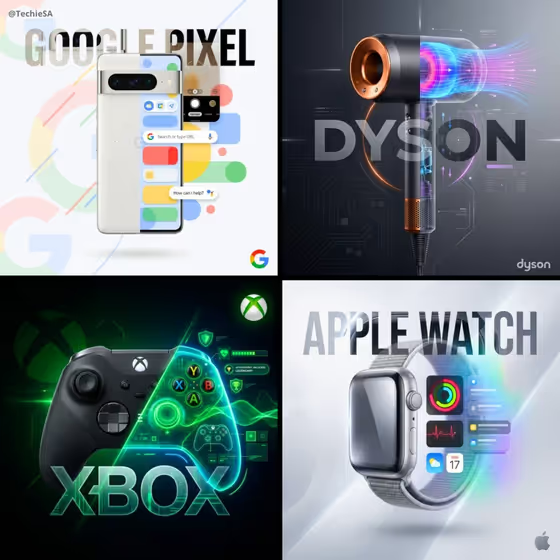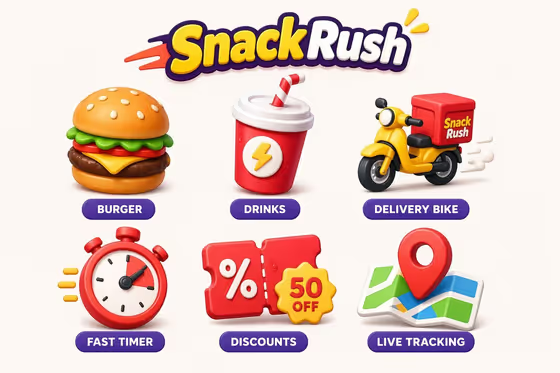
This template builds a matching set of playful icons for a brand. You describe the brand identity and its industry, add a short phrase, and pick a color palette. The result is a single 3:4 image with the icons laid out on a unified grid, like the cover example: a wordmark on top and a row of consistent, labeled icons below.
It suits founders, designers and marketers who want a quick look at how a brand's visual language could translate into icons for apps, UI or branding. It works as a starting point for exploring ideas, not a final production asset.
What works best as input
- For Brand Identity and Brand Type Industry, you can type a description or add a photo as an exact visual reference. A short, concrete description such as "a boutique hospitality brand" gives the template something clear to build around.
- If you add a reference photo, choose one that shows the brand's mascot, logo or product clearly, with a plain background and nothing competing for attention.
- Keep the Brand Identity and Brand Type Industry fields consistent with each other. A fast food delivery brand and a quiet outdoor label will pull the icons in very different directions.
- In the Phrase field, enter the exact words you want rendered. Short phrases like "Create Boldly" are easier to read than long sentences.
- Phrase is text only, and Color Palette is a choice from the available options, so you do not upload photos for those two fields.
How to use it
- Open the Cinematic Concept Scene template in Phosphene.
- Fill in Brand Identity and Brand Type Industry with a short description each, or add a photo reference where the field allows it.
- Type your Phrase exactly as you want it to appear, then choose a Color Palette.
- Generate the image, then check the icon set, the phrase and the colors, and adjust your inputs if something is off.
Tips for a better result
- Try the example values as a starting point, such as "A creative technology studio" or "A sustainable outdoor label", then replace them with your own brand details.
- Run the same brand with different palettes, for example "Forest green and sand" versus "Burgundy and blush", to compare how the set feels.
- Use specific industry wording. Naming the actual business type helps the icons relate to what the brand sells or does.
- If you want a strong reference for a mascot or logo style, add a clean photo to a slot that accepts one instead of describing it in words.
Common mistakes
- Using vague or identical text in Brand Identity and Brand Type Industry, which leaves the icon set generic.
- Writing a long sentence in Phrase, which makes the text harder to render cleanly. Keep it short and exact.
- Adding a busy or low quality reference photo, which gives the template a muddy visual cue to follow.
FAQ
What does the template produce?
One 3:4 image containing a cohesive set of icons for your brand, built around your chosen identity, phrase and color palette.
Can I upload photos?
Yes, but only in Brand Identity and Brand Type Industry, where a photo can act as a visual reference. Phrase and Color Palette do not accept photos.
Do I have to fill in every field?
Yes. Brand Identity, Brand Type Industry, Phrase and Color Palette are all required.
Will the phrase appear exactly as I type it?
The Phrase field is meant for the exact text to render, so type it precisely. Check the generated image to confirm it came out right.