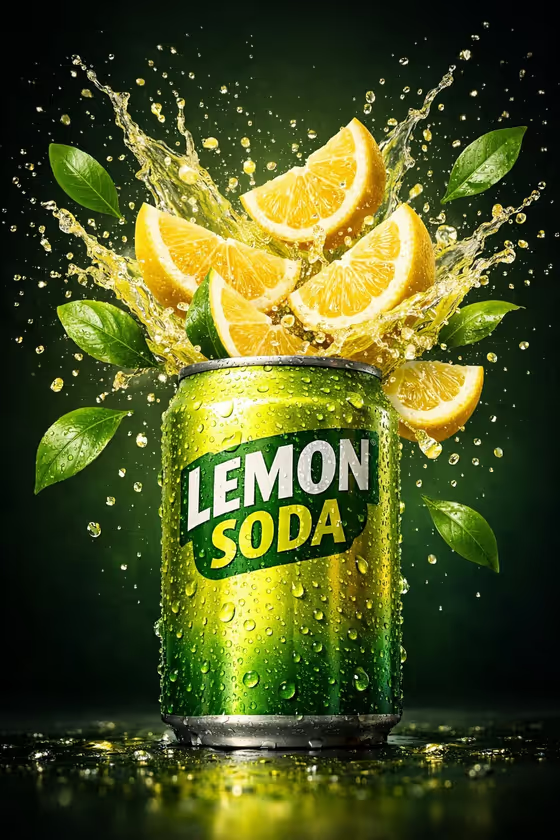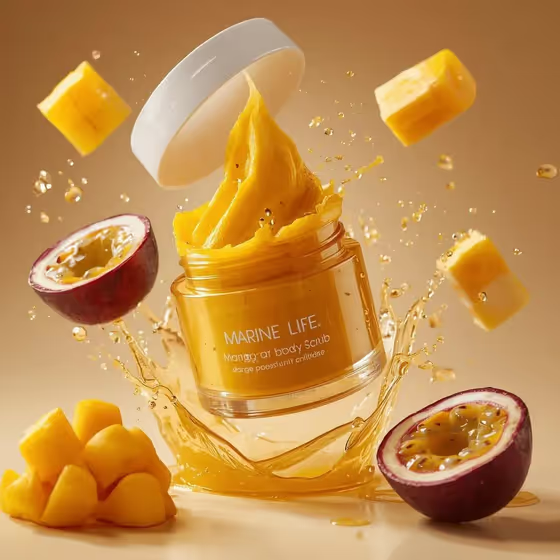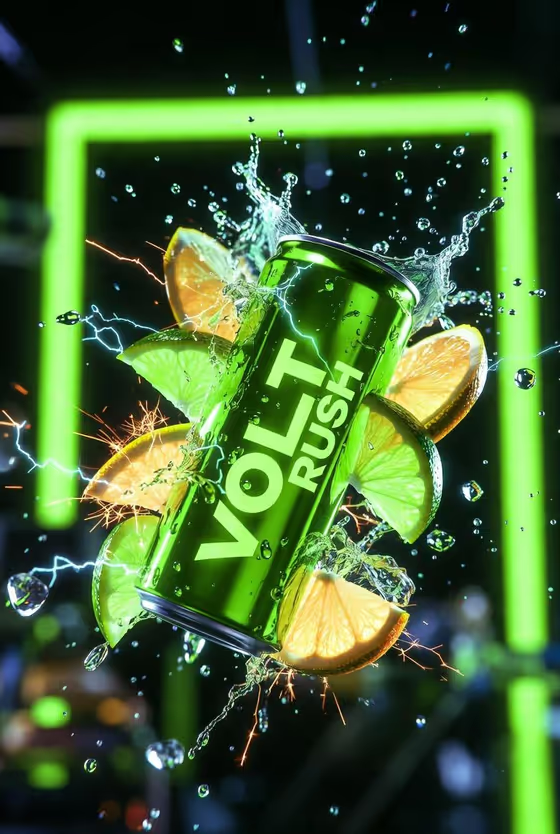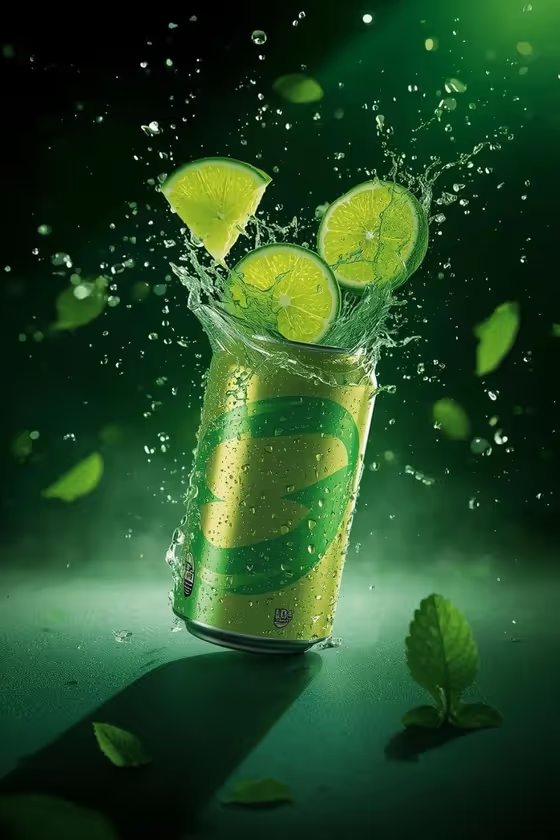
Emerald Soda Impact turns a drink can into a high-speed product shot. The can hangs upright in mid-air while fruit slices collide with it and a splash erupts from the top, with droplets frozen around the package and condensation covering the aluminum.
It suits anyone who wants a punchy beverage visual, such as small drink brands, product listings, social posts or concept mockups. The result is a 3:4 image set against a deep emerald background with glowing particles and crisp studio highlights.
What works best as input
- For the Soda product or can field, you can type a description or upload a matching reference photo. Use something like "green lime soda can" or "mint sparkling water can" if you do not have a photo.
- If you upload a photo, pick a clear shot of the can on its own, straight on, with the label fully visible and in focus. The template keeps the package dominant, so a readable label gives it more to work with.
- Avoid reference photos where the can is cropped, tilted heavily or partly hidden by a hand or another object.
- Describe the can by its color and flavor (for example "cucumber tonic can"), since the emerald scene works best when the can and fruit feel like one flavor family.
- For Impact ingredients, choose the option that matches your drink, such as lime, mint, ice and water, or cucumber, basil, ice and tonic.
How to use it
- Open the Emerald Soda Impact template in Phosphene.
- In Soda product or can, describe your drink or upload a reference photo of the can.
- In Impact ingredients, choose the fresh ingredients that should collide with the can and burst out of the splash.
- Generate the image, then review the label, the splash and the droplets, and adjust your inputs if something looks off.
Tips for a better result
- Match the ingredients to the flavor on the can. A lime soda with lime, mint, ice and water reads as one coherent product, like the cover example.
- Try the other ingredient options to vary the mood: herbs and green apple give a different look from citrus and ice while keeping the emerald palette.
- Run the same can with different ingredient choices to build a small set of images for a campaign or a product page.
- If your first result does not show the label the way you want, try a cleaner reference photo or a more specific can description.
Common mistakes
- Uploading a cluttered or low-resolution can photo, which makes the label and shape harder to keep sharp in the final image.
- Choosing ingredients that do not match the drink flavor, so the fruit and the can tell two different stories.
- Writing a vague description like "a soda" instead of naming the color, flavor or type of can.
FAQ
Do I have to upload a photo?
No. The Soda product or can field accepts a text description, and you can also upload a matching reference photo if you want the result based on your actual can.
What shape is the output?
The template makes a single 3:4 image, a portrait format suited to product posters and vertical placements.
Can I use my own fruit or flavor ingredients?
The Impact ingredients field is a choice list. Pick the option closest to your drink, such as lime, mint, ice and water or cucumber, basil, ice and tonic.
Will the background change?
The deep emerald gradient with glowing particles and condensation is part of the template's fixed direction, so the focus of your changes is the can and the ingredients.