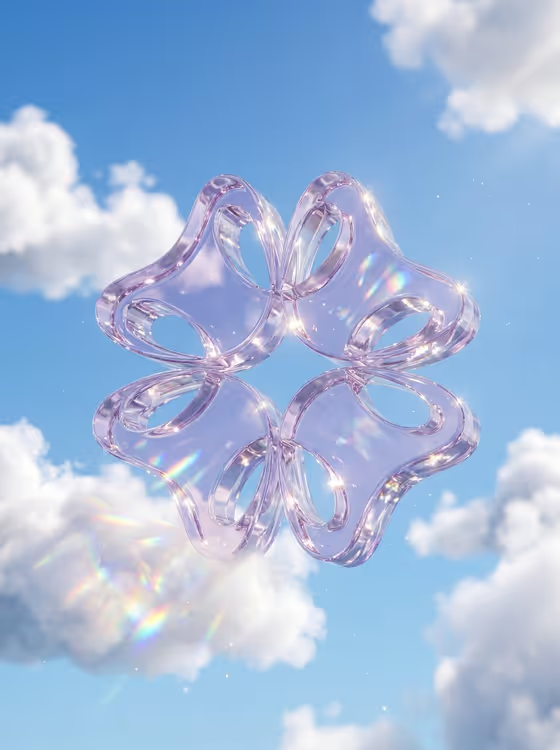
Crystal Cloud Logo turns a logo into a thick, translucent crystal glass object floating among bright white clouds in a clear blue sky. The cover shows the idea well: a four-lobed shape with glossy rounded edges, soft sparkles, and rainbow light scattering through the glass.
It is a good fit if you want a polished 3D-style visual of a logo, mark, or simple product shape for a profile image, a launch post, a mood board, or a concept shot. The result is a 3:4 image with an airy, sunlit look.
What works best as input
- For the first field (supplied logo product or object), you can either describe the logo or upload a reference of it. A photo or clean image of the exact logo gives the template the most accurate shape to rebuild.
- Use a logo image where the outline is easy to read, with strong contrast between the mark and its background. Simple, bold shapes tend to translate well into thick glass.
- If you describe instead of uploading, be concrete about the shape and any letters or phrase, for example the placeholder style of 'a supplied logo' but with more detail about what it looks like.
- Only use a logo or object you own or have the right to use. The field help asks for source-owned content.
- Avoid cluttered screenshots or images with lots of extra elements, since the template needs to isolate one clear mark.
How to use it
- Open the Crystal Cloud Logo template in Phosphene.
- In the supplied logo product or object field, describe your logo or upload its visual reference.
- In the Product presentation field, pick how you want the result framed. The options include a premium 3D stylized version, a clean studio hero, dynamic material interaction, or an annotated product breakdown.
- Generate the image, then check that the logo shape reads clearly in glass against the clouds, and run it again with a different presentation if you want another take.
Tips for a better result
- Start with the default premium 3D stylized presentation, since it matches the look in the cover: thick crystal, bright sky, and rainbow caustics.
- Try the clean studio hero or dynamic material interaction options to see how the same logo changes in framing and feel.
- Simpler logos with clear negative space, like the looped petal shape in the cover, show off the refraction and glass thickness best.
- If the first result misreads your shape, upload a cleaner or higher-contrast version of the logo and generate again.
Common mistakes
- Uploading a busy or low-contrast image, which makes it harder for the logo's outline to be rebuilt accurately in glass.
- Writing a vague description like 'my logo' without saying what it looks like, so there is little to build the shape from.
- Expecting the sunlit clouds and sky to change. The bright cloud-and-sky setting and rainbow glass look are fixed parts of this template.
FAQ
Can I upload my logo or do I have to describe it?
Either works. The first field accepts a text description or an uploaded visual reference of the exact logo.
What does the finished image look like?
It is a 3:4 image of your logo as thick translucent crystal glass floating among white clouds in a blue sky, with rainbow light scattering through the glass.
Can I change the sky or background?
The sunlit clouds and clear blue sky are part of the template's fixed direction. What you can change is the logo and the Product presentation choice.
What kind of logo works best?
Bold, simple marks with a clear outline tend to show the glass thickness and refraction best, like the rounded shape in the cover image.