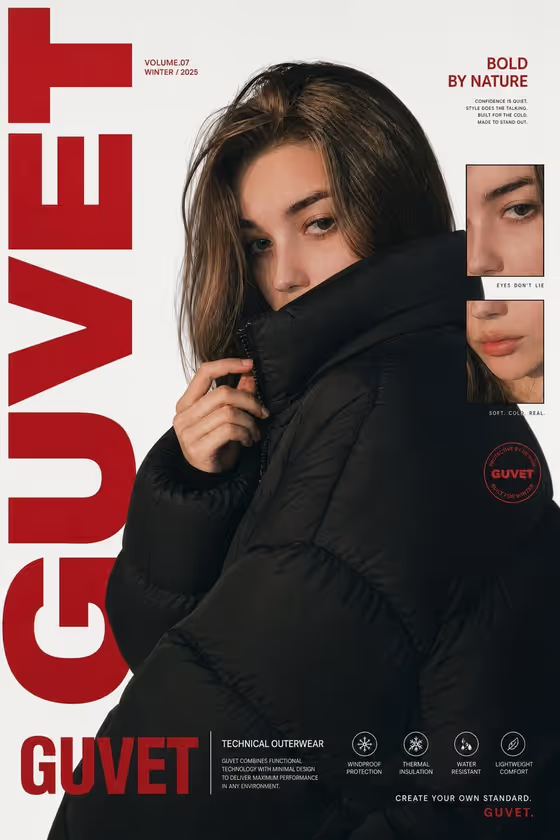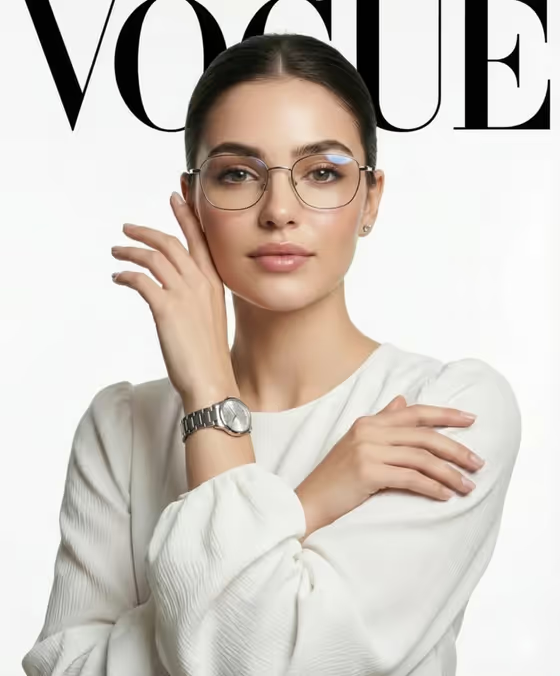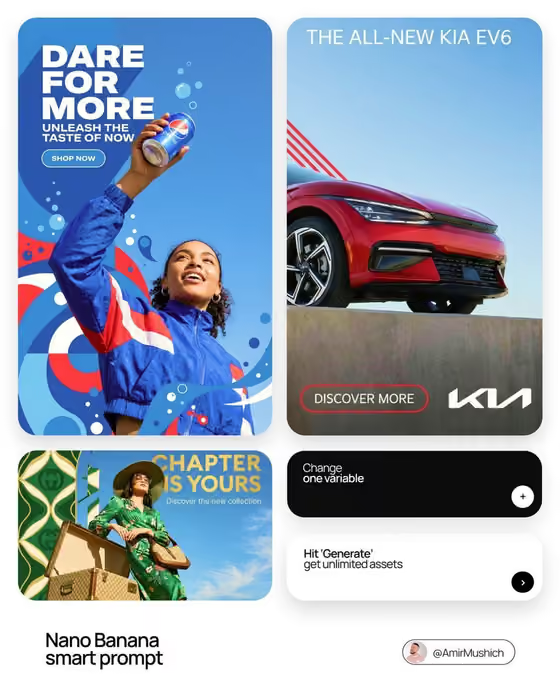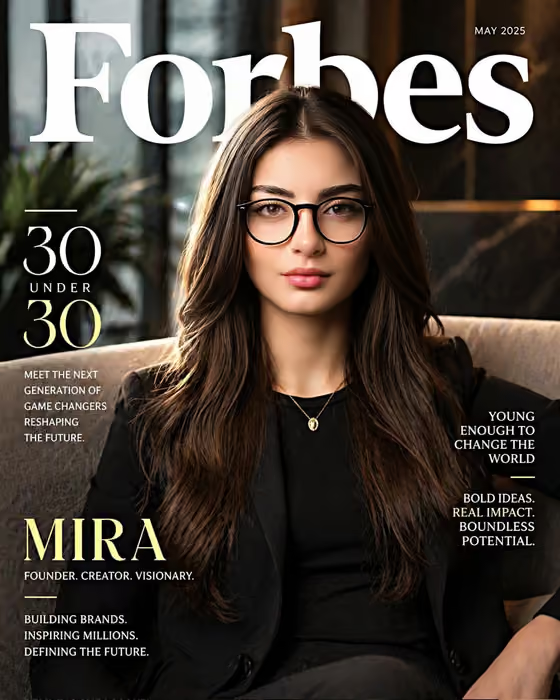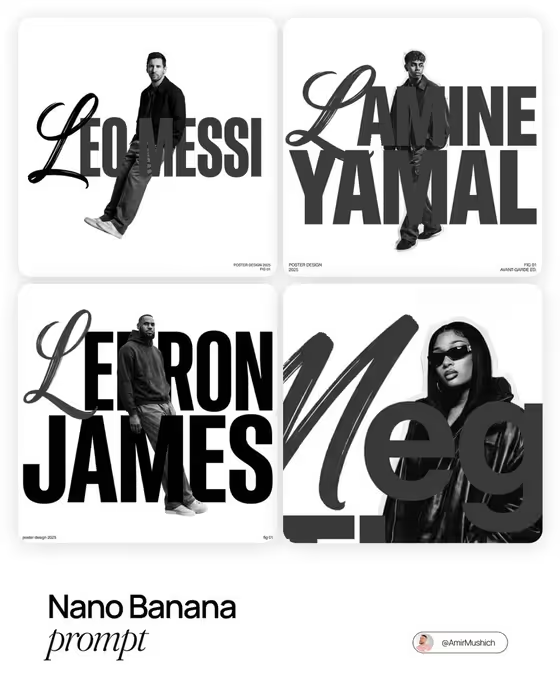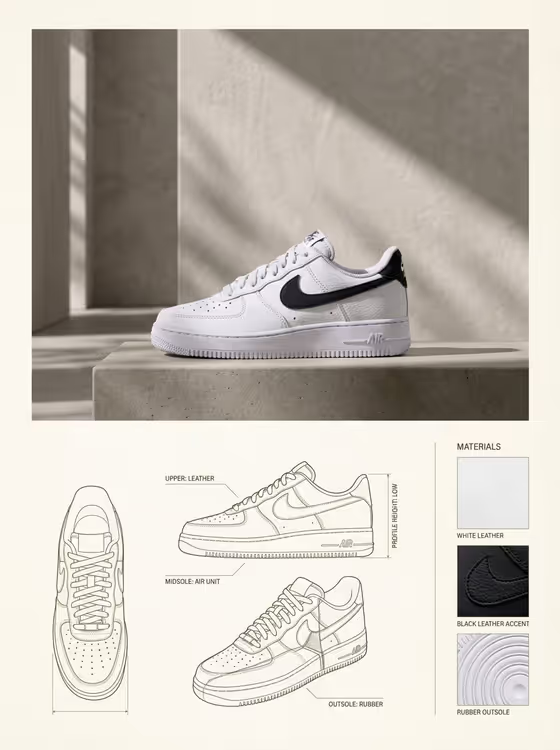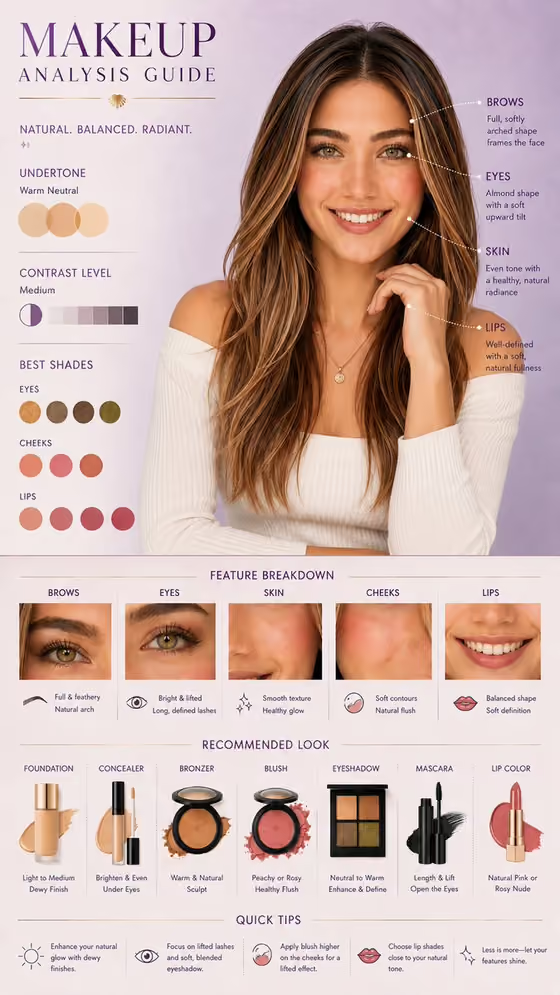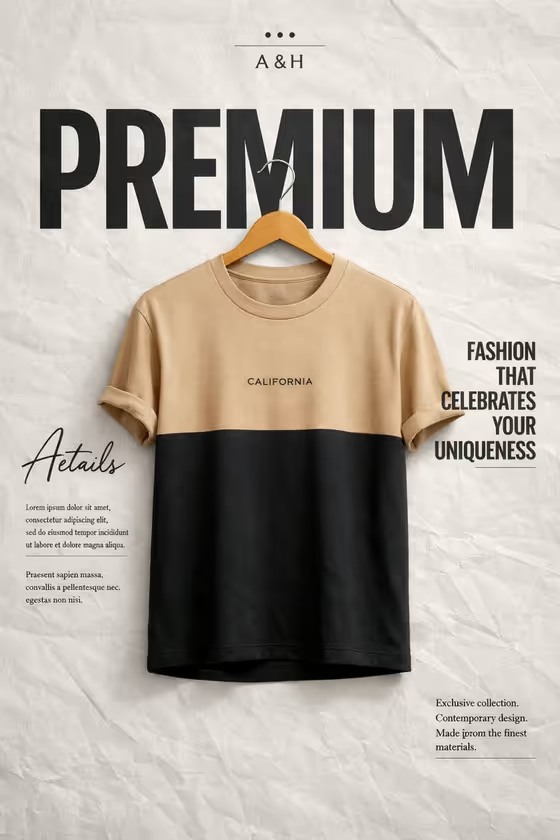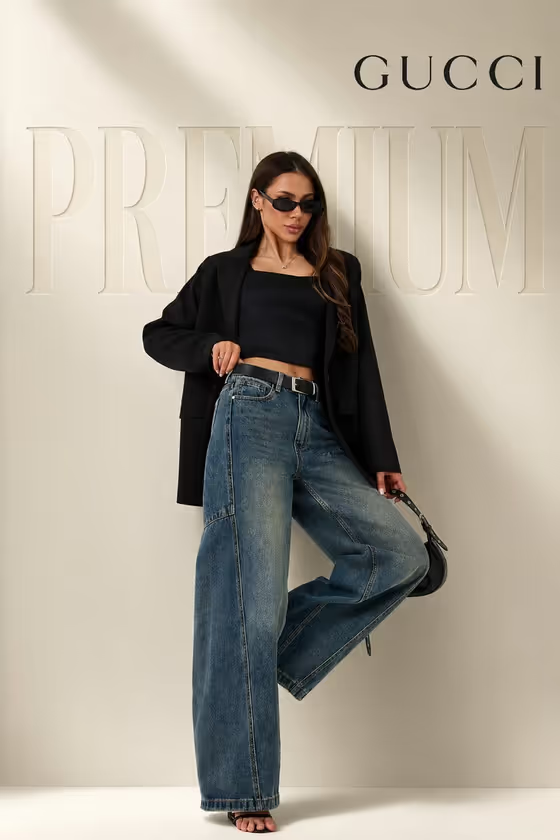
Embossed Fashion Campaign turns a model portrait into a luxury editorial shot in a 3:4 frame. Your subject stands full body in a relaxed fashion pose against a soft beige studio wall, with large tone-on-tone embossed lettering sitting behind her like a printed magazine spread.
It suits marketers, small fashion brands and creators who want a polished campaign-style visual for lookbooks, social posts or concept boards. The outfit, wall and typography treatment are set by the template, so you mainly choose who appears and how the frame is composed.
What works best as input
- Use a clear, well-lit photo of the person you want in the campaign, ideally showing the face and most of the body, since the result is a full-length pose.
- If you describe instead of upload, write a short subject line in the first field, such as the placeholder 'a confident female model', and add a few distinguishing traits.
- Pick a photo where the face is sharp and not hidden by heavy shadows or large sunglasses, so the likeness carries into the final image.
- Only use photos of yourself, a model you have permission to feature, or a fictional character, never a public figure's likeness.
- Avoid busy collages or group shots, because the template expects one main subject.
How to use it
- Open the Embossed Fashion Campaign template in Phosphene.
- In the 'confident female model portrait subject' field, upload your photo or type a short description of the person.
- Open 'Pose and scene' and choose how the frame is set up, for example full-body editorial frame or close portrait.
- Generate the image, then review the pose, outfit details and background lettering, and run it again if something is off.
Tips for a better result
- Try the different 'Pose and scene' options to get a full-body campaign look or a tighter portrait while keeping the same embossed wall style.
- Use a reference photo with a natural, upright stance so the leg-raised fashion pose reads cleanly.
- Add a few words about hair or expression in the subject field to steer the character without fighting the fixed outfit.
- Generate a few variations and compare how the embossed lettering sits behind the figure, then keep the one with the cleanest spacing.
Common mistakes
- Writing a long, detailed outfit description in the subject field. The wardrobe is already set by the template, so extra clothing notes can clash with it.
- Uploading a tiny, blurry or heavily cropped photo, which gives the model little to work from for face and body.
- Expecting to change the brand text or wall wording through the subject field. That styling is part of the fixed direction.
FAQ
Can I upload my own photo?
Yes. The subject field accepts a photo, or you can type a short description instead.
Can I change the outfit?
The blazer, crop top, baggy jeans and accessories are part of the template's fixed direction, so the outfit stays consistent.
What shape is the output?
It is a single image in a 3:4 portrait aspect ratio.
What does the Pose and scene option change?
It sets how the shot is framed, such as full body, a close portrait or a candid frame, without changing the embossed campaign look.