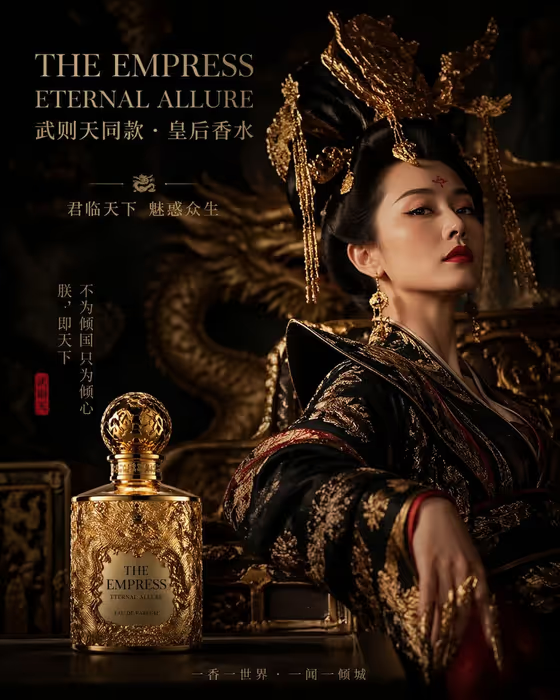
Empress Dragon Perfume turns a fragrance bottle into the centerpiece of a throne-room campaign. The bottle is staged like an imperial relic, with dragon-engraved gold metalwork, a jewel-like cap, and deep black and red palace depth lit by narrow warm highlights.
It suits perfume brands, indie fragrance makers, and marketers who want a dramatic, heritage-inspired ad visual in a 3:4 portrait format. You describe or upload your bottle, pick a palace atmosphere, and the template handles the lighting, smoke and gold texture.
The cover shows the look it aims for: a gold ornamented flacon in the foreground, a dark carved dragon behind it, and rich reflective gold throughout.
What works best as input
- Use the Perfume product or bottle field to either describe your bottle in words or upload a reference photo of it. If you upload, choose a clear shot where the whole bottle and cap are visible.
- Pick a photo with a plain or uncluttered background so the bottle's shape and label read cleanly before it is restaged in the throne room.
- If you describe it instead, be specific about material and ornament, like the examples 'dragon-engraved gold bottle' or 'jade imperial perfume flacon'. Mention shape, color and cap style.
- Avoid heavy glare or deep shadows on the bottle in your reference photo, since details like engraving and label text are easier to preserve from an evenly lit image.
How to use it
- Open the Empress Dragon Perfume template in Phosphene.
- In Perfume product or bottle, type a description of your bottle or upload a reference photo of your fragrance.
- In Palace atmosphere, choose the setting you want, such as a dark throne room with red embers or a moonlit palace with gold haze.
- Generate the image, then review the 3:4 result for bottle shape, ornament detail and mood, and adjust your inputs if something is off.
Tips for a better result
- Try different palace atmospheres with the same bottle to compare moods, for example candlelit black lacquer versus a moonlit palace with gold haze.
- Name a distinctive form or motif in your bottle description, like a phoenix-shaped ruby bottle, to push the design away from generic packaging.
- If you want your exact product to appear, upload a clean reference photo rather than relying only on a text description.
- Keep your bottle description short and concrete. Material, color and one signature ornament usually guide the result better than a long list of adjectives.
Common mistakes
- Writing a vague bottle description like 'perfume' leaves the ornament and material to chance, so the bottle may not match your brand.
- Uploading a cluttered or heavily filtered photo can make the bottle's outline and label harder to carry into the new scene.
- Expecting readable small label text to stay perfect. Check the label area in the result, and regenerate if the text looks off.
FAQ
Do I have to upload a photo?
No. The bottle field accepts either a text description or a reference photo, so you can describe your bottle if you don't have a picture.
What image shape does it produce?
The output is a still image in a 3:4 portrait ratio, suited to posters and vertical ad placements.
Can I change the setting?
Yes. The Palace atmosphere field lets you choose options like a dark throne room with red embers, a black lacquer chamber with candlelight, or a moonlit palace with gold haze.
Will it keep the bottle I upload exactly as it is?
The template stages your bottle as an imperial relic with gold ornament, so some styling may be added. Review the result and regenerate or refine your input if the bottle looks too different.