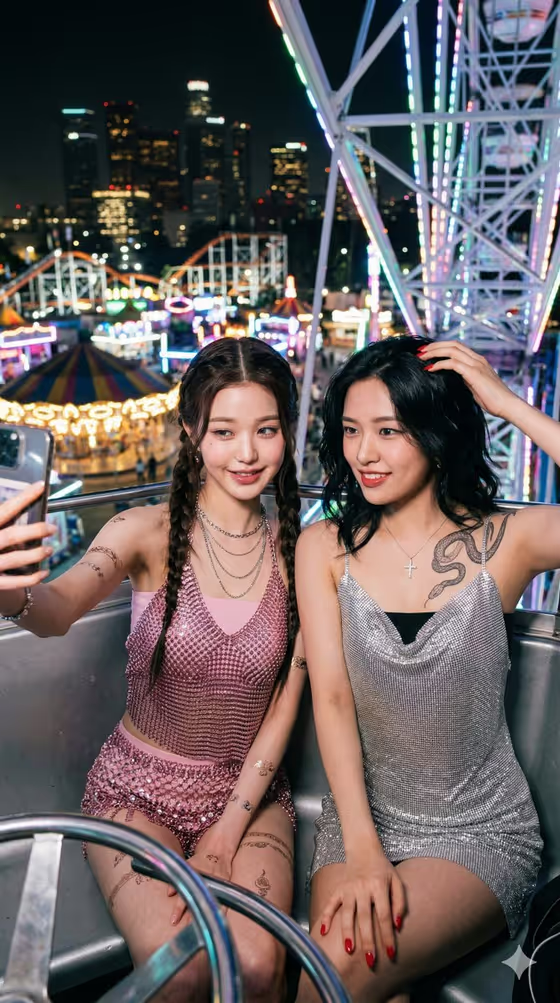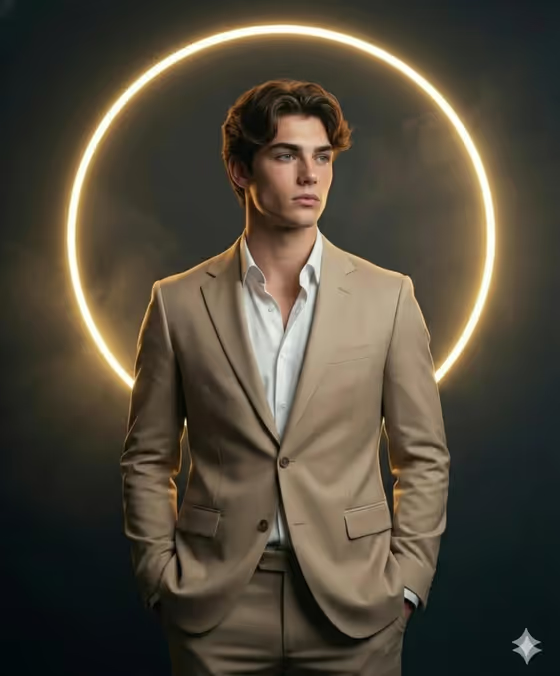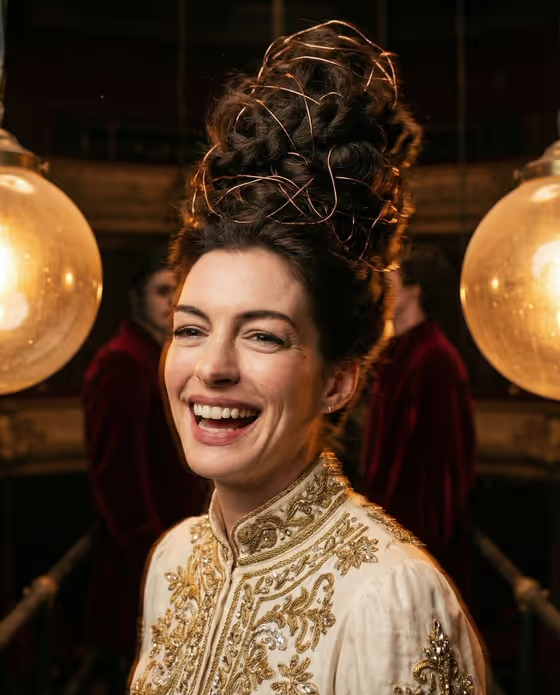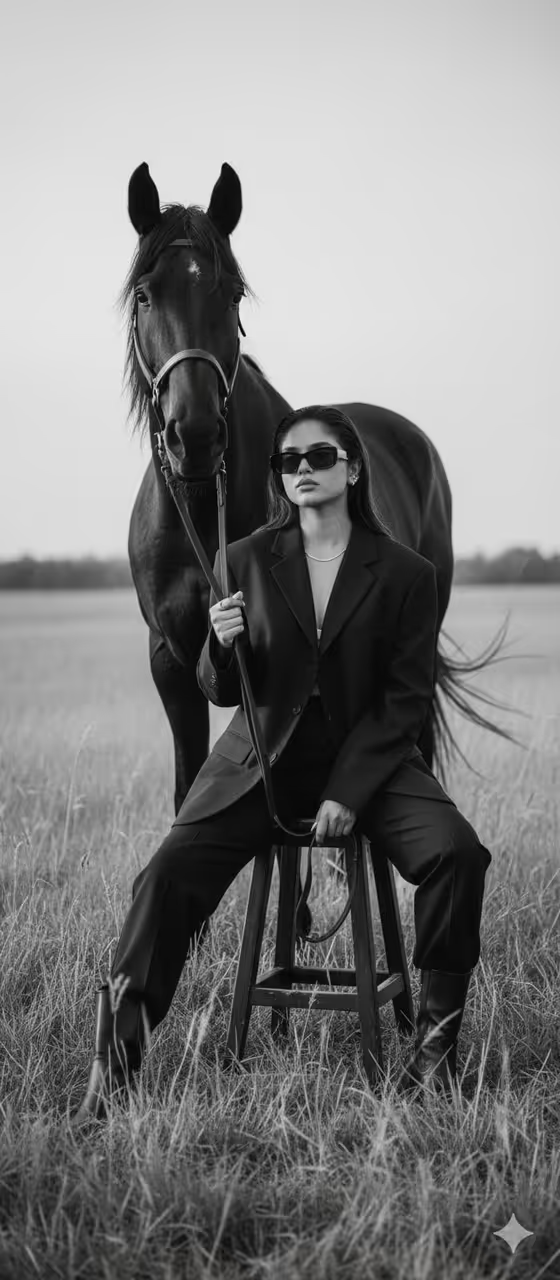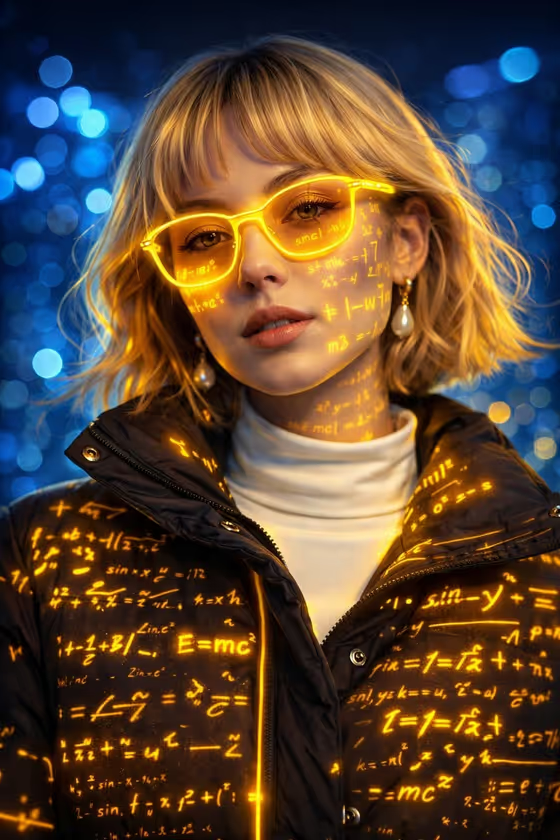
Equation Glow Portrait turns a portrait into a sci-fi image: neon-yellow glasses, glowing mathematical equations projected across the face and jacket, and soft blue bokeh lights behind the subject. The result is a 3:4 image with a dark, high-tech look and warm yellow highlights.
It suits anyone who wants a stylized avatar, a cover image or a creative profile picture with a cyber and science feel. You describe or upload your subject, pick a pose or expression, and the template handles the lighting and projected graphics.
What works best as input
- For the Portrait subject slot, you can upload a photo or type a short description. The placeholder example is 'an adult woman matching my reference', which works well when you attach a reference photo.
- Pick a photo where the face is clearly visible and well lit. The template aims for sharp eyes and glasses reflections, so a clear view of the eyes gives it more to work with.
- A front-facing or slightly angled portrait fits the cover style, where the equations wrap across the cheeks, neck and jacket.
- If you describe instead of upload, keep it short and respectful, like the built-in examples: 'an adult man with a distinctive presence' or 'an expressive adult creative'.
- Use a photo of an adult, ideally yourself or someone who has agreed to be featured.
How to use it
- Open the Equation Glow Portrait template in Phosphene.
- In Portrait subject, upload your photo or type a description, or tap one of the example options.
- In Pose or expression, choose an option such as 'the source gaze and expression', 'calm direct gaze', 'quiet introspection' or 'intense focused gaze'.
- Generate the image, then check the result for sharp eyes, readable glow on the face and jacket, and the neon glasses. Adjust your inputs and run it again if you want a different feel.
Tips for a better result
- Use 'the source gaze and expression' when you want the result to stay close to your original photo.
- Try 'calm direct gaze' for the focused look shown in the cover style, or 'intense focused gaze' for a more dramatic mood.
- Test the same photo with different pose options to compare how the mood changes while the neon style stays consistent.
- A photo with a dark or plain jacket gives the yellow projected equations more contrast to show up against.
Common mistakes
- Uploading a small, blurry or heavily shadowed photo, which leaves little detail for the eyes and face.
- Writing a long, complicated subject description. The slot only needs a short subject, and the template supplies the rest of the scene.
- Expecting a specific equation or exact text to appear. The graphics are projected as part of the style, so treat them as decoration rather than precise content.
FAQ
Do I have to upload a photo?
The Portrait subject slot accepts a photo, and you can also type or choose a text description instead. The Pose or expression slot is a choice or short description only.
What size is the output?
The template makes a 3:4 portrait-format image.
Can I change the neon color?
The template is built around neon-yellow glasses and warm yellow highlights with blue bokeh, and those parts are fixed. You control the subject and the pose or expression.
Which expression should I pick?
'The source gaze and expression' keeps your photo's look. 'Calm direct gaze' matches the relaxed, focused feel of the cover, while 'quiet introspection' and 'intense focused gaze' shift the mood.