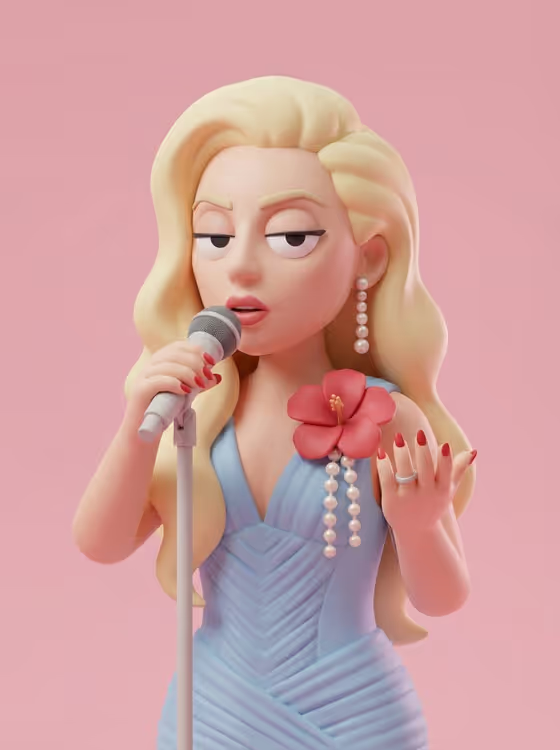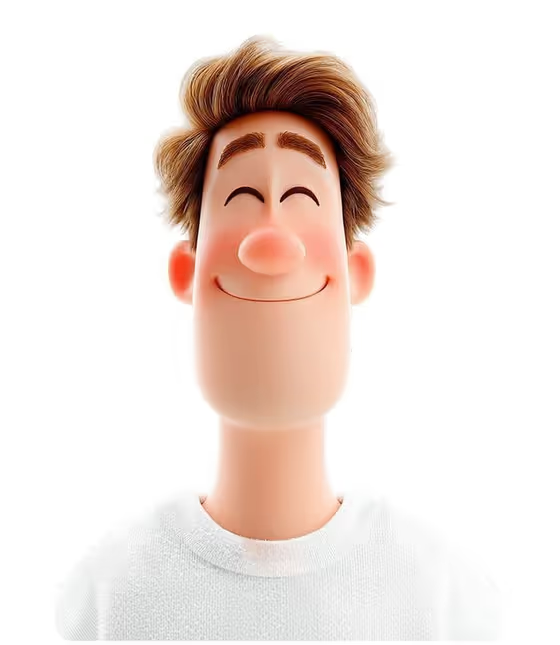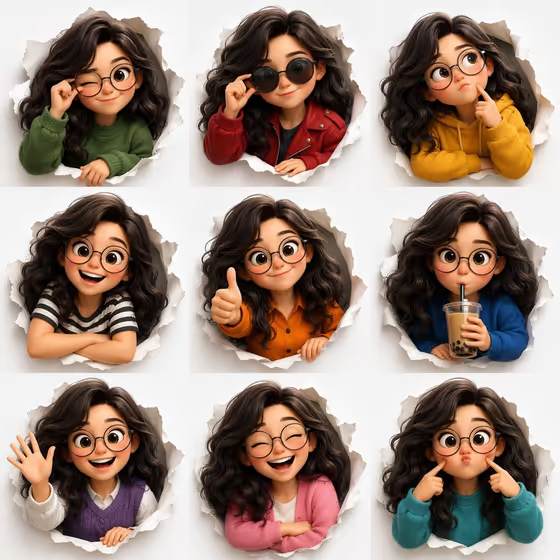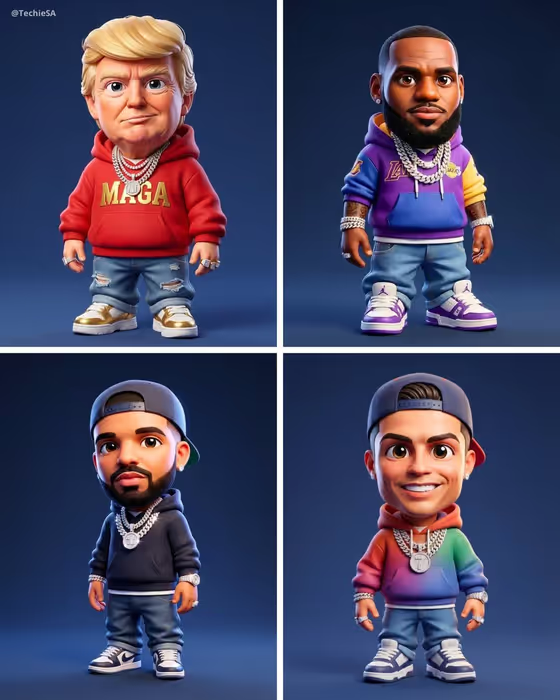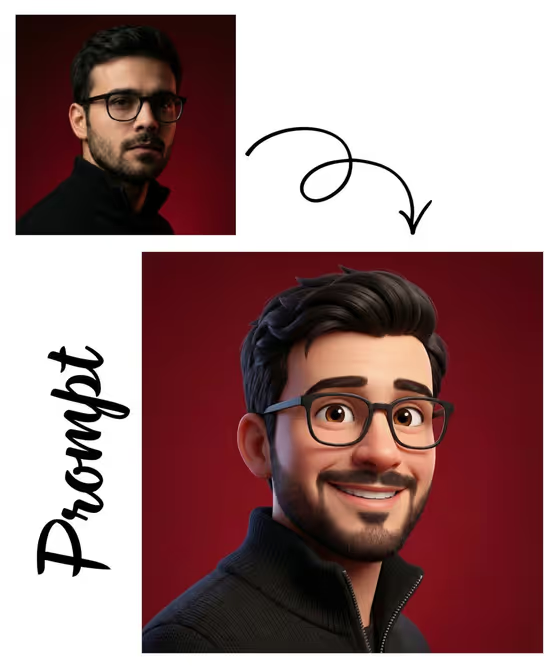
This template turns a portrait into a Pixar-style 3D avatar. Based on the cover, the result keeps recognizable details like hair, glasses, facial hair and clothing, but redraws them with smooth textures, slightly exaggerated proportions, big bright eyes and a warm smile.
It suits anyone who wants a friendly, approachable animated version of themselves, for example for a profile picture, a personal brand image or a fun gift. The output is a single image in a 3:4 portrait frame, lit softly like a clean studio shot.
What works best as input
- Use a clear portrait where your face is fully visible and in focus. The cover example is a head-and-shoulders shot with the face turned slightly toward the camera.
- Pick a photo with even lighting. Harsh shadows across the face can make features harder to translate into the soft 3D look.
- Keep distinctive features visible, such as glasses, beard or hairstyle, since the cover shows these carried over into the avatar.
- Use a photo of one person only, and only a photo of yourself or someone who has agreed to it.
- In the Portrait subject field you can also type a short description (the placeholder is 'a confident adult') if you want to guide who the avatar represents.
How to use it
- Open the template in Phosphene and add your portrait photo to the Portrait subject field. You can also describe the subject in text there.
- Choose a Creative direction. The examples offered are Clean editorial, Cinematic dramatic, Playful colorful and Quiet premium.
- Generate the image and wait for the 3:4 result to appear.
- Review the avatar against your photo. If the likeness or mood is off, adjust your inputs and generate again.
Tips for a better result
- Try different Creative direction options with the same photo to compare moods, for example Playful colorful versus Quiet premium.
- Start with a photo that already has a simple, plain background, since the cover shows a clean solid backdrop behind the character.
- If you describe the subject in text instead of uploading, be specific about hair, glasses and clothing so those details show up.
- Generate a few times and pick the version where the smile and eyes feel closest to you.
Common mistakes
- Uploading a small, blurry or heavily cropped photo, which leaves the template little to work from.
- Using a photo where the face is covered or turned away, so the avatar has to guess your features.
- Leaving the Portrait subject text vague when not using a photo, which makes the result generic.
FAQ
Do I need to upload a photo?
The Portrait subject field accepts a photo, and the template is built around turning a portrait into an avatar. You can also describe the subject in text there.
What style will the avatar have?
A Pixar-style 3D look with smooth textures, subtle skin shading, slightly exaggerated proportions, a warm smile and soft studio lighting.
What shape is the result?
The output is a single image in a 3:4 portrait aspect ratio.
What does Creative direction change?
It sets the overall mood of the image. You can pick from options like Clean editorial, Cinematic dramatic, Playful colorful or Quiet premium.