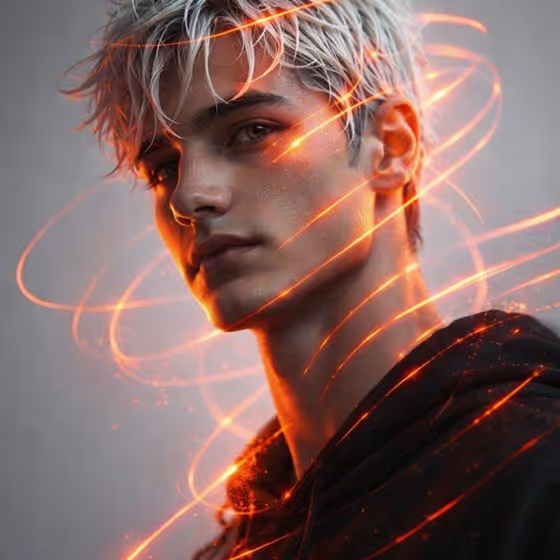
Luminous Line Portrait turns a portrait photo into a high-tech image where orange-red glowing lines loop around the head and cut across the face and neck. The backdrop stays a very light gray, so the glow is the main color in the frame, as in the cover example with its swirling rings and scattered sparks.
It suits anyone who wants a stylized profile picture, a creative headshot, or a futuristic character portrait. The output is a single 3:4 image, which fits vertical portrait crops well.
What works best as input
- Start with a clear portrait where the face is well lit and fully visible. The template lights one side of the face and leaves the other in shadow, so a photo with a readable face gives it the most to work with.
- Use one person per photo. The template asks for a single portrait subject, so group shots or crowded frames are likely to confuse the result.
- In the Portrait subject field you can choose or describe the subject. The default, 'an adult man matching my reference', ties the result to your uploaded photo, so keep that wording if you want the likeness to follow your picture.
- Describe the subject as an adult. The examples in the field are all adults, and the template is built around adult portraits.
- If you describe instead of uploading, keep it short and concrete, such as 'an adult woman with a distinctive presence', and leave out background details since the backdrop is fixed.
How to use it
- Open the Luminous Line Portrait template in Phosphene.
- In Portrait subject, upload your photo or pick or type a description of who the portrait is of.
- In Pose or expression, choose an option such as 'the source gaze and expression' or 'calm direct gaze', or write your own.
- Generate the image, then review it. Check that the glowing lines wrap the face and neck the way you want, and run it again if the framing or mood is off.
Tips for a better result
- Keep 'the source gaze and expression' if you want the result to stay close to your original photo. Switch to 'intense focused gaze' or 'quiet introspection' when you want a different mood.
- Try a few expression options on the same photo. The glow and lighting stay consistent, so the expression is where the portraits differ most.
- Pick a source photo with a neutral or calm face. The template direction calls for a neutral facial expression, and a calm starting point blends with it more naturally.
- Use a photo where the head is not cropped tightly. The lines orbit around the head and neck, and a little breathing room gives them space to show.
Common mistakes
- Uploading a dark, blurry, or heavily filtered photo. The template needs a readable face to place the glowing lines convincingly.
- Writing a long scene description in the subject field. The backdrop (pale gray) and the glowing lines are already set, so extra scenery details do not help.
- Expecting the result to copy your photo's background or outfit exactly. The template builds its own light gray setting, so only the person and chosen expression carry over.
FAQ
Do I need to upload a photo?
The template is built around a photo upload, and the Portrait subject field accepts one. You can also choose or describe the subject in text, but the default 'matching my reference' wording works best with an uploaded photo.
Can I change the color of the glowing lines?
The template is set up for orange-red glowing lines against a light gray backdrop, and those parts are fixed. You control the subject and the pose or expression.
What shape will the image be?
The output is a 3:4 vertical image, which suits portraits and profile-style crops.
What should I put in Pose or expression?
Choose one of the suggestions, such as 'calm direct gaze' or 'intense focused gaze', or write a short phrase of your own. 'The source gaze and expression' keeps the look from your original photo.