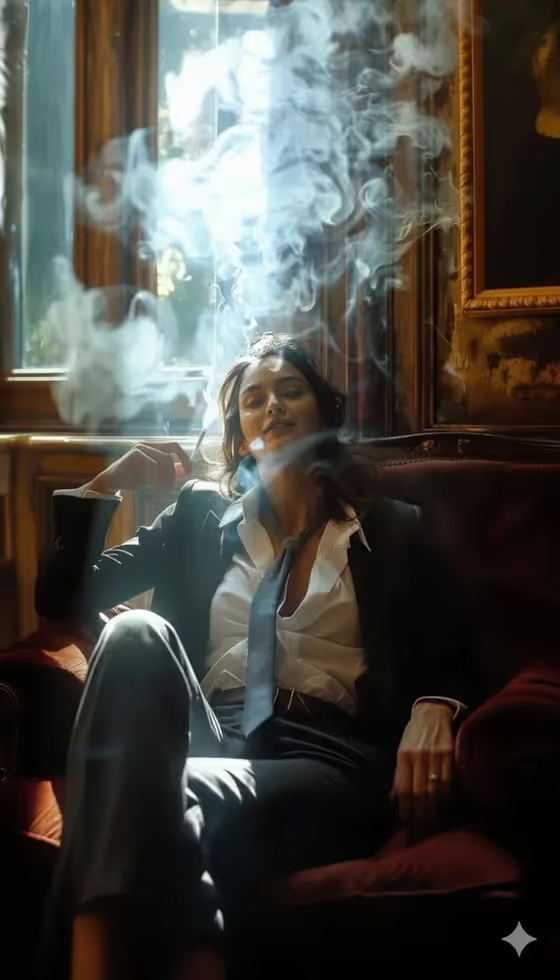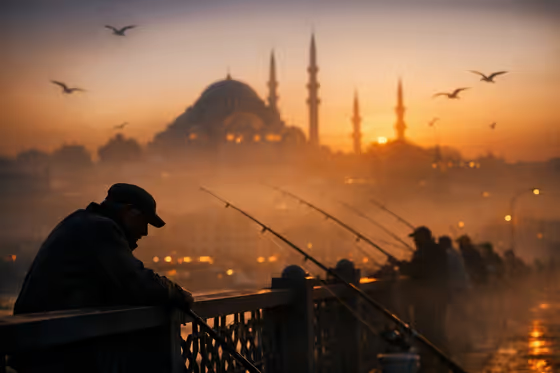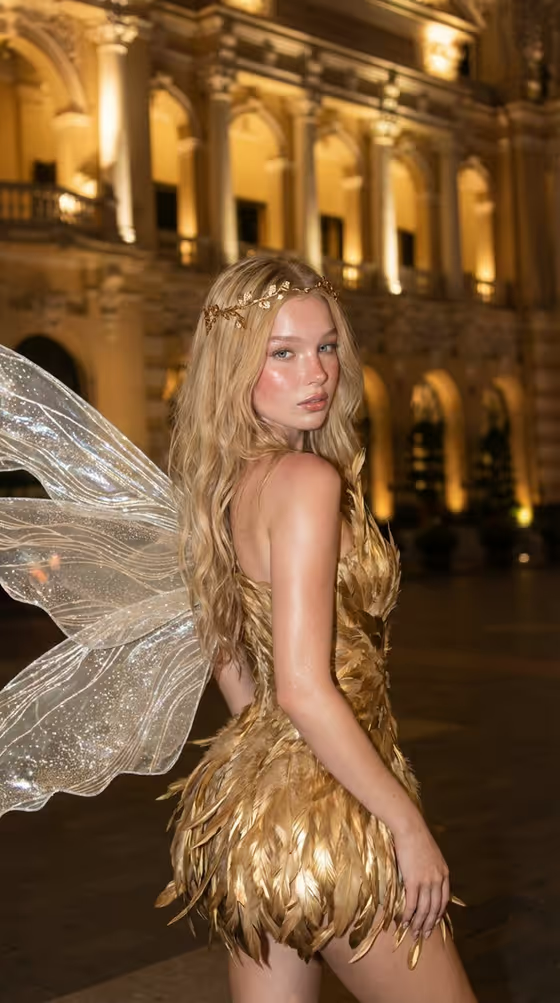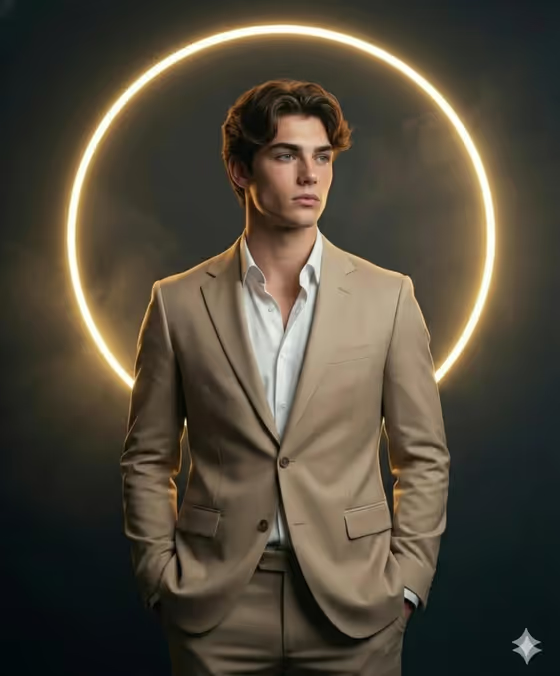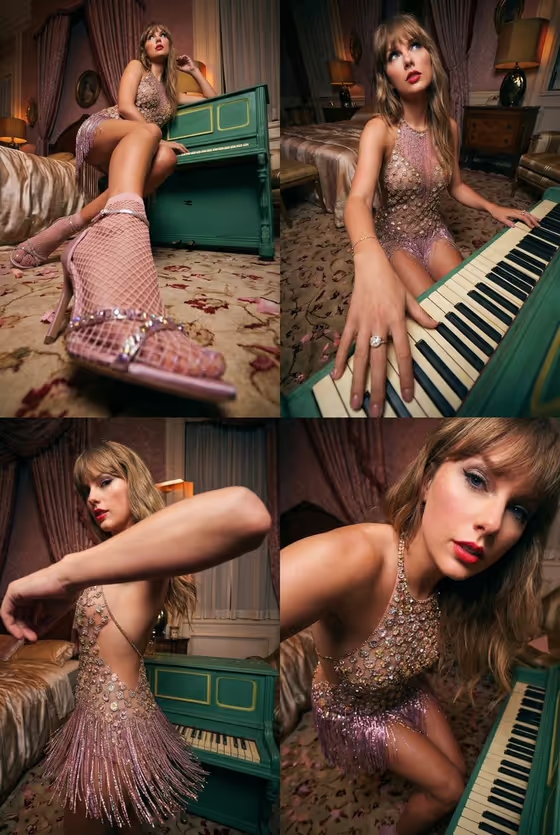
Four Style Photo Grid turns one subject into a single four-panel image. Each panel is a mid close-up, wide-angle shot with a dramatic camera angle and a bold pose, all set in a consistent, expanded version of the original environment. The cover shows the idea well: one scene, four different framings, from a low shot of footwear to a tight close-up, with the same room and colors tying them together.
It suits anyone who wants a varied, editorial-style set from one subject without planning four separate shots. The template accepts your own photos, and it also works with a described character, product or object, so it fits portraits, characters and personal collectibles alike.
What works best as input
- The upload requirement is 2 or more photos, so add at least two images of the same subject from different angles. This gives the template more to hold on to when it builds the four panels.
- Choose photos where the subject is clearly visible and well lit. Sharp faces, outfits and details give the grid more to reproduce.
- Only upload photos of yourself or people who have agreed to it, and use subjects you own the rights to. Do not use photos of public figures.
- If you describe the subject in the 'subject from my original photo character subject' field instead, be specific about the defining look, such as clothing, colors, materials and any signature details.
- Pick photos with a setting you like. The template expands the original environment, so a distinctive room or backdrop carries across all four panels.
How to use it
- Open the Four Style Photo Grid template in Phosphene.
- In the 'subject from my original photo character subject' field, upload your photos or describe the subject. You can start from examples like 'the subject from my original photo' or 'an original character'.
- Choose an option in the 'Character staging' field, such as collectible character portrait, full-body character scene or environmental story moment.
- Generate the image, then review the four panels for likeness, outfit details and consistency of the setting. Adjust your inputs and run it again if you want a different result.
Tips for a better result
- Try each Character staging option on the same photos. A collectible portrait, a full-body scene and an environmental story moment frame the four panels quite differently.
- Use photos with strong, specific styling or props. Details like jewelry, textures and a recognizable setting show up well in close-ups and low angles.
- If a describe-only subject comes out generic, add concrete details about outfit, colors and materials so the four panels stay on-model.
- Keep your uploaded photos consistent with each other (same outfit and setting) so the four styles feel like one cohesive set.
Common mistakes
- Uploading only one photo. The template asks for 2 or more, and a single image gives the grid less reference to work from.
- Writing a vague subject description such as 'a person'. Without defining details, the four panels can drift apart in look.
- Mixing unrelated photos, such as different outfits or different people, which makes it hard to keep the subject consistent across panels.
FAQ
What does the output look like?
A single image arranged as a four-panel grid, with each panel showing a different dramatic, wide-angle take on your subject in an expanded version of the original scene.
Can I use a description instead of a photo?
Yes. The subject field accepts text or a photo, so you can describe a character, product or object. Including defining details helps the four panels stay consistent.
How many photos do I need?
The template asks for 2 or more photos when you upload. Using several clear shots of the same subject gives the best reference.
What does the Character staging field change?
It sets how the job is framed. Options include a collectible character portrait, a full-body character scene and an environmental story moment, so you can steer the overall feel of the grid.