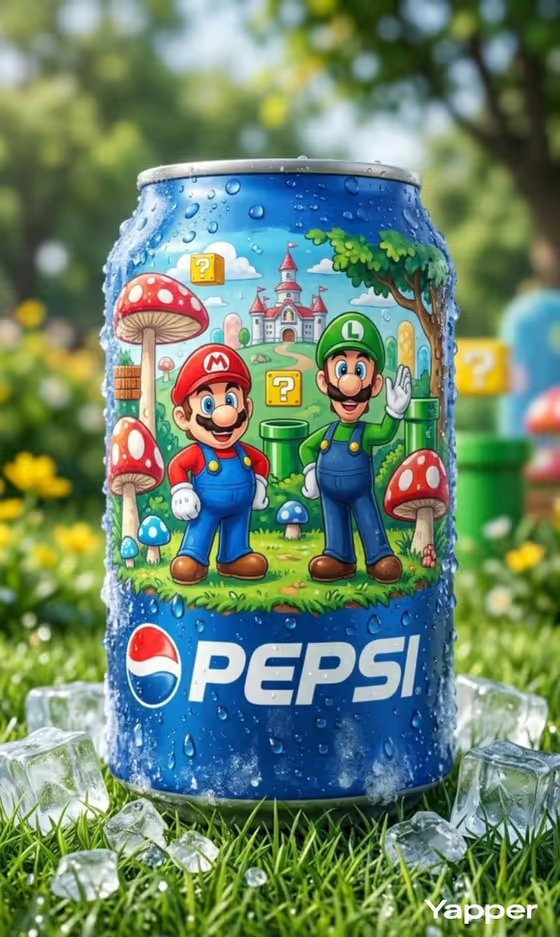
Game Art Soda Can turns an illustrated can design into an outdoor product shot. The can stands upright on fresh green grass, covered in cold water droplets, with ice cubes around its base and a soft, blurred garden behind it. The result is a vertical 3:4 image with a cool summer-refreshment feel.
It suits designers, packaging artists and fans who have a can illustration or product concept and want to see it presented like an advertising photo. You describe the can or upload a visual reference, pick a presentation style, and the template handles the setting, lighting and condensation.
What works best as input
- For the first field (illustrated blue soda can product or object), you can either type a short description or upload a photo of the can or artwork you want shown. A clear, well-lit reference gives the template more to work from.
- If you upload a reference, use one where the can or artwork fills most of the frame and the illustration is easy to read, with no heavy glare or strong shadows across it.
- If you describe it instead, name the can color, the main subject of the illustration and the overall mood, for example 'an illustrated blue soda can' or 'a personal product design'.
- Only use designs and characters you have the right to use. An original or personal product design works just as well as the examples in the field.
- Keep the description focused on one can. The template is built around a single hero product centered in the frame.
How to use it
- Open the Game Art Soda Can template in Phosphene.
- In the first field, describe your illustrated can or upload a photo of the exact can or artwork you want to feature.
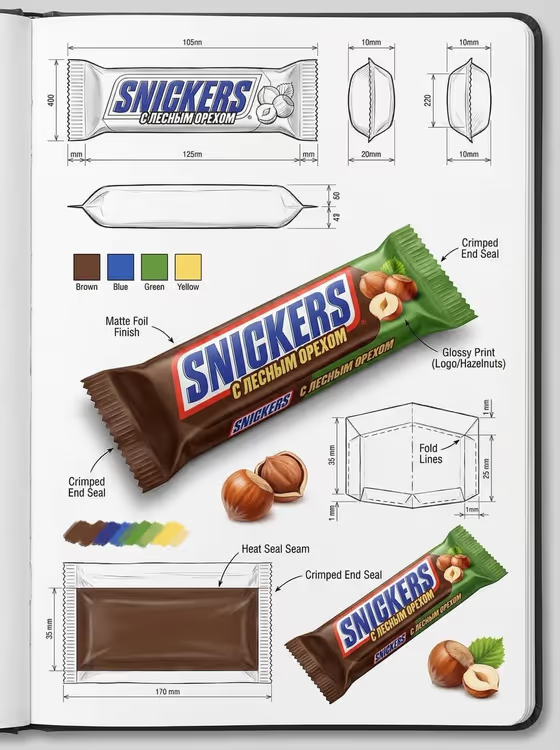
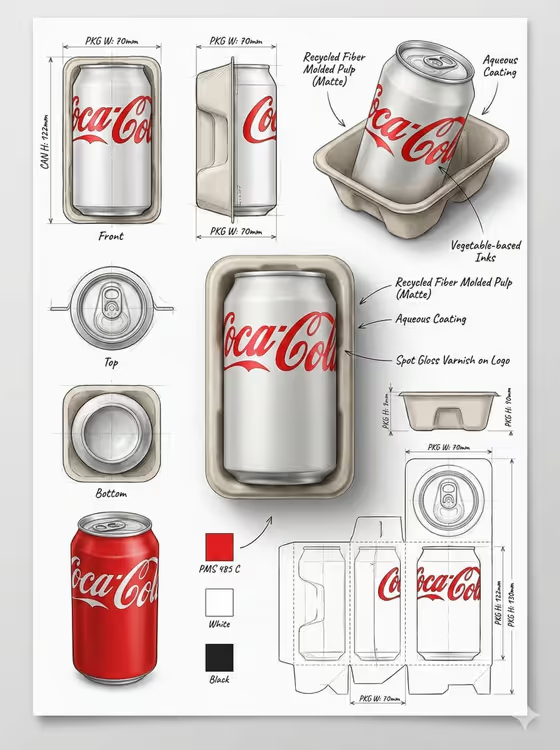
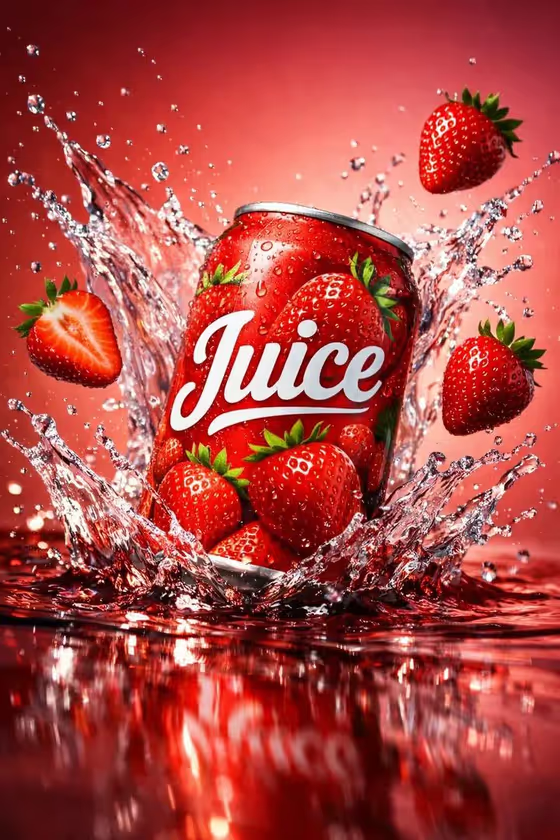
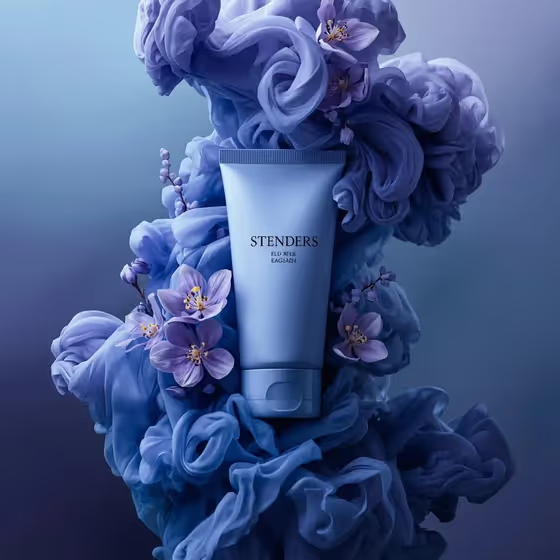
- Choose a Product presentation option, such as a clean studio hero, dynamic material interaction or annotated product breakdown, to set how the shot is framed.
- Generate the image, then review the can, the condensation and the grass setting. Adjust your description or presentation choice and run it again if you want a different result.
Tips for a better result
- Be specific about the illustration on the can (characters, scenery, colors). The cover example shows a busy, colorful scene wrapped around a blue can, and detail in your description helps the artwork read clearly.
- Try different Product presentation options with the same can to compare a clean hero look against a more dynamic or annotated one.
- If you have a real product reference, upload it rather than describing it so the shape and artwork stay closer to your original.
- Try a premium unbranded alternative as your description if you want a neutral can design without recognizable branding.
Common mistakes
- Writing a vague description such as 'a can'. Without details about color and artwork, the illustration on the can may not match what you had in mind.
- Uploading a cluttered photo where the can is small or partly hidden, which makes the design harder to reproduce.
- Describing several products at once. The template is composed around one centered can, so extra items can muddy the shot.
FAQ
Can I upload a photo instead of typing a description?
Yes. The first field accepts either a text description or an uploaded visual reference of your can or product.
What does the output look like?
A vertical 3:4 image of an upright can on wet green grass with condensation, scattered ice and a soft garden background.
What does the Product presentation field do?
It sets how the shot is framed. The options include a clean studio hero, dynamic material interaction and an annotated product breakdown.
Can I use my own can design?
Yes. Describing a personal product design or uploading your exact product reference are both supported, as long as you have the right to use the artwork.