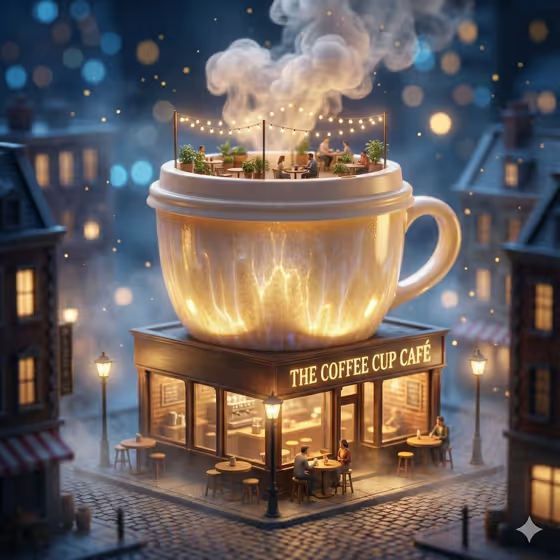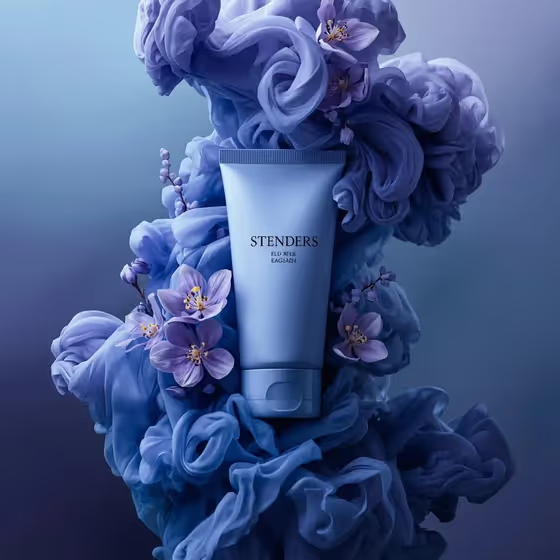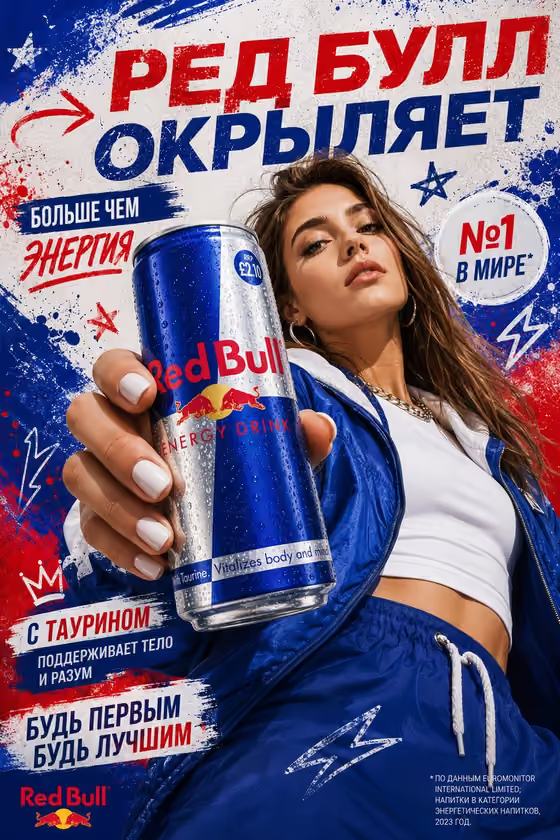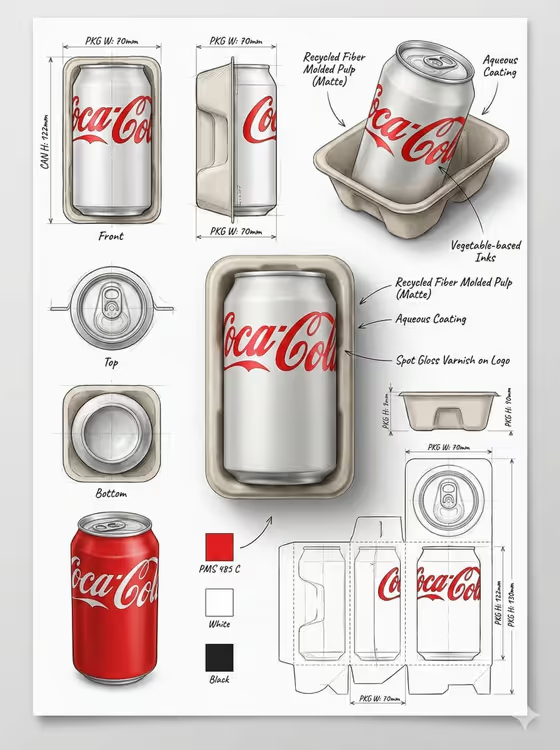
This template turns a product into a technical packaging sheet in a 3:4 portrait layout. The cover example shows the format: a large hero render in the center, surrounded by front, side, top, bottom and angled views, a flat die-cut layout with fold lines, dimension arrows, material callouts and color swatches, all on a sketchbook-paper background.
It suits designers, founders and brand teams who want a portfolio-style presentation of packaging for a product concept. You describe the product (or add a visual reference), pick a setting, and the template handles the sheet structure.
What works best as input
- In the Product field you can describe the product in words or add a reference photo. A clear, well-lit photo of the actual item helps the sheet match its shape and branding.
- Photograph or choose an image where the product sits alone against a plain background, so the render focuses on the item and not the clutter around it.
- Show the product from a straight-on or slightly angled view so its overall shape and label area are easy to read.
- If you type a description instead, name the product type, shape, main materials and any key colors, for example 'a sculptural fragrance bottle' with frosted glass and a metal cap.
- Keep the Product entry about one product. Mixing several items in one description makes the views and callouts harder to organize.
How to use it
- Open the Packaging Design Sheet template in Phosphene.
- In the Product field, describe your product or add a reference image of it.
- Choose a Setting from the options, such as a clean studio or a refined architectural interior.
- Generate the image, then review the hero render, the technical views, the flat layout and the labels, and adjust your inputs if something looks off.
Tips for a better result
- Try the same product with different Setting choices to compare how the overall mood and presentation change.
- Be specific about materials in your product description (matte paper, glossy print, glass, plastic) since the sheet includes finish annotations.
- If your product has a brand color, mention it so the swatches and hero render lean in that direction.
- Use a reference photo for a product you already own and a text description for early concepts you want to explore.
Common mistakes
- Using a cluttered or dark photo, which makes the product's shape and label harder to interpret on the sheet.
- Writing a vague Product entry like 'a thing' instead of naming the product type, shape and materials.
- Expecting exact, production-ready measurements. The dimensions and callouts are illustrative, so verify real specs before manufacturing.
FAQ
Do I have to upload a photo?
No. The Product field is text, and you can describe the product in words. It also accepts a photo if you want an exact visual reference.
What does the output look like?
A single 3:4 image styled as a technical sheet, with a central hero render, multiple views, a flat layout with fold lines, annotations, dimension arrows and color swatches.
What does the Setting option change?
It sets the setting for the variation, such as a polished campaign setting, a clean studio, a misty natural landscape or a refined architectural interior.
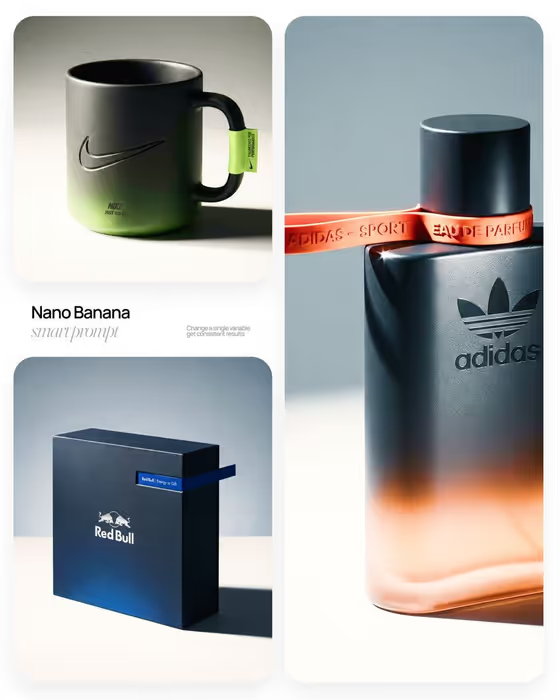
Can I use this for a product that already has branding?
You can add a reference photo of the product, and the sheet will be built around it. Check the result carefully, since text and logos in generated images may not be reproduced exactly.