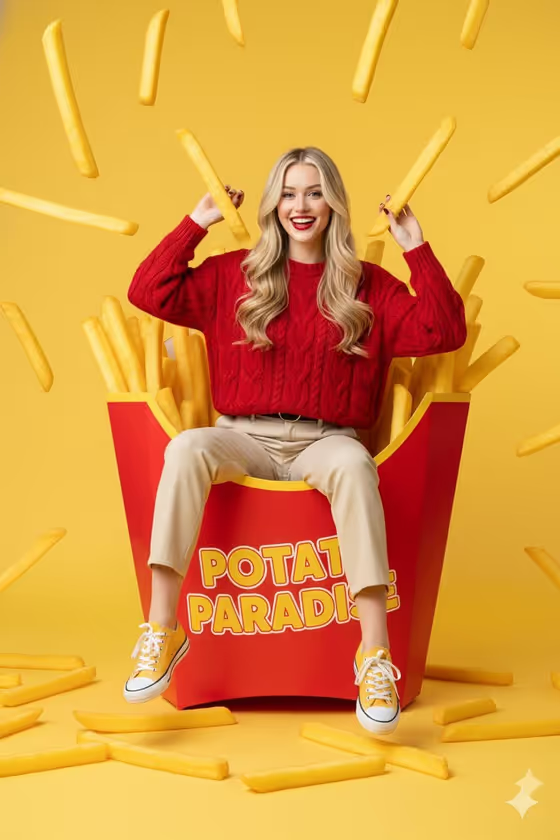
Giant Snack Playground makes a surreal, ad-style image where a person is dwarfed by an oversized food item, set against a saturated studio backdrop. The cover shows the idea well: a smiling woman perched in a huge fries carton with oversized fries floating around her on a yellow background.
It suits food brands, snack creators, social media managers and anyone who wants a bold, playful product shot. You describe the food and the person (or add reference photos for them), pick a studio color, and the template builds the scene in a 3:4 portrait frame.
What works best as input
- For the Oversized Food Product slot, either describe the item (for example a giant french-fry carton or an oversized popcorn bucket) or add a product reference photo so the result follows your real packaging.
- If you add a photo for the Playful Person slot, choose a clear portrait where the face is well lit and unobstructed, so the likeness carries over cleanly. Only use photos of yourself or people who have agreed to it.
- If you would rather type the person, be specific about mood and styling, such as a cheerful young woman or a playful fashion model, since the template aims for a cheerful expression and fashionable look.
- Keep each description short and concrete. One clear food item works better than a long list of different snacks.
- Pick a Studio Color that contrasts with the food, like the red carton on yellow in the cover, so the product stands out.
How to use it
- Open the Giant Snack Playground template in Phosphene.
- Fill in Oversized Food Product with a short description or a product photo, then fill in Playful Person the same way.
- Choose a Studio Color, such as Bright yellow, Tomato red, Bubblegum pink or Electric blue.
- Generate the image, then review the 3:4 result and adjust your fields if the food, person or backdrop is not what you pictured.
Tips for a better result
- Try the same food in different Studio Colors to compare which backdrop makes the product pop most.
- Add a brand name or flavor to the food description if you want the packaging to feel more specific, as the cover does with its printed carton.
- Vary the person description (an energetic young man, a smiling brand creator) to match your audience while keeping the same food and color.
- If a reference photo gives an unexpected result, try describing the food or person in text instead, or the other way around.
Common mistakes
- Describing several foods in one field, which can crowd the scene and weaken the giant-scale effect. Stick to one hero item.
- Using a blurry, dark or heavily cropped photo for the person or product, which gives the generator little to work with.
- Choosing a backdrop close to the food's main color, so the item blends into the background instead of standing out.
FAQ
Do I have to upload photos?
The slots accept either a text description or a photo, so you can describe the food and the person instead. The template is labeled as taking 2+ photos, so check the upload prompt in the template for what it asks for.
What shape is the result?
The image comes out in a 3:4 portrait ratio, which suits posters and vertical social posts.
Can I use any food item?
The examples cover things like a french-fry carton, popcorn bucket, ice-cream cup and snack bag, and the template is built around food props. Describe your item clearly for the best match.
What does the scene include besides the person and the food?
The template surrounds them with oversized food pieces and a few floating elements, with soft studio shadows and clean space, as seen in the cover image.