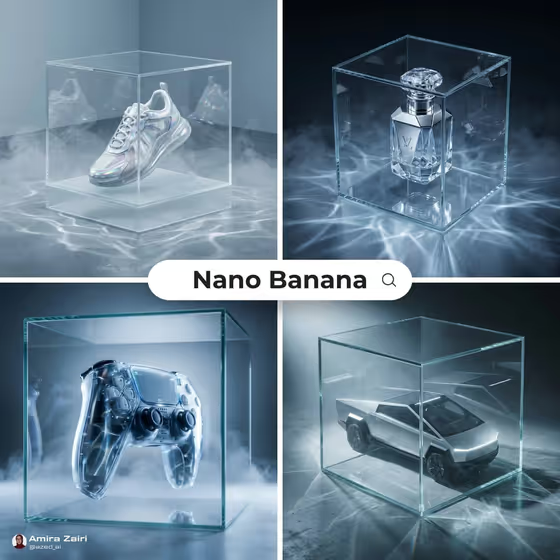
Glass Cube Product places your product inside a clear glass cube and lights it for a clean, futuristic advertisement. The result is a square image with sharp reflections, glass caustic patterns, light fog and a cool studio look, like the shoe, perfume bottle, game controller and truck shown on the cover.
It suits sellers, brand owners and designers who want a polished hero shot for a listing, a launch post or a campaign. You choose the product and an accent light color, and the template handles the cube, fog and lighting.
What works best as input
- The Hero Product field takes a text description, and it also accepts a photo reference. If you want your exact item to appear, add a clear photo of it.
- Pick a photo with the whole product visible, in focus, and not cropped at the edges. A plain or uncluttered background makes it easier to isolate the product.
- Show the side of the product you want to feature, since it will sit alone in the cube. Strong detail, such as a distinctive logo area, shape or material, carries through to the result.
- If you describe instead of upload, be specific about the object and its look, for example a sculptural fragrance bottle or a compact camera, rather than a vague word like gadget.
How to use it
- Open the Glass Cube Product template in Phosphene.
- In Hero Product, describe your product or add your reference photo. Then choose a Cube Accent Light such as Cool cyan, Deep violet, Icy white or Emerald green.
- Generate the image and wait for the square result to finish.
- Review the output, check that the product shape and details look right, and adjust your inputs and run it again if needed.
Tips for a better result
- Match the accent light to the product. A cool cyan or icy white suits metal and glass items, while deep violet or emerald green gives a more dramatic mood.
- Choose a product with a clear silhouette. Simple, recognizable shapes read well inside the cube, as the sneaker, bottle and controller on the cover do.
- Try the same product with two or three accent colors and compare, since the light color changes the whole feel of the shot.
- If you describe the product in text, mention material cues like polished metal or frosted glass to guide the surface detail.
Common mistakes
- Writing a very short or vague product description, which gives the template little to work with and can produce a generic object.
- Uploading a blurry, heavily cropped or cluttered photo, which makes the product harder to reproduce accurately inside the cube.
- Listing several products in one field. The template is built around a single hero product in one cube.
FAQ
Do I have to upload a photo?
No. The Hero Product field accepts a text description, and a photo reference is also accepted if you want your exact item.
What can I customize?
You set the product and pick the Cube Accent Light color. The cube, fog, caustics and studio look are part of the template's fixed direction.
What shape is the output?
The template produces a square 1:1 image.
Which accent colors can I choose?
The examples include Cool cyan, Deep violet, Icy white and Emerald green. Pick the one that suits your product and mood.