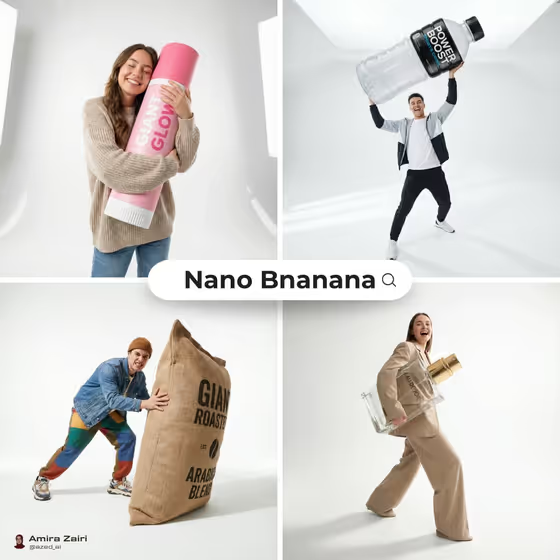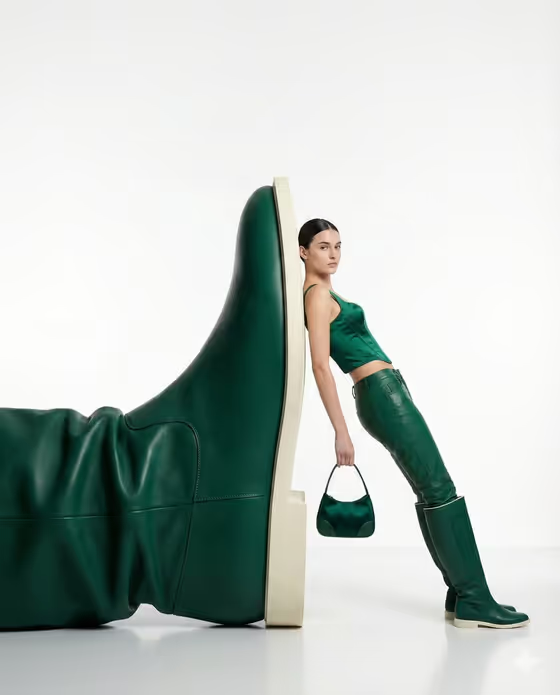
Oversized Fashion Object creates a minimalist editorial image of a model leaning against a giant version of a product, with the outfit and the object styled in the same color. In the cover example, a model in emerald green leans on a huge leather boot while holding a small matching bag, all on a clean white studio floor with a soft reflection.
It suits fashion brands, product photographers and social media teams who want a bold concept image built on exaggerated scale. The result is a full-body, 3:4 portrait that leaves plenty of empty white space around the subject.
What works best as input
- For Oversized Product, you can type a short description such as a giant leather boot, or add a product reference photo. A clear product shot with a plain background gives the template the most to work with.
- For Fashion Model, you can describe the person in words (the examples include a confident woman or a relaxed male model) or add a portrait reference. Use a photo only of someone who has agreed to appear in the image.
- The template is set up for two or more uploads, so consider supplying both a product photo and a portrait. Clear, well-lit, front-facing images are easier to read than dark or cropped ones.
- If you describe the product in text, name the material and shape, such as leather boot, structured handbag or sculptural sneaker. Specific objects read better than vague ones.
How to use it
- Open the Oversized Fashion Object template in Phosphene.
- Fill in Oversized Product and Fashion Model, typing a description or adding a reference photo for each.
- Pick a Fashion Color from the list, for example Emerald green, Crimson red, Cobalt blue or Ivory cream.
- Generate the image, then check the scale, the pose and how well the model and object match in color. Adjust your inputs and run it again if needed.
Tips for a better result
- Choose a product with a strong, simple silhouette. Boots, handbags and bottles lean well and read clearly at giant size.
- Pick a color that suits the product's material. A deep shade like emerald works nicely on leather, while a light shade like ivory cream gives a softer look.
- Vary the model description (confident woman, androgynous editorial model, poised mature model) to change the attitude of the pose while keeping the same set.
- Keep the model description short and about the person, and let the Fashion Color field handle the outfit color.
Common mistakes
- Describing a complicated scene in the Oversized Product field. The template already sets the white studio, floor reflection and lighting, so extra background details work against it.
- Listing several different products in one field. The template is built around a single giant object, so name just one.
- Using a blurry, heavily cropped or low-light reference photo, which gives the template little to match for shape and detail.
FAQ
Do I have to upload photos?
Each of the two text fields accepts either a written description or a reference photo. The template is set to expect two or more uploads, so adding photos for the product and the model is the intended route.
Can I change the white studio background?
The set is fixed as a pure white studio with a glossy reflective floor. You control the product, the model and the color.
What shape is the final image?
It is a 3:4 portrait image, framed full-body so the model and the giant object both fit.
What can I put in Fashion Color?
It is a selection field, with options such as Emerald green, Crimson red, Cobalt blue and Ivory cream. The chosen color is applied to both the outfit and the oversized object.