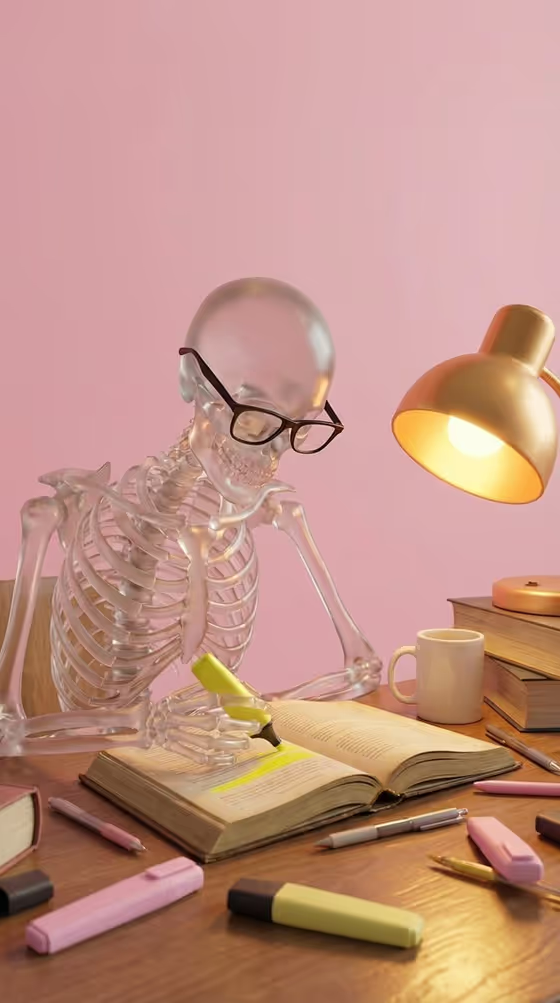
Glass Skeleton Study Session makes a 3D-style image of a translucent glass figure sitting at a wooden desk, looking down at a book and marking one line with a yellow highlighter. The scene is built around a soft pink wall, a warm gold lamp on the right, a white mug, stacked books and scattered pastel pens and markers.
It suits students, teachers, study-channel creators and anyone who wants a playful, polished visual for notes, covers, slides or social posts about studying. You choose the figure, the study material and a rendered text policy, and the template handles the lighting and composition.
What works best as input
- For Character subject or figure, you can type a description or upload a matching reference photo. Typing something specific like "clear glass skeleton student" or "crystal robot scholar" gives the template a clear character to render.
- If you use a reference, pick one where the figure or character is clearly visible and not cropped, so the shape of the body is easy to read.
- For Study material, name a specific book or topic such as "open biology textbook" or "engineering workbook". This field does not take a photo, so describe it in words.
- For Rendered text policy, keep it short and direct, for example "No text overlays" or "No watermark". The template reads this as an instruction about text appearing in the image.
How to use it
- Open the Glass Skeleton Study Session template in Phosphene.
- Fill in Character subject or figure by typing a description or adding a reference, then set Study material and Rendered text policy.
- Generate the image. The output is a 3:4 image.
- Review the result. Check that the figure is highlighting a line in the book, the lamp and pink wall look right, and no unwanted text appears. Adjust your fields and run it again if needed.
Tips for a better result
- Try different characters while keeping the rest the same, such as a translucent anatomy mannequin or a crystal robot scholar, to see how the glass look changes.
- Match the study material to your topic. A history book, a biology textbook and an engineering workbook each give the open pages a different feel.
- Keep your text policy consistent with how you plan to use the image. "No text overlays" works well if you want to add your own captions later.
- Use the same character across several generations with different study materials to make a matching set for a series.
Common mistakes
- Writing a long, complicated character description. A short, clear one like "clear glass skeleton student" usually reads better than a paragraph.
- Leaving the study material vague. Something like "book" gives less to work with than "annotated history book".
- Expecting the scene to change. The pink wall, gold lamp on the right and yellow highlighter are fixed parts of this template, so your inputs only change the figure, the material and the text policy.
FAQ
Do I have to upload a photo?
No. The Character subject or figure field accepts either a typed description or a matching reference, so you can type something like "clear glass skeleton student" instead.
Can I change the wall color or lamp?
Not through the fields. The soft pink wall, warm gold lamp and yellow highlighter are fixed in this template.
What does the Rendered text policy field do?
It tells the template how to handle text in the image. Entries like "No text overlays" or "No watermark" keep the scene clean.
What shape is the image?
The output is a 3:4 image, a vertical format.