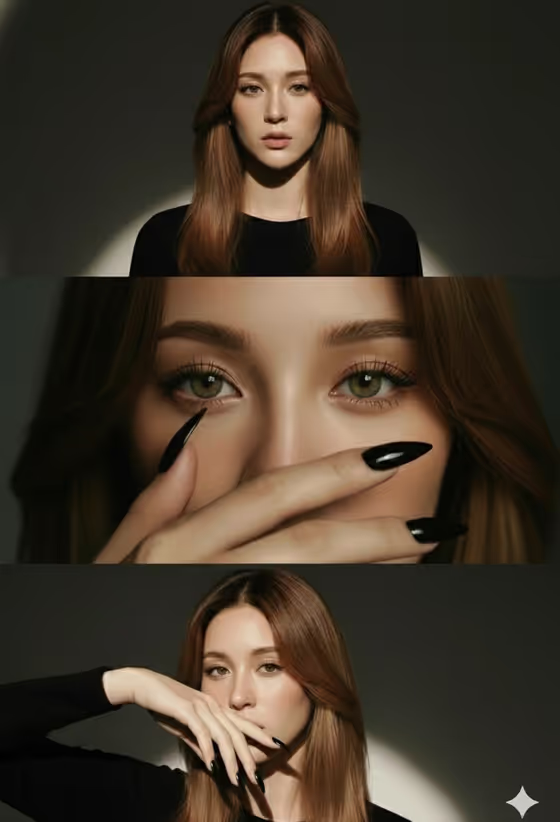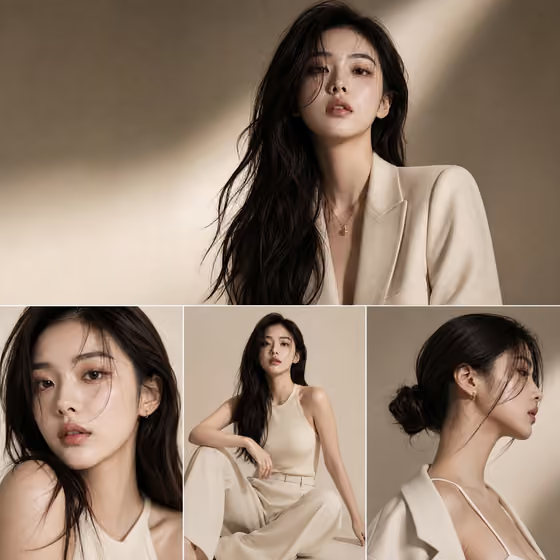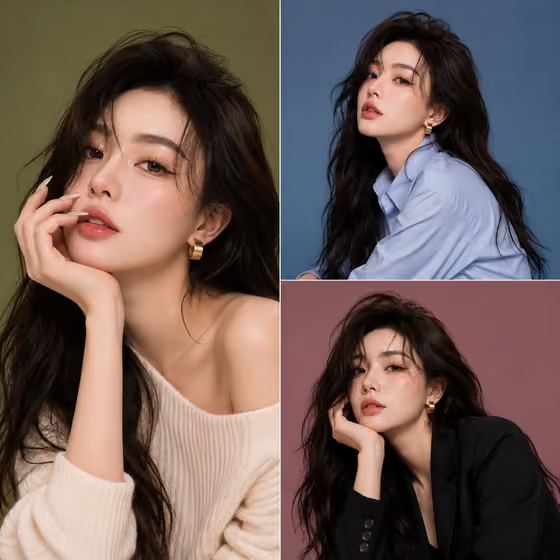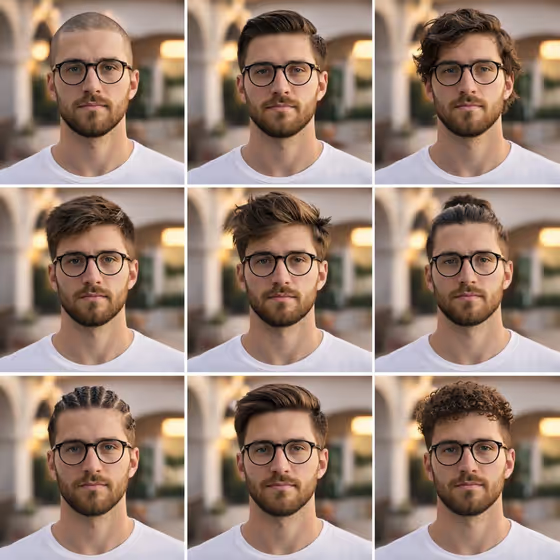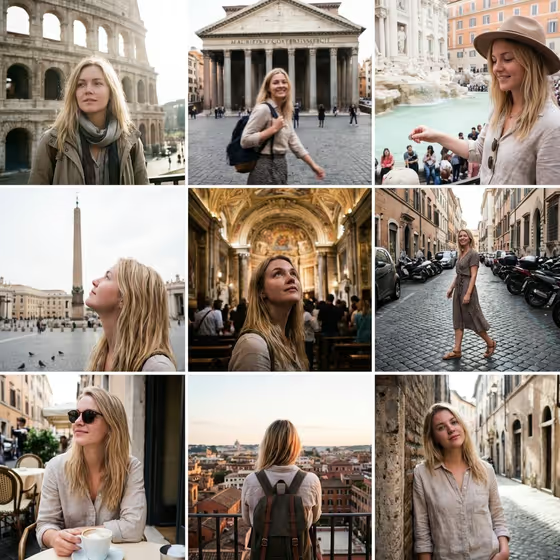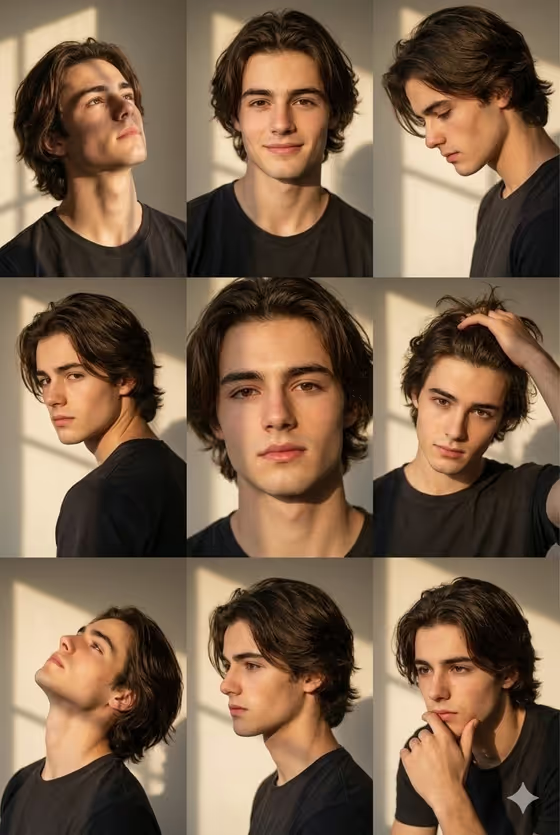
This template turns your subject into a nine-frame golden-hour portrait collage on a 3:4 canvas. Every frame keeps the same person and the same outfit, with warm window light and soft shadow patterns falling across a plain wall, as in the cover image.
It suits anyone who wants a cohesive portrait set with an editorial, aesthetic feel: profile pictures, a personal portfolio, or a themed photo set. The poses vary (looking up toward the light, a soft smile, a side profile, a hand in the hair, a hand near the chin) while the look stays consistent.
What works best as input
- Upload at least two photos of the person, since the template asks for 2 or more. Pick clear, well-lit shots where the face is fully visible so the identity can stay consistent across all nine frames.
- Use photos from slightly different angles, for example one straight on and one at a three-quarter angle. This gives the template more to match for facial structure and skin tone.
- Avoid sunglasses, heavy filters, or anything covering the face, because the template aims to keep the same face shape, eye shape and natural expressions in every frame.
- In the Subject field, you can add a short description or a reference photo. A phrase like "A poised creative professional" works as a starting point, and you can make it more specific.
- In the Outfit field, either describe the clothing or add a reference image. Keep it to one outfit, since the collage is built around a single consistent look.
How to use it
- Open the Golden Hour Portrait Collage template in Phosphene and upload two or more photos of your subject.
- Fill in the Subject field with a short description or a visual reference, then fill in the Outfit field the same way. Both are required.
- Generate the image and wait for the 3:4 collage to finish.
- Review the nine panels. Check that the face looks like the same person in every frame, that the outfit matches throughout, and that the grid has clean separation between panels.
Tips for a better result
- Be specific in the Outfit field. A concrete description such as "A relaxed linen ensemble" or "A bold retro look" gives a clearer result than a vague one.
- Try the example subjects as a starting point, then adjust the wording to match the person in your photos.
- Simple, solid-color clothing keeps the focus on the face and the warm light, which fits the calm, minimal mood of this style.
- If one generation is close but not right, change only one field (Subject or Outfit) and run it again so you can see what made the difference.
Common mistakes
- Uploading only one photo or very low-quality photos. The template expects 2 or more clear images to hold identity steady across the grid.
- Describing several outfits in the Outfit field. The collage is designed around one consistent outfit, so mixing looks can make the frames feel inconsistent.
- Writing a long, busy Subject description that conflicts with your uploaded photos. Keep the text short and let the photos carry the likeness.
FAQ
How many photos do I need to upload?
The template requires 2 or more photos of your subject.
How many frames will the collage have?
The collage uses a nine-panel, 3x3 grid on a 3:4 canvas, with clear separation between panels.
Will the outfit change between frames?
No. The template is built to keep one consistent outfit across every frame.
Can I describe the subject and outfit instead of using a reference image?
Yes. Both the Subject and Outfit fields accept a text description, and each also accepts a visual reference.