Podcast Swap takes an existing podcast clip and replaces one guest with a person you choose. The conversation, the seats, the studio, the camera framing and the timing stay as recorded, and only the rightmost seated participant changes.
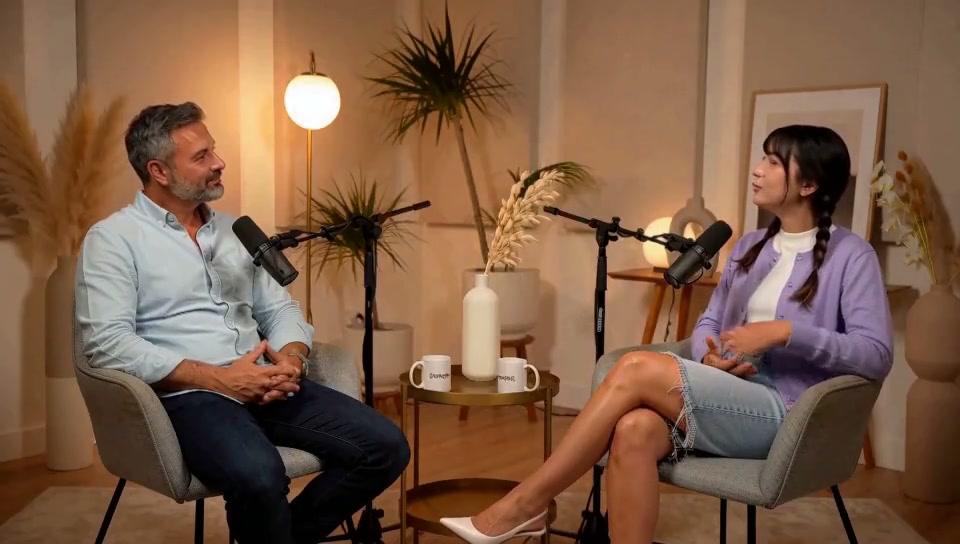
It is built for creators, editors and teams who already have a two-person podcast shot like the one on the cover (two chairs, boom-arm microphones, a warm lit set) and want to see a different person in that rightmost seat, re-performing the original speaking and gestures.
What works best as input
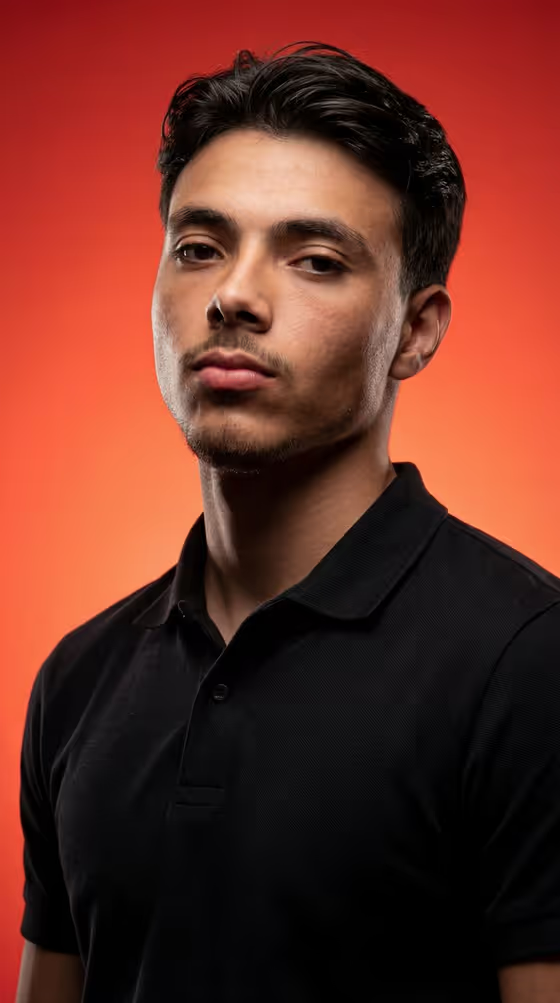
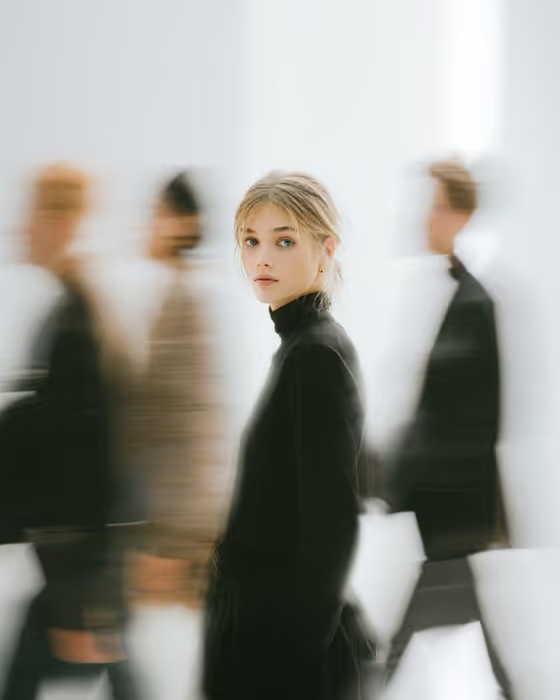
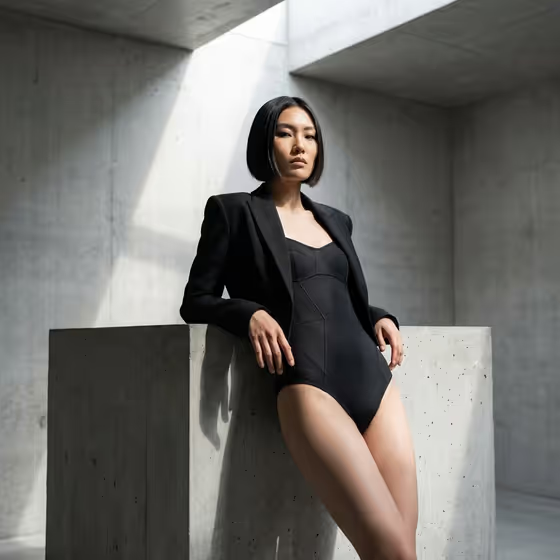
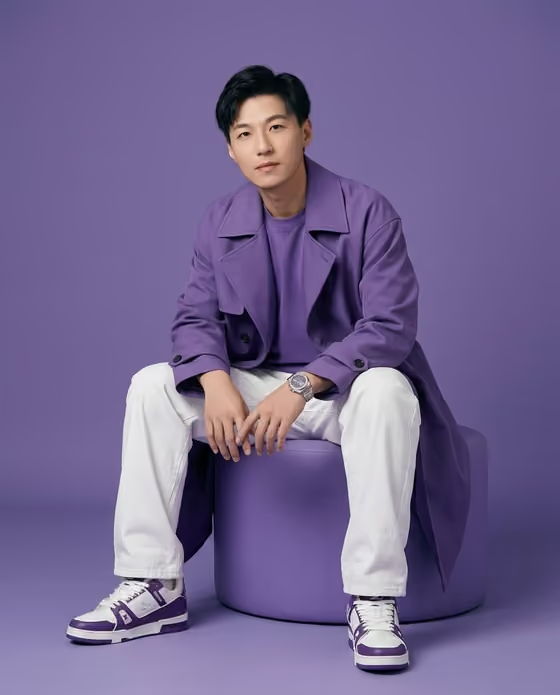
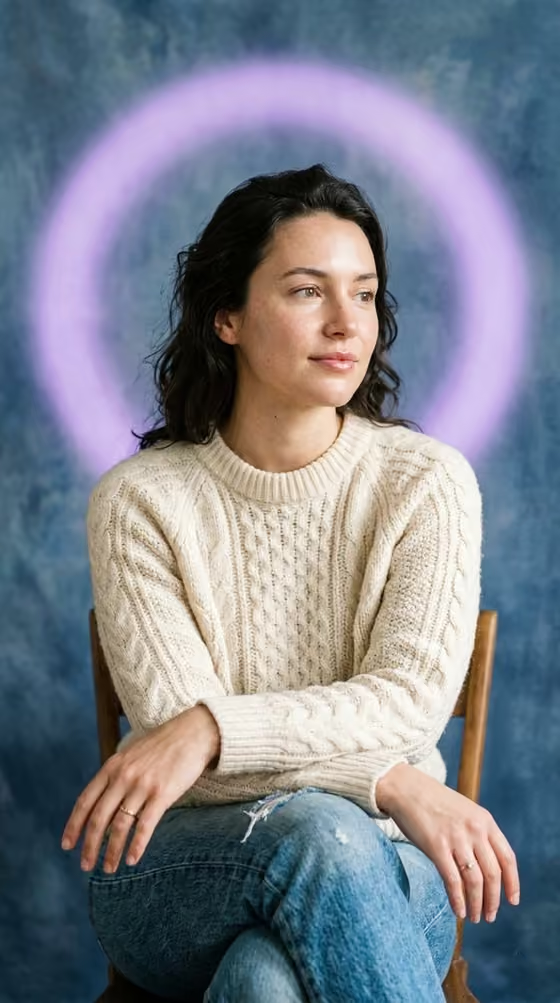
- For the Rightmost guest slot, use a clear photo of one person, facing the camera, with the face fully visible and well lit. The template reads face, hairstyle, skin appearance, body proportions and visible clothing from that image.
- Pick a photo that shows enough of the upper body and outfit, since the clothing in your photo is what gets carried into the clip.
- Avoid sunglasses, heavy filters, hands covering the face or other people in the frame, so the template knows exactly who to place in the seat.
- For the Podcast clip slot, choose a clip with a clear wide frame at the start where the rightmost seated participant is easy to identify by screen position.
- Use only photos of people you have permission to use, and respect their likeness.
How to use it
- Open the Podcast Swap template in Phosphene.
- Add your source video to the Podcast clip field. This is the clip with the guest slot your subject should fill.
- Add a photo of the replacement person to the Rightmost guest field.
- Generate, then review the result. Check that the new guest sits in the original seat, that the other participant is unchanged and that the studio, framing and audio feel the same as the source.
Tips for a better result
- Start with a clip where both people are visible from the first frame, so the rightmost participant is unambiguous.
- Choose a replacement photo with similar head angle and lighting to the seated pose in the clip, which helps the swap look natural.
- If the first result drifts on the face or clothing, try a sharper, more evenly lit portrait of the same person.
- Try the same clip with different replacement photos to compare how each person fits the seat.
Common mistakes
- Using a clip where the rightmost person is hard to identify, for example a crowded frame or an opening shot that does not show everyone seated.
- Uploading a low-resolution, dark or heavily edited portrait, which gives the template weak identity detail to work from.
- Expecting the left participant, the set or the dialogue to change. This template only replaces the rightmost seated guest and keeps everything else as recorded.
FAQ
Which person gets replaced?
The rightmost seated participant, identified by screen position in the first clear wide frame of your clip. Everyone else stays as they are.
Do I need to upload both a video and a photo?
Yes. The Podcast clip and the Rightmost guest image are both required.
Will the audio and conversation change?
The template is set up to preserve the original dialogue, room tone and timing, with the new guest following the original speaking rhythm and gestures.
Will the studio and camera angles stay the same?
Yes. The staging, props, lighting, shot order and framing are meant to stay as in your source clip.