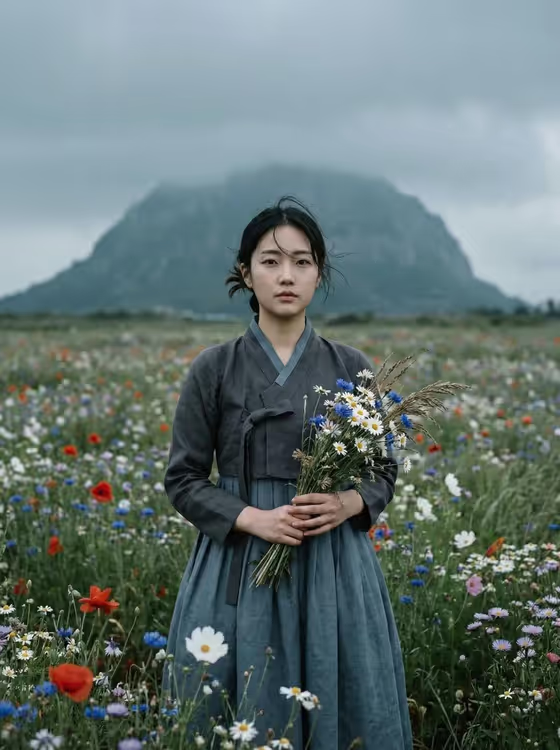
Hanbok Meadow Portrait turns a photo into a calm, cinematic portrait of a person standing alone in a wildflower meadow. They wear a traditional Korean hanbok in muted charcoal gray and soft blue and hold a small hand-picked bouquet, with a misty mountain fading into the background.
It suits anyone who wants a quiet, fine-art style portrait: personal profile images, editorial-style keepsakes, or a poetic image for a creative project. The result is a 3:4 portrait with overcast light, a cool muted palette and a soft, blurred background.
Use it with a photo of yourself, a friend or someone who has agreed to be photographed. Keep the subject respectful and personal, not a public figure.
What works best as input
- Upload a clear photo of one person with the face fully visible and in focus. The subject slot (woman in traditional dress portrait subject) accepts either a photo or a text description.
- Choose a photo with even, natural light and no heavy shadows across the face, since the template aims for soft, diffused overcast lighting.
- A front-facing or near-front-facing shot works well, because the template places the subject centered and looking at the camera with a calm expression.
- If you describe the subject in text instead, keep it short and concrete, like the placeholder 'a woman in traditional dress', and add only details you want carried over.
- Avoid photos with sunglasses, hats or hands covering the face, since these can fight with the loosely tied hair and bare, natural look.
How to use it
- Open the Hanbok Meadow Portrait template in Phosphene.
- In the subject field (woman in traditional dress portrait subject), upload your photo or type a short description of the person.
- Open Pose and scene and pick the framing option that fits what you want, such as a close portrait, a full-body frame or an environmental candid frame.
- Generate the image, then check the face, the hanbok folds and the bouquet. Adjust your subject input or pose choice and generate again if something looks off.
Tips for a better result
- Try different Pose and scene options with the same photo. A close portrait emphasizes the face and wind-blown strands, while a full-body frame shows more of the hanbok and the meadow.
- Use a source photo with a calm, neutral expression. The template is built around an introspective mood, so a matching starting expression tends to blend more naturally.
- If you describe the subject in words, mention hair and general look briefly so the result stays close to who you have in mind.
- Generate a few versions and compare them. Small differences in the bouquet, flowers and cloud cover can change the mood noticeably.
Common mistakes
- Uploading a low-resolution or heavily filtered photo. Blurry or over-edited faces give the template less to work with.
- Writing a long, detailed text description that contradicts the fixed look, such as bright sunny weather or a different outfit. The template keeps the hanbok, the meadow and the moody overcast light fixed.
- Using a group photo or a picture with several faces. The template is designed around one person standing alone.
FAQ
Do I have to upload a photo?
The subject slot accepts either an uploaded photo or a text description of the person, so you can choose whichever suits you.
Can I change the outfit or the setting?
The hanbok, the wildflower meadow, the bouquet and the misty mountain are fixed parts of this template. You can change the framing through the Pose and scene option.
What shape is the final image?
The output is a still image in a 3:4 portrait ratio.
Will the result look exactly like my photo?
The template aims to carry over your subject, but results are generated and can vary. Try a sharper, front-facing photo and generate again if the likeness is not close enough.