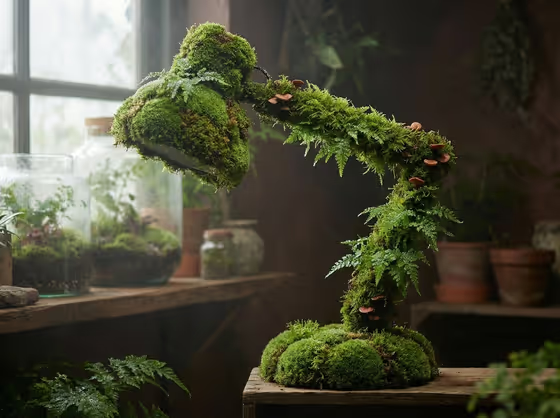
This template turns a product or everyday object into a version that looks grown entirely from living moss. The cover shows a desk lamp rebuilt from cushion moss and feathery fern moss, with small mushroom-like accents, sitting in a dim botanical room with terrariums and clay pots behind it.
It suits anyone who wants a biophilic, wellness-style product visual: brand owners, designers, and creators exploring how a bottle, gadget or accessory would look if nature reclaimed it. The shape of the object stays recognizable while the surfaces become damp, soft and green.
What works best as input
- The Featured product or object field accepts a photo or a short text description. A photo of the real item helps the moss version keep its true proportions.
- Pick an object with a clear, readable silhouette, like the lamp in the cover. The moss covers every surface, so a strong outline is what keeps it recognizable.
- Use a sharp, evenly lit photo of a single object with little clutter, so the template knows exactly what to regrow.
- If you describe it in text instead, be specific, for example 'a premium beverage bottle' or 'a compact consumer device', rather than something vague like 'a thing'.
How to use it
- Open the Living Moss Grown Object template in Phosphene.
- In Featured product or object, upload a photo of your item or type a short description of it.
- Set Creative direction by choosing one of the suggestions (such as Clean editorial or Quiet premium) or writing your own.
- Generate the image, then check that the object's form is still recognizable and the moss looks varied across its surfaces.
Tips for a better result
- Try different Creative direction values on the same object. 'Quiet premium' and 'Cinematic dramatic' will push the mood in different directions while keeping the moss concept.
- Choose objects with both flat areas and fine details. Flat surfaces get smooth cushion moss and details get feathery fern moss, so mixed shapes show off the variety.
- Run the same object more than once and compare results, since small differences in moss placement and accent details can change the feel.
- For a wellness or botanical brand look, keep the direction calm and natural rather than loud or neon.
Common mistakes
- Describing the object too vaguely, which leaves the template guessing at the shape and can lose the product's recognizable form.
- Uploading a cluttered photo with several items, so it is unclear which object should be turned into moss.
- Choosing a creative direction that fights the concept, such as an intense colorful look that works against the damp, natural green mood.
FAQ
Can I use a photo of my product?
Yes. The Featured product or object field accepts a photo, or you can type a description instead.
Will the object still look like my product?
The template aims to keep the product's form while covering it in moss, so a clear photo or specific description helps the shape stay recognizable.
What does Creative direction control?
It sets the overall mood of the visual. You can pick a suggestion like Clean editorial, Cinematic dramatic, Playful colorful or Quiet premium, or write your own.
What shape will the result be?
The template outputs a single image in a 3:4 aspect ratio.