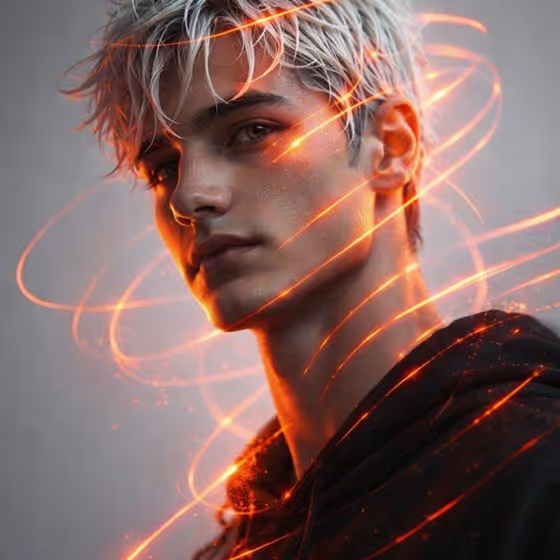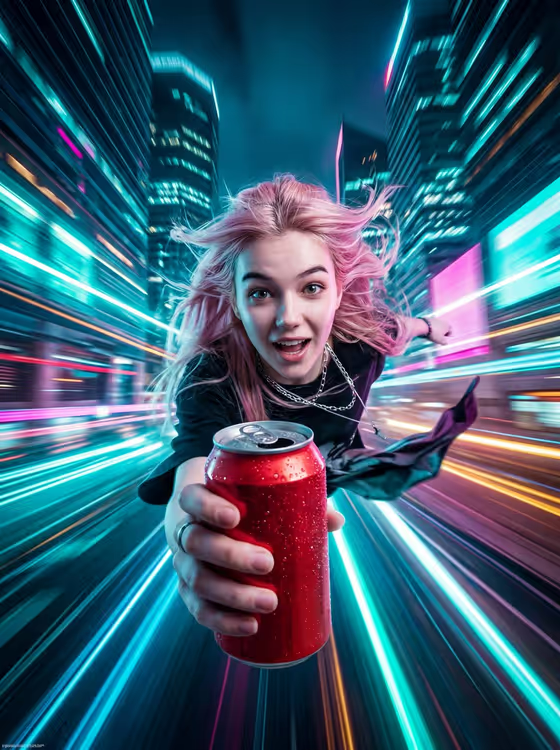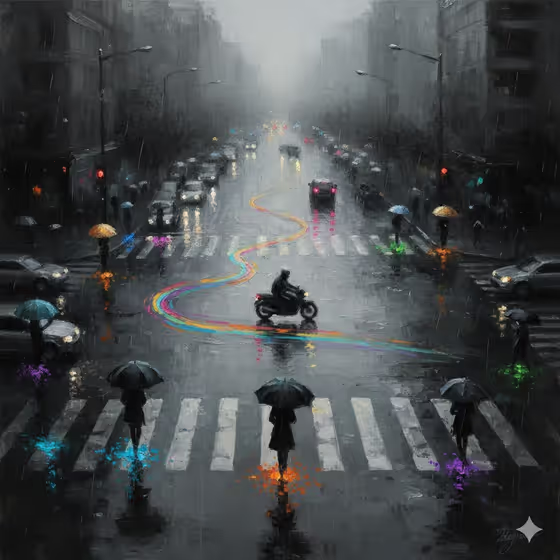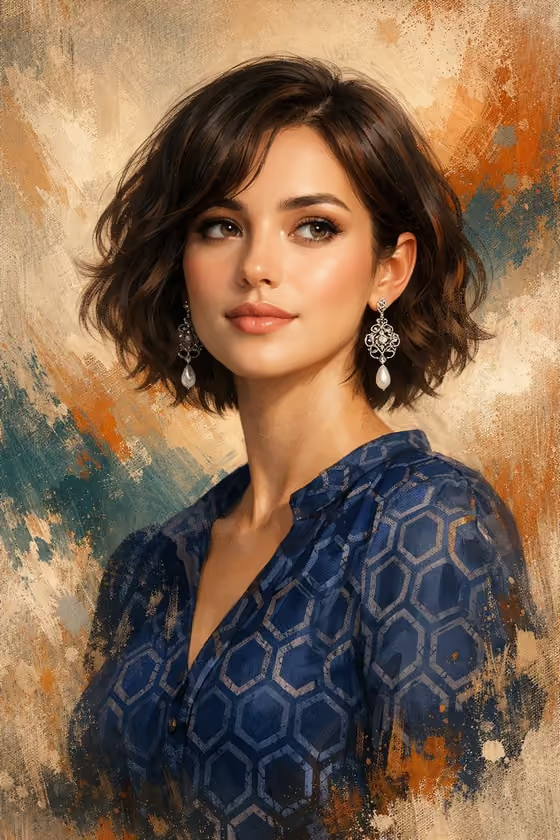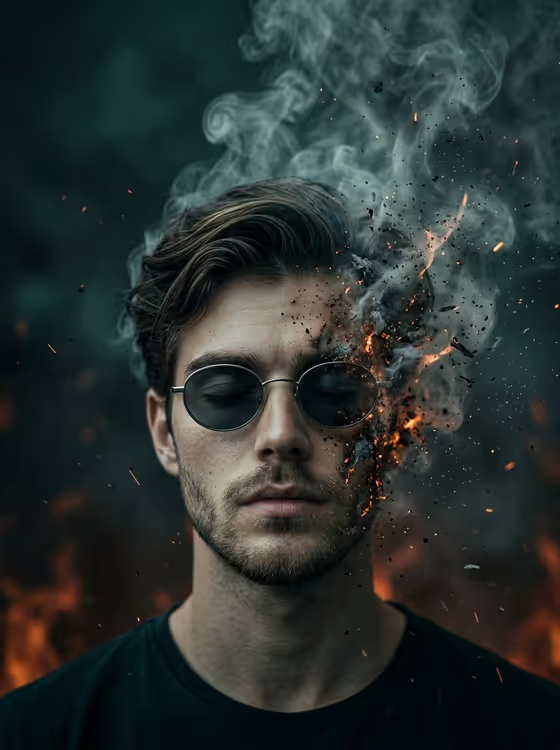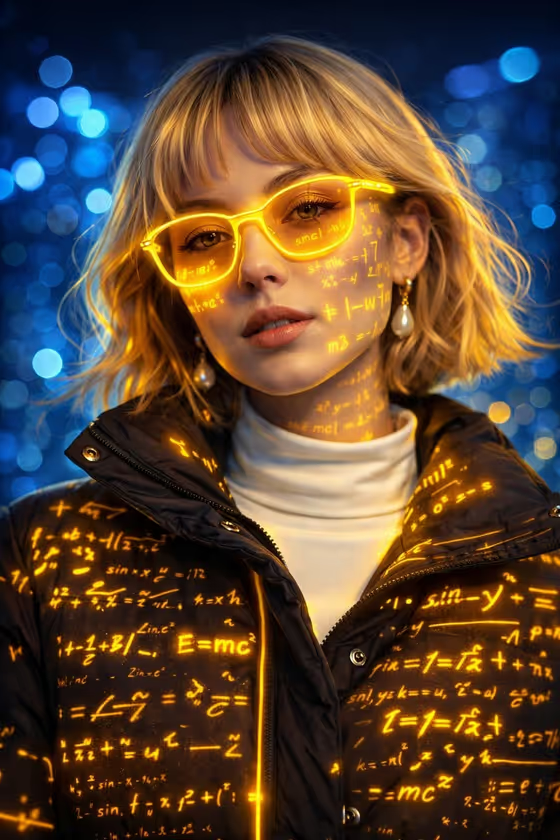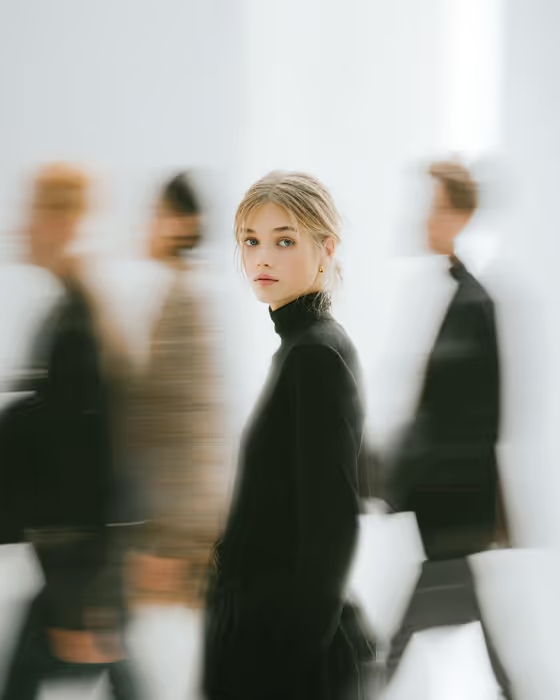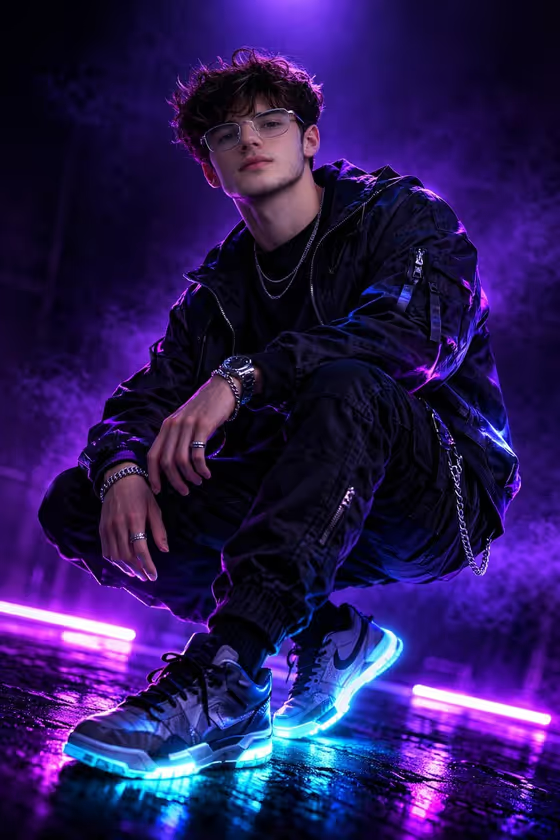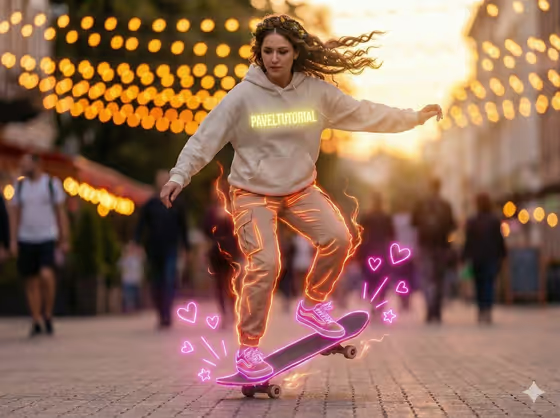
Dusk Skateboard Action turns a portrait into a 16:9 image of you in the middle of a skateboard trick on an urban street at dusk. Your hair streams out with the motion, and neon outlines glow around the outfit, the sneakers and the board, with small pink hearts and starbursts floating near your feet.
It suits anyone who wants a high-energy, stylized portrait for a profile picture, a social post or a bit of creative fun. You give it a reference photo of the person and choose how they should carry themselves, and the template supplies the street, the lights and the glow.
What works best as input
- Use a clear, well-lit photo where the face is fully visible and in focus. The template uses your face as the reference, so a sharp shot gives it more to work with.
- Pick a photo of one adult only. Group shots or heavily cropped faces make it harder to tell who the subject is.
- Face the camera or turn only slightly. Sunglasses, masks, hats pulled low or strong shadows across the face can reduce how closely the result matches you.
- In the Portrait subject field, the default 'an adult subject matching my reference' works well when you upload a photo. You can also describe the subject in a few words if you prefer.
- A photo with a natural pose gives the 'source pose and energy' option something real to build on.
How to use it
- Open the Dusk Skateboard Action template in Phosphene and upload your photo in the Portrait subject field.
- Keep the suggested subject text or adjust it, for example to describe the person in your own words.
- Set Pose or expression. Leave it as 'the source pose and energy' to follow your photo, or choose a style such as calm editorial stillness, confident direct presence or candid spontaneous energy.
- Generate the image, then review it. Check the face, the flowing hair and the neon outlines, and run it again if you want a different take.
Tips for a better result
- Try the different Pose or expression options on the same photo. 'Candid spontaneous energy' suits the mid-trick feel, while 'confident direct presence' gives a more posed attitude.
- Start with a photo that already has some movement or attitude, then keep 'the source pose and energy' so the result stays close to how you naturally look.
- If the first result misses the likeness, try another reference photo with better light and a straighter view of the face rather than changing everything else.
- Generate a few versions and compare them. The glow, the hearts and the background lights can vary, so you can pick the one you like best.
Common mistakes
- Uploading a blurry, dark or distant photo, which leaves little facial detail for the template to follow.
- Using a photo with several people or an obstructed face, so the template cannot tell which person is the subject.
- Writing a long, detailed description in the subject field and expecting it to replace the reference photo. Keep it short and let the photo carry the likeness.
FAQ
Do I need to upload a photo?
The template is built around one reference photo, and the Portrait subject field accepts it. The upload requirement is one image.
What size and shape is the result?
It makes a single image in a 16:9 landscape format.
Will the outfit match my own clothes?
No. The template sets the look itself: a light hoodie, light trousers, and pink neon sneakers and board, all with glowing outlines. Your photo is used for the face reference.
What does the Pose or expression field do?
It sets the energy of the person in the shot. You can follow the pose in your photo or pick an option like calm editorial stillness, confident direct presence or candid spontaneous energy.