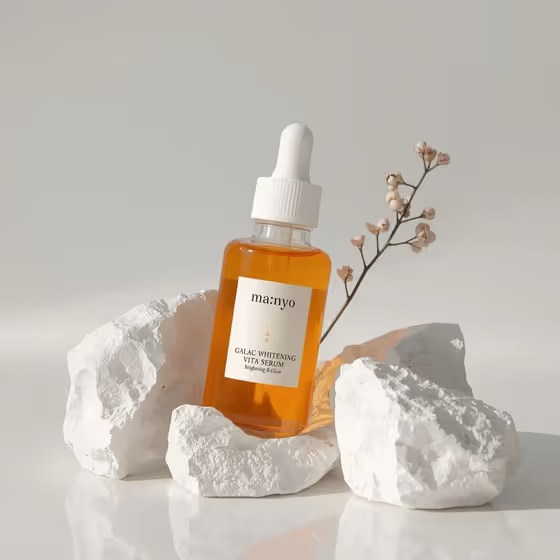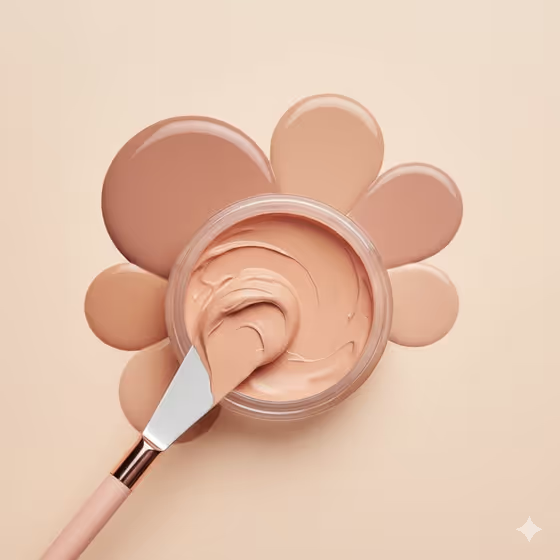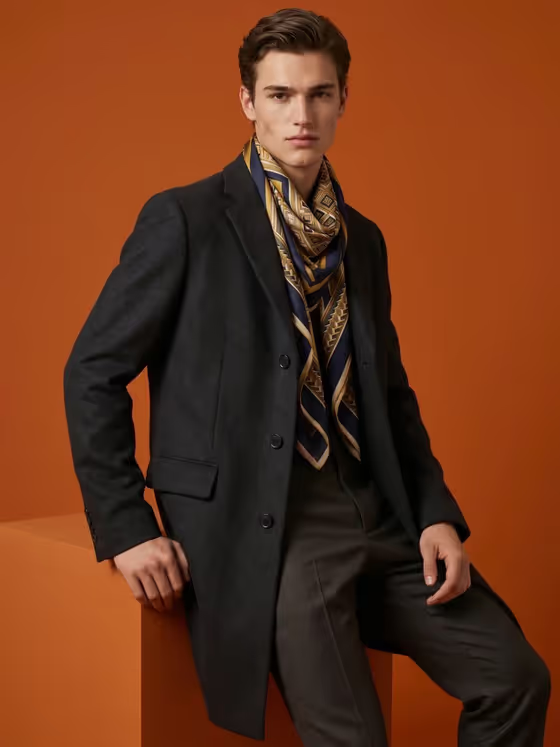
Luxury Surface Flat Lay turns your product into an overhead, square editorial shot. The product lies flat on a tactile surface, front fully visible, with warm sunlight from the upper left casting realistic shadows and a shallow depth of field.
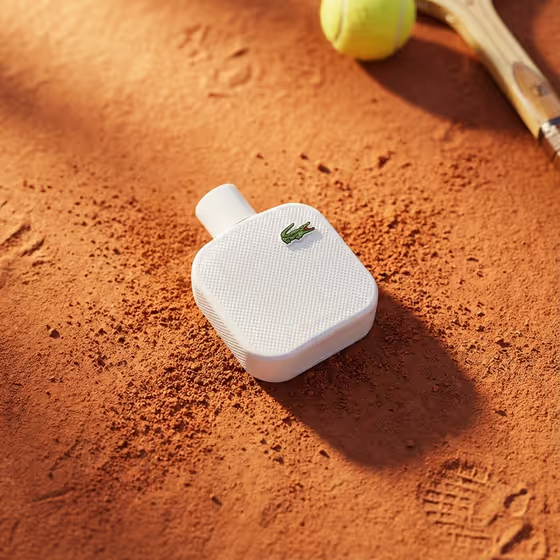
It suits sellers, brand owners and designers who need a polished hero image for a product page or social post without setting up a shoot. The cover example shows a white fragrance bottle on clay-colored court dust with a tennis ball and racket at the edges, so you can see how a surface and a few props can tell a story around the product.
What works best as input
- For the Product field, either describe the item (for example, a premium wristwatch or a skincare jar) or add a reference photo, since this slot accepts both.
- If you add a photo, choose one where the product is sharp, evenly lit and shows its front clearly, because the result keeps the front fully visible and upright.
- Keep the reference clean: one product, minimal clutter, and no heavy glare over logos or labels.
- In Supporting objects, name specific items such as a sprig of dried botanicals or folded silk and a small stone. You can also add a prop reference photo instead.
How to use it
- Open the Luxury Surface Flat Lay template in Phosphene.
- Fill in the Product field with a short description or a reference photo of your item.
- Pick a Textured surface, such as rumpled ivory linen, raked dark sand, veined marble or weathered leather, and optionally add Supporting objects.
- Generate the image, then check that the product front is clear and the surface and shadows look right before using or regenerating.
Tips for a better result
- Match the surface to the product mood: dark sand or weathered leather for bold, masculine items, ivory linen or marble for softer, refined ones.
- Keep Supporting objects to one or two items. The template leaves open space around the product, and a short prop list protects that breathing room.
- Choose props that relate to the product's story, as the tennis gear does in the cover example, so the scene feels intentional.
- Try the same product on two or three different surfaces and compare, since the surface changes the whole feel of the shot.
Common mistakes
- Describing the product too vaguely. A line like 'a bottle' gives less to work with than 'a leather fragrance bottle', so name the material and type.
- Listing many supporting objects. Crowding the frame works against the open space the layout is built around.
- Using a reference photo with a cluttered background or hidden front, which makes it harder to keep the product front fully visible.
FAQ
Do I have to upload a photo?
No. The Product field accepts a text description or a reference photo, so you can use either. Supporting objects also accepts a prop reference, but it is optional.
What shape is the output?
The template produces a square 1:1 image, shot from directly overhead.
Can I change the light direction?
No. The sunlight from the upper left is part of the template's fixed direction, so you control the look through the product, surface and props instead.
Which surfaces can I choose?
The Textured surface field offers examples like rumpled ivory linen, raked dark sand, veined marble and weathered leather.