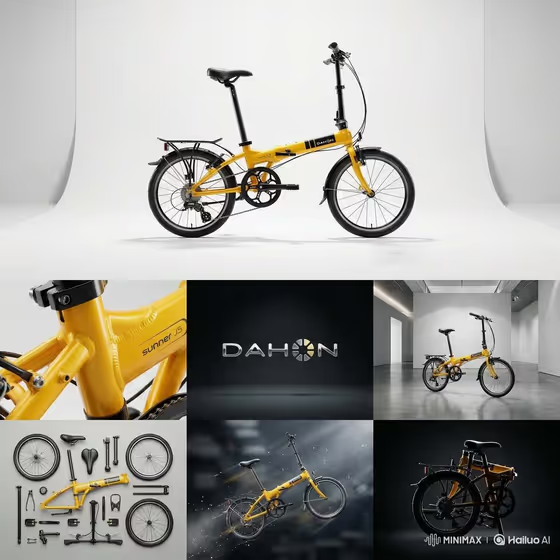
Seven-View Product Editorial turns one product into a single studio composite. A large hero panel sits on top, with a 2x3 grid below showing a macro material close-up, a logo emblem, the product in a scale setting, a knolled components layout, a motion still, and a rim-lit silhouette.
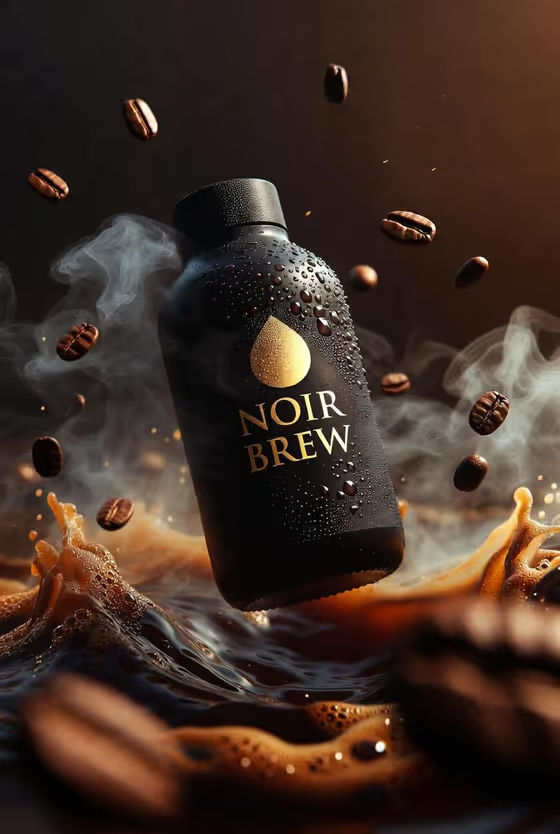
It suits anyone who wants a design-breakdown look for a product, such as a folding bike, headphone, bottle or sneaker. The template keeps geometry, color, branding, proportions and material consistent across all seven panels, so the result reads as one product seen from many angles.
The output is a single borderless 3:4 image, so it works as a cover-style visual, a product story or a concept presentation.
What works best as input
- The template asks for 2 or more photos. Upload clear reference shots of the exact product, ideally from different angles, so shape, color and branding stay accurate.
- In the Product or object field, you can describe the item or attach its reference. If you type a description, be specific, for example 'a premium sneaker' or 'a glass fragrance bottle', rather than just 'shoe' or 'bottle'.
- Choose references where the logo, colors and key parts (wheels, handles, joints, caps) are visible and not cropped, since the emblem, macro and components panels draw on those details.
- Plain, evenly lit backgrounds and sharp focus help the template read the real proportions of your product.
How to use it
- Open the Seven-View Product Editorial template in Phosphene and add 2 or more photos of your product.
- Fill in Product or object, then pick a Primary material from the options, such as machined metal, optical glass, matte technical fabric or polished ceramic.
- Enter a Scale context (for example a gallery pedestal or a precision workbench) and a Motion cue (for example fine vapor or controlled sparks).
- Generate the image, then check that the hero panel and all six lower panels show the same design, colors and branding before using it.
Tips for a better result
- Match the Primary material to what your product is really made of. It carries through all views, so a mismatch will show in the macro texture panel.
- Pick a Scale context that suits the product's size and purpose. A workbench fits tools and cameras, while a pedestal or plinth suits sculptural or fashion items.
- Choose a Motion cue that fits the product's character, like droplets for a fragrance bottle or fragments for a rugged object. Subtle cues tend to keep the product the clear focus.
- Try the same product with a different material or motion cue to produce a set of variations for comparison.
Common mistakes
- Uploading only one photo or a blurry, heavily cropped one. The template expects 2 or more references, and weak references make it harder to keep the design consistent.
- Writing a vague product description without a reference, which leaves the model guessing at proportions and branding.
- Choosing a Scale context or Motion cue that clashes with the product, such as a dramatic spark effect on a delicate glass item, which can pull attention away from the design.
FAQ
How many photos do I need to upload?
The template asks for 2 or more photos of your product.
What format is the result?
One borderless 3:4 image: a large hero panel above a 2x3 grid of six supporting views.
Which panels are in the grid?
Macro material, logo emblem, scale context, knolled components, motion still, and a rim-lit silhouette.
Can I type a description instead of uploading a photo?
The Product or object field accepts either a description or a reference photo, though the template also asks for 2 or more photos, and references help keep the design accurate.