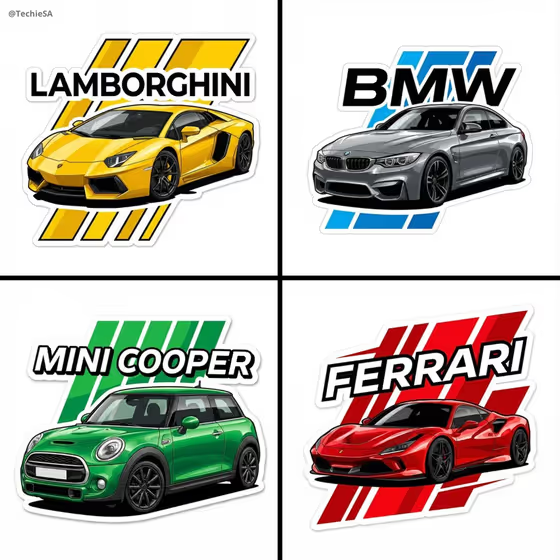
This template turns a car into a glossy vector-style sticker with a die-cut outline, bold type above the vehicle and layered graphic shapes behind it. The cover shows four examples in the same format: a yellow sports car, a grey coupe, a green hatchback and a red supercar, each with a brand word on top and angled stripes in a matching color.
It suits car fans, club and meet organizers, garage or detailing businesses, and anyone who wants a custom decal-style graphic of a specific vehicle. You describe or reference the car, pick a backdrop treatment, and the template handles the illustration style.
What works best as input
- The Vehicle Product field takes text, and it also accepts a photo as an exact visual reference. If you add one, use a clear shot of the car with the whole body visible and little clutter around it.
- A front or front-side angle gives the best match, since the template builds a dynamic front-side illustration and aims to keep the body proportions recognizable.
- If you describe the car in words, include color, body style and character, like the examples: a red Japanese sports coupe or a blue German performance sedan.
- Pick a car color that will sit well against the backdrop. The cover examples pair each car with stripes in the same color family.
- Keep the Backdrop Treatment short and visual, such as sunburst and speed streaks or neon grid and geometric smoke. It is text only, so describe the shapes and pattern you want behind the car.
How to use it
- Open the Vector Car Sticker template in Phosphene.
- In Vehicle Product, describe the car or add a reference photo of it.
- In Backdrop Treatment, type the graphic style for behind the car, or start from one of the example phrases.
- Generate the sticker, then check the car shape, the brand word above it and the layered background. Adjust your wording and run it again if something is off.
Tips for a better result
- Try the same car with different backdrops, for example sunburst and speed streaks versus mountain silhouette and tire marks, to see how much the mood changes.
- Use specific car descriptions. A green classic rally car and a silver electric grand tourer give the model clearer shapes and colors than just a sports car.
- If your reference photo has a busy background, pick another shot or describe the car in text, since the sticker is meant to have no photoreal background.
- Make a set in one go with matching layouts, like the cover grid, by changing only the car and keeping the backdrop style consistent.
Common mistakes
- Writing a vague vehicle description such as a fast car, which leaves the body style and color up to chance.
- Piling several unrelated styles into Backdrop Treatment. One clear direction gives cleaner layered graphics than a long mix of ideas.
- Using a reference photo where the car is cropped, tiny or hidden behind other objects, which makes the proportions harder to preserve.
FAQ
Do I have to upload a photo?
No. Vehicle Product is a text field, so you can simply describe the car. It also accepts a photo if you want to give an exact visual reference.
Can I add a photo to the Backdrop Treatment?
No. Backdrop Treatment is text only, so describe the pattern or scene you want, like checker pattern and angled arrows.
What does the output look like?
A die-cut style sticker image of the car with glossy vector shading, black sport rims, bold text above the car and layered graphics behind it, in a 3:4 aspect ratio.
Will the brand word appear on the sticker?
The template places a bold brand word above the car, as in the cover examples. Check the lettering in the result, and regenerate if it is not what you wanted.