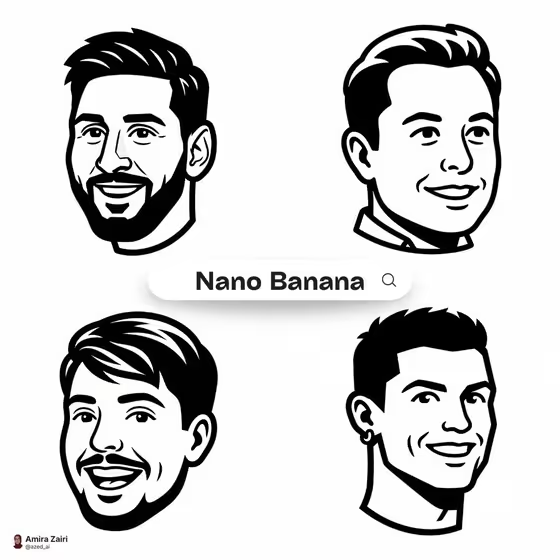
This template turns a person and a product into one cohesive brand graphic. The person becomes a flat vector mascot icon, shown as a head only in a 3/4 view, drawn with thick black outlines, thinner inner detail lines and simplified geometric features. The product sits alongside it, and the whole piece follows the color palette you choose.
It suits founders, small brands and designers who want a friendly, logo-like portrait for a profile, product page, launch graphic or team page. The output is a square 1:1 image with a clean, startup-mascot look similar to the bold icon heads on the cover.
What works best as input
- For the Subject field, use a clear, well-lit photo of a face (yours, or someone who has agreed to be turned into an icon). A front or slight 3/4 angle with no heavy shadows gives the cleanest read.
- Pick a photo where the traits you want kept are visible: hairstyle, beard shape, glasses, eyebrows and smile. The template simplifies features into shapes but tries to preserve these.
- For the Product field, either describe the item in words or add a photo of it. A single product on a plain background works better than a busy scene.
- The template asks for 2 or more photos, so plan one photo for the product and one for the subject, or describe either in text if you prefer.
- If you type instead of upload, be specific. Something like 'A confident adult with short hair and a trimmed beard' gives more to work with than 'a person'.
How to use it
- Open the Notion-Style Mascot Icon template in Phosphene.
- Fill the Product field with a short description or add a reference photo, then fill the Subject field the same way.
- Choose a Color Palette, such as cobalt blue and warm cream or monochrome black and white.
- Generate the image, then check that the icon resembles your subject and the product is clearly featured. Adjust your inputs and run it again if needed.
Tips for a better result
- Try different palettes on the same inputs to compare looks. A two-tone pairing like burgundy and blush feels very different from forest green and sand.
- Use the example phrases in the Subject field as a starting point, then add distinctive traits like glasses, a beard or a particular hairstyle.
- Keep the product simple and recognizable. A compact, clearly shaped item reads better next to a bold icon than a complex scene.
- Generate a few versions and pick the one where the smile and facial proportions feel most like the person.
Common mistakes
- Uploading a photo with sunglasses, heavy filters, a hat covering the hair or a tiny face in a crowd, which hides the traits the icon is meant to keep.
- Writing a vague Subject such as 'a person', which leaves the mascot generic and less recognizable.
- Describing a very detailed or cluttered product, which competes with the single clear focal point this template aims for.
FAQ
Can I use a photo of myself?
Yes. The Subject field accepts a photo, and a clear front-facing shot gives the icon the best chance of keeping your hairstyle, beard, glasses and smile.
Do I have to upload photos or can I just type?
The Product and Subject fields both accept either a text description or a photo. The Color Palette is a simple choice with no photo option.
Will the result be in color?
The icon follows the two-tone Color Palette you pick. The cover examples show the black and white look, which matches the monochrome option.
What shape is the output?
The image is square (1:1), which suits profile pictures, social posts and product tiles.