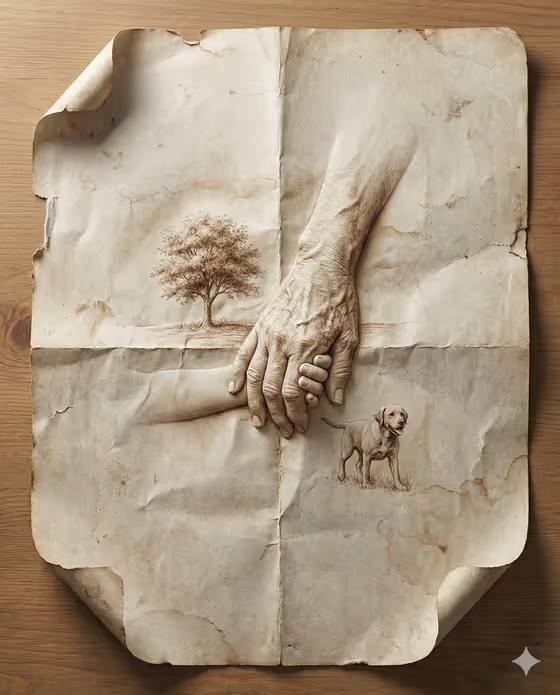
Origami Paper Fold Reveal turns a subject of your choice into a macro shot of aged, wrinkled paper, with the scene appearing to rise out of the creases like sculpted origami. The cover example shows a tree, a dog and a pair of clasped hands pressed into a creased, stained sheet resting on a wooden tabletop.
It suits anyone who wants a tactile, keepsake-style image: a place that matters to you, a landmark, a neighborhood scene or a cultural destination. You pick the subject and a creative direction, and the template handles the paper, the folds and the lighting.
What works best as input
- The Scene subject or object field accepts a photo or a written description, so you can upload a picture or type what you want embossed into the paper.
- Pick a subject with a clear, readable shape. Landmarks, single trees, buildings or a simple scene tend to translate well into relief-style folds.
- If you describe instead of upload, be concrete. Something like 'a famous city landmark' or 'a personally meaningful place' (the field's own examples) works better than a vague word.
- If you upload a photo, choose one with good, even lighting and an uncluttered background so the main subject is easy to identify.
- Keep to one main subject or one compact scene rather than a long list of items.
How to use it
- Open the Origami Paper Fold Reveal template in Phosphene.
- In Scene subject or object, upload your photo or type a short description of the subject you want emerging from the paper.
- Set Creative direction by choosing an option such as Clean editorial, Cinematic dramatic, Playful colorful or Quiet premium, or describing your own.
- Generate the image, then review the 3:4 result and adjust your subject or direction if you want a different look.
Tips for a better result
- Try the same subject with different Creative direction options. Quiet premium and Cinematic dramatic should give noticeably different moods to the same paper scene.
- Name a specific place or object rather than a general category, since the template builds the scene from what you give it.
- Look at the cover for the effect to aim for: the subject is embossed and printed into the paper itself, with wrinkles, torn corners and faded ink supporting the illusion.
- If a first result feels crowded, simplify the subject to a single landmark or a smaller scene and generate again.
Common mistakes
- Entering a very long or multi-part description in the subject field, which can make the paper scene busy and hard to read.
- Using a low-quality or heavily cluttered photo, so the main subject is hard to pick out of the creases.
- Leaving the subject generic when you actually have a specific place or object in mind, which gives the template less to work with.
FAQ
Can I upload a photo for this template?
Yes. The Scene subject or object field accepts a photo, and you can also type a description instead.
What does the finished image look like?
It is a macro-style image of aged, wrinkled paper with your subject embossed or printed into the folds, set on a neutral tabletop with soft side lighting, in a 3:4 frame.
What does Creative direction change?
It sets the overall mood of the result. The template lists options like Clean editorial, Cinematic dramatic, Playful colorful and Quiet premium, and you can describe your own.
Do I have to fill in both fields?
Yes, both Scene subject or object and Creative direction are required.