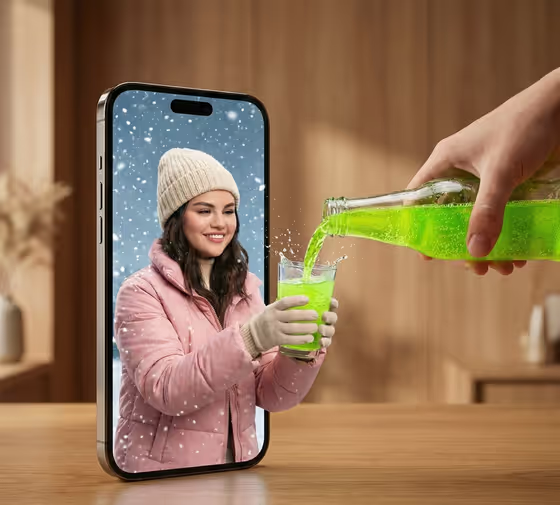
Phone Portal Pour makes a surreal, photoreal product shot in 3:4 format. A smartphone screen acts as a physical doorway: a person in winter clothing stands inside it among falling snow, holds out a glass, and a real hand outside the phone pours a bright neon-green fizzy drink into it.
It suits anyone who wants a scroll-stopping beverage, gadget or social campaign image, or a playful portrait that breaks the fourth wall. You supply two things, the portal device and the person inside it, and each can be a photo or a short text description.
What works best as input
- For the Portal device slot, a clear photo of the exact phone or object works best if you want it recognizable. Pick a shot with the whole device visible and good, even lighting.
- For the Person inside the portal slot, use a clean, well-lit photo of an adult, ideally facing the camera with the face and upper body clearly visible. Only use photos of yourself or people who have agreed to appear.
- If you describe instead of upload, be concrete. The placeholders show the style: 'an adult man in winter clothing' or 'a modern smartphone'. Add a detail or two, like a beanie, a pink puffer jacket or a metal phone frame.
- The template needs at least two photos if you go the upload route, so keep the two images visually distinct (one device, one person) rather than two similar portraits.
- Avoid heavy filters, sunglasses covering the eyes, or busy backgrounds in your reference photos, since they can compete with the snowy scene inside the screen.
How to use it
- Open the Phone Portal Pour template in Phosphene.
- Fill in Portal device by uploading a photo of your device or typing a description, such as 'a modern smartphone' or 'a premium consumer product'.
- Fill in Person inside the portal with a photo or a description of an adult, for example 'an adult woman with a distinctive presence'.
- Generate the image, then review the result. Check that the person and snow stay inside the screen while the hands, glass and green liquid cross into the real tabletop scene.
Tips for a better result
- Try the other device examples, like 'a sculptural design object' or 'my exact referenced item' with a photo, to turn the portal into something other than a phone.
- Describe clothing that fits the snowy interior, such as a knit hat, a puffer jacket and gloves, so the cold world inside the screen feels cohesive.
- Pick a person reference with a clear smile or expression. The cover shows how a friendly face makes the pour moment feel warm against the cold scene.
- If the first result is off, adjust only one slot at a time so you can see which change improved it.
Common mistakes
- Using a cropped or tiny photo of the device, which makes it harder for the portal to look like your actual product.
- Uploading a group photo or a very dark portrait for the person slot, so the figure inside the screen is unclear.
- Writing a long, vague description with many competing ideas instead of a short, concrete one. The template already sets the scene, drink and splash, so your slots only need the device and the person.
FAQ
Do I have to upload photos?
The slots accept either a photo or a text description, and the template is set up for two or more photos. You can type descriptions in the fields, but uploads give you more control over the exact look.
Can I change the drink color or the scene?
The drink, snow, tabletop and splash are part of the template's fixed direction. You customize the portal device and the person inside it.
Does it have to be a smartphone?
No. The Portal device slot suggests options like a premium consumer product or a sculptural design object, and you can reference your own item with a photo.
What size is the image I get?
The template outputs a still image in a 3:4 aspect ratio.