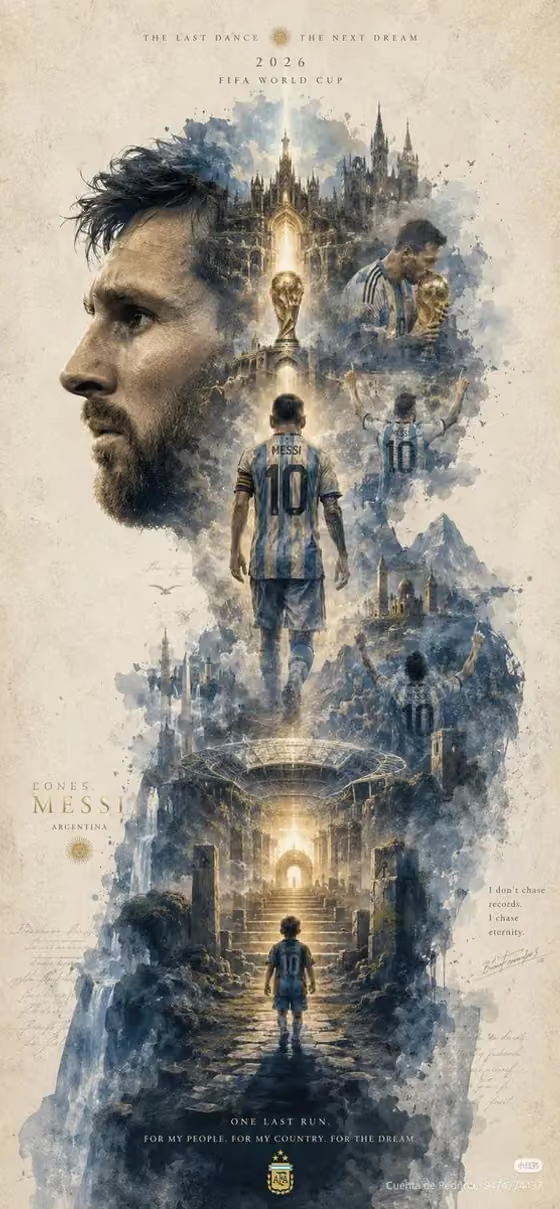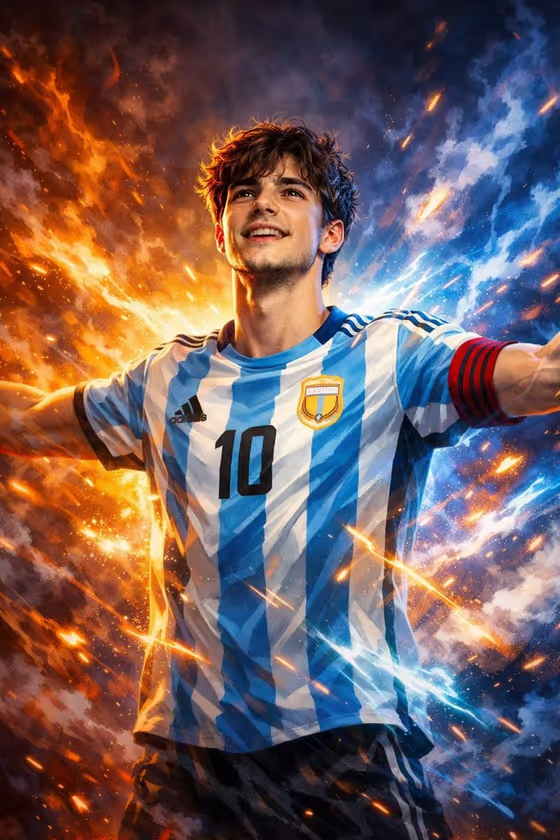
Victory Energy Painting turns a portrait into a high-detail digital painting of someone standing in a bold victory pose with arms stretched wide. Behind and around the figure, swirling smoke and flame-like energy glow in warm orange and cool blue, with neon sparks scattering through the frame.
It suits anyone who wants a celebratory, poster-style portrait: a friend after a big win, a team photo moment, or a personal milestone. The output is a 3:4 image, so it fits portrait-oriented posts, prints and wallpapers.
What works best as input
- In the subject field (labeled "triumphant young man portrait subject"), you can either type a short description or upload a photo as the visual reference. A photo gives the painting something concrete to follow.
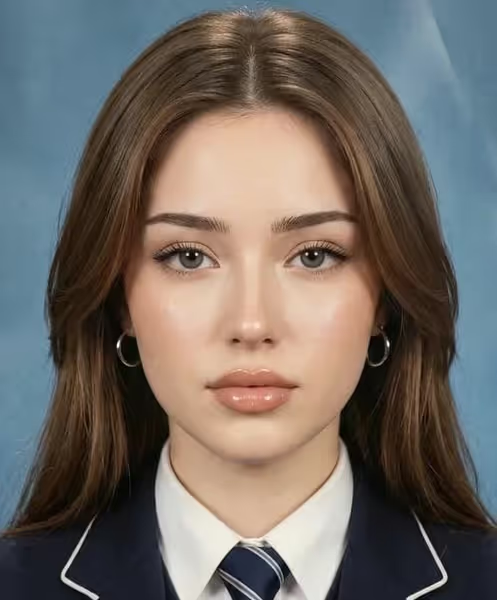
- Pick a photo with a clearly visible face, even lighting and the head and shoulders in frame. The painting centers on a confident, fearless expression, so a clear face gives the best base.
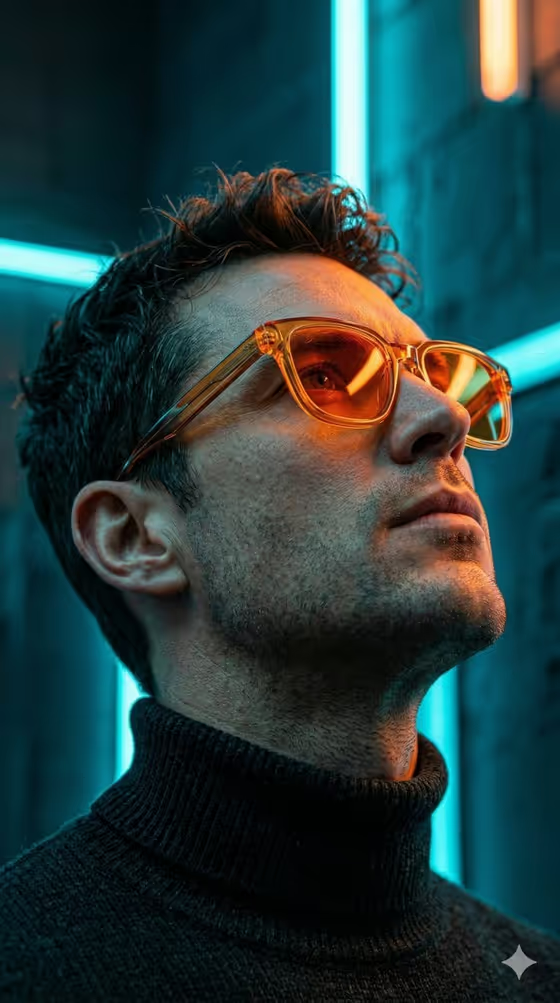
- Avoid heavy filters, sunglasses or hats that hide the face, since they hide details the painting needs.
- If you describe instead of upload, keep it short and specific, like the placeholder "a triumphant young man", and add one or two defining traits such as hair or clothing.
- Use a photo of yourself or someone who has agreed to be used, and keep it respectful.
How to use it
- Open the Victory Energy Painting template in Phosphene.
- In the subject field, upload your photo or type a short description of who the portrait should show.
- In "Pose and scene", choose how the final image is framed, such as an intimate close portrait, a full-body editorial frame or an environmental candid frame.
- Generate the image, then review it. Check the face, the outstretched arms and how the smoke and sparks sit around the figure, and adjust your inputs if something is off.
Tips for a better result
- Try different options in "Pose and scene". A close portrait puts the expression front and center, while a full-body frame shows off the full victory pose.
- Describe clothing in the subject field if it matters. In the cover example, a striped jersey with a number stands out sharply against the fiery background.
- Run the same subject with different framing choices to compare versions and pick the one with the strongest composition.
- Use a well-lit photo with some contrast. The painting adds dramatic lighting, so a clean starting image gives it a better base.
Common mistakes
- Uploading a blurry, dark or heavily cropped photo, which leaves the painting little facial detail to work from.
- Writing a long, crowded description in the subject field. Keep it to one short phrase so the template's pose and energy effects stay in charge.
- Expecting the scene, pose or colors to change completely. The victory pose, smoke, flame-like energy and neon sparks are fixed parts of this template.
FAQ
Do I have to upload a photo?
No. The subject field accepts either a typed description or an uploaded photo. A photo helps the result follow a specific person's look more closely.
What does the "Pose and scene" option change?
It sets how the finished image is framed, for example a close portrait, a full-body editorial frame or an environmental candid frame. The painted look and energy effects stay the same.
What shape is the finished image?
It is a 3:4 portrait-oriented image.
Can I change the smoke and spark effects?
They are part of the template's fixed direction: swirling smoke, flame-like energy and radiating neon sparks with cinematic lighting. Your inputs control who is shown and how the image is framed.