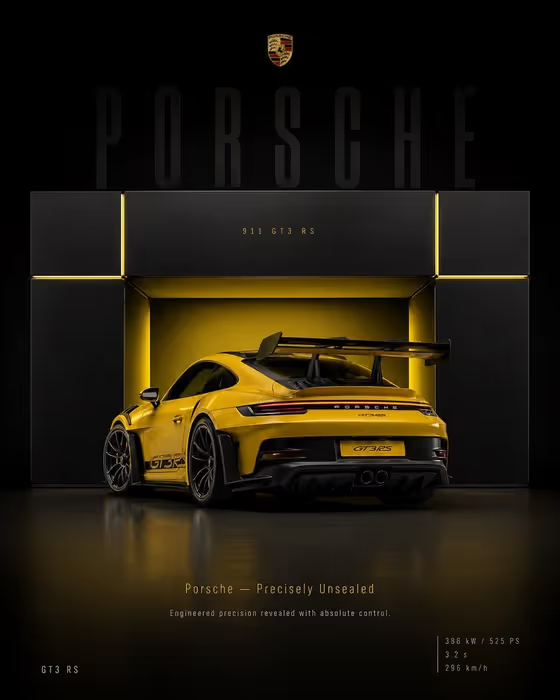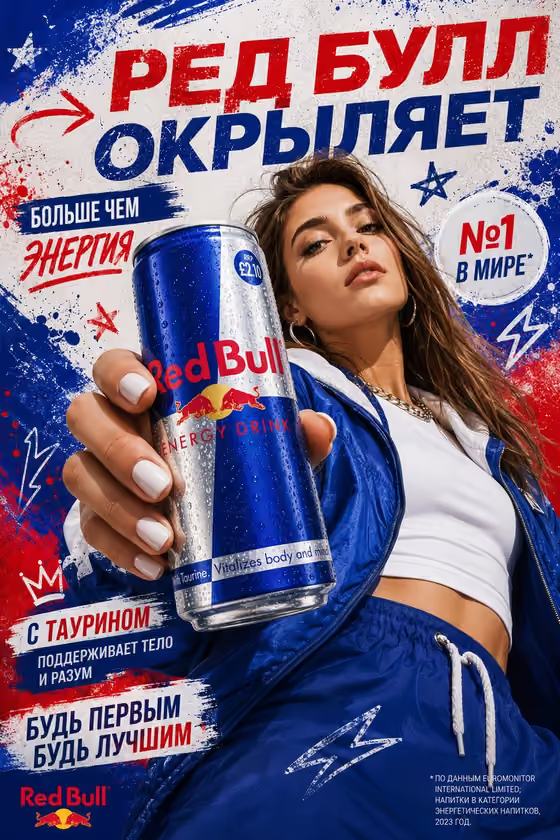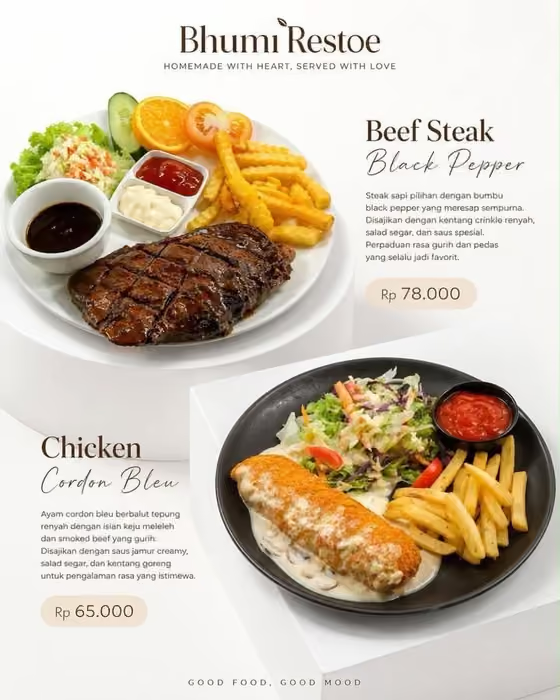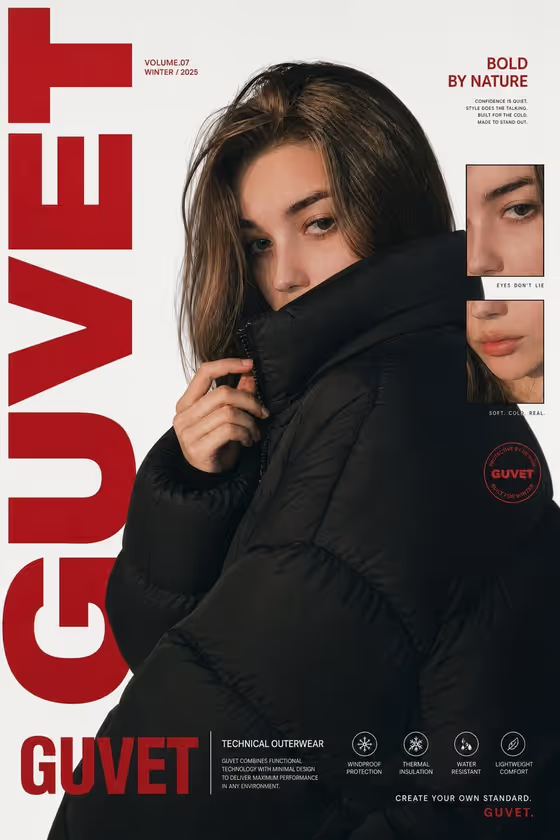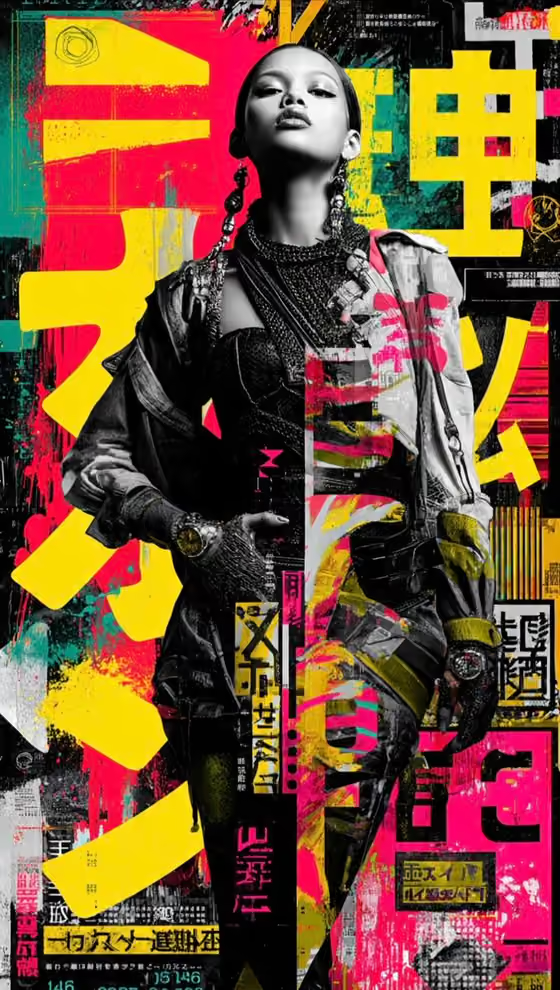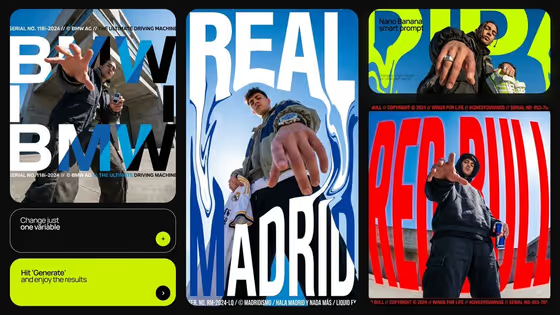
This template builds a 3:4 campaign poster shot from a dramatic low angle, with one hand or product pointing straight at the viewer. Oversized headline type, serial numbers, copyright lines and small technical callouts sit over bold color blocks and a tactile print texture, in the style of the cover examples.
It suits brand teams, creators and designers who need a punchy poster for a collaboration, a pitch deck or a social post. You give it a subject, a palette and a headline, and it handles the layout and the type treatment.
What works best as input
- For Campaign product or person, you can type a description or upload a reference. A clear photo of your actual product or collaborator helps the poster match the real thing.
- Pick a reference where the subject is easy to read: good light, nothing cropped awkwardly, and a hand or product that could plausibly point toward the camera.
- If you type instead, be concrete. The examples show the level of detail that works, such as a streetwear sneaker, a creator holding a camera or a gaming headset.
- Only upload photos of people you have permission to use, such as yourself or a collaborator who agreed to appear in the campaign.
- For Brand color blocking, name two or three colors in order, like black, acid yellow and white, or enter your own brand palette.
How to use it
- Open the Point-at-the-Viewer Brand Poster template in Phosphene.
- Fill in Campaign product or person by describing it or adding a reference photo, then set Brand color blocking to the palette you want.
- Enter your Poster headline or tagline. Short, all-caps lines like POINT OF VIEW or MADE TO MOVE suit the oversized type style.
- Generate the poster, then check that the headline spelling, the pointing gesture and the colors match what you intended.
Tips for a better result
- Keep the tagline to a few words. Big type reads best when there is little of it, and short lines are less likely to be garbled.
- Change only one field per run, such as the palette or the headline, so you can see exactly what each change does.
- Try contrasting palettes like cobalt, orange and cream against a darker black, acid yellow and white to get very different moods from the same subject.
- If you have a brand, type your real palette into Brand color blocking so the poster looks like it belongs to the campaign.
Common mistakes
- Writing a long sentence as the headline. The layout is built for a short, punchy line, and long text crowds the hero.
- Using a vague subject like thing or product. Without a specific item or person, the pointing pose and composition have little to build on.
- Uploading a low-quality or heavily cropped reference photo, which gives the poster a weaker subject to work from.
FAQ
Do I have to upload a photo?
No. Campaign product or person accepts either a typed description or a reference photo. The other two fields are text or choice only.
What shape is the poster?
It is a 3:4 portrait image, which suits social posts, pitch deck slides and collaboration mockups.
Can I use my own brand colors?
Yes. Brand color blocking lets you enter your own palette, for example by listing your brand colors in order.
What are the small numbers and text on the poster?
The template adds serial numbers, copyright-style lines and technical callouts as part of the poster design. They are decorative layout details, so review them before using the poster publicly.