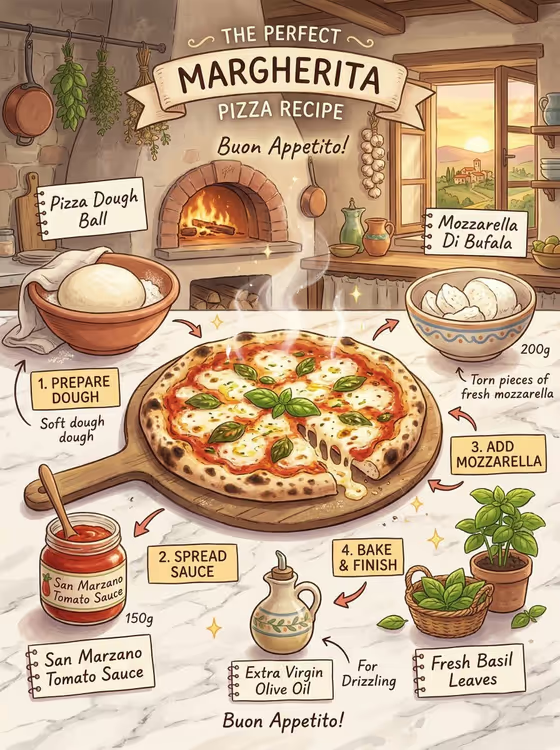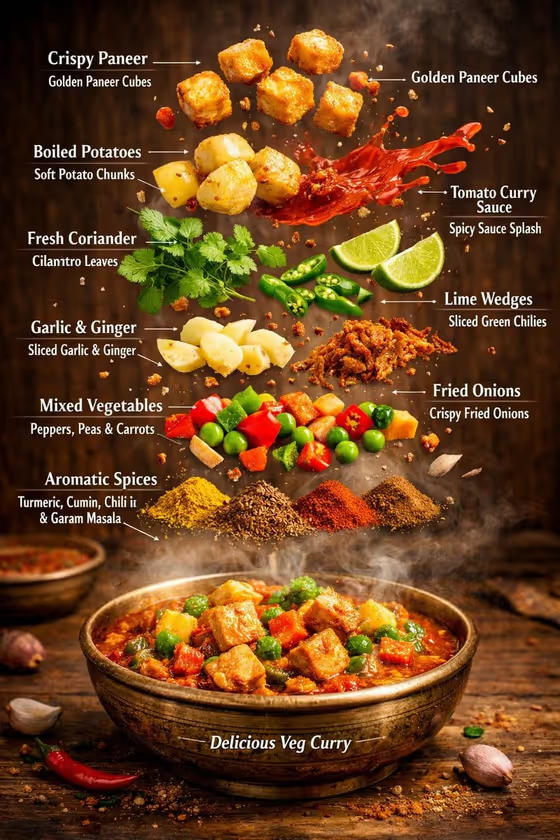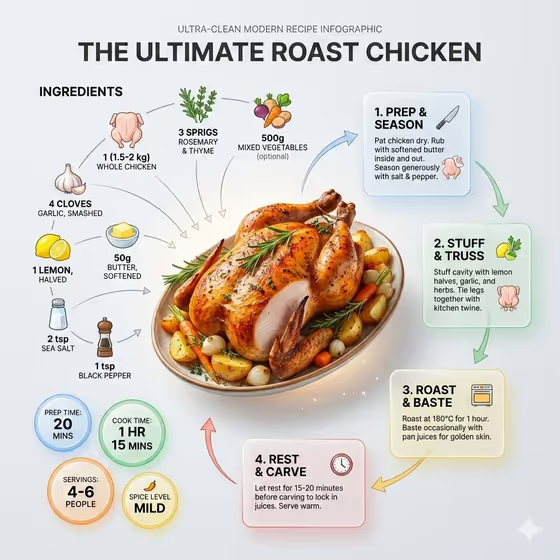
Roast Chicken Guide turns a roast chicken dish into a recipe card in a modern editorial style. The finished, sliced bird sits at the center at a slight angle, with icon-labeled ingredient clusters on one side and numbered step panels on the other, plus small badges for details like prep time, cook time, servings and spice level.
It suits home cooks, food bloggers and anyone sharing a recipe who wants something that reads at a glance. You describe your dish or give a reference photo, pick how it should be presented, and the template handles the layout, icons and typography.
What works best as input
- In the "roast chicken dish food product or dish" field you can type a description or upload a photo of the exact dish. A clear shot of the finished roast chicken works best because the dish becomes the hero of the card.
- Pick a photo where the whole bird or platter is visible, in good light, without heavy filters. The cover example shows a golden, herb-topped chicken surrounded by roasted vegetables, which gives the layout plenty to work with.
- If you type instead, be specific about the dish, such as a roast chicken with rosemary and thyme. The placeholder "a roast chicken dish" is a good starting point to build on.
- Variations are allowed too. The examples include a chef-made variation, a regional specialty, or your own exact food reference, so describe what makes your version different.
- Avoid photos where the dish is cropped, blurry or hidden behind packaging, since the card needs to show the finished meal clearly.
How to use it
- Open the Roast Chicken Guide template in Phosphene.
- In "roast chicken dish food product or dish", describe your dish in text or upload a photo of it.
- Choose a "Food presentation" option. The default is Ultra-clean modern recipe infographic, and the other choices include plated hero composition, ingredient motion moment and texture-focused close-up.
- Generate the image, then review the card for the dish, the numbered steps and the badges. Adjust your description or presentation choice and run it again if something is off.
Tips for a better result
- Keep the default recipe infographic presentation if you want the full layout with ingredient clusters, numbered panels and badges, as in the cover image.
- Name the key ingredients in your description (for example garlic, lemon, butter, herbs) so the icon clusters have something concrete to draw from.
- Try one of the other presentation options if you want a more photographic result, such as the texture-focused close-up, and compare it with the infographic version.
- The card is generated in a 3:4 frame, so leave your dish description simple and let the layout provide the surrounding space and hierarchy.
Common mistakes
- Writing a very short or vague description, which leaves the ingredient and step panels generic.
- Uploading a photo that is dark, heavily cropped or full of clutter, so the hero dish is hard to read.
- Expecting the card to match your exact quantities and times. Always check the text and numbers on the result against your real recipe before sharing.
FAQ
Do I have to upload a photo?
No. The dish field accepts either a text description or a photo, so you can type something like a roast chicken dish and generate from that.
What does the Food presentation setting change?
It sets how the dish is framed. The default is Ultra-clean modern recipe infographic, and the other options listed are plated hero composition, ingredient motion moment and texture-focused close-up.
What will appear on the finished card?
The card shows the dish as the main visual, ingredient clusters with icons, numbered preparation steps, and small badges for details like timing, servings and spice level.
Can I use it for dishes other than roast chicken?
The template is built around roast chicken, but the dish field also allows variations such as a chef-made version or a regional specialty. Stay close to the roast chicken idea for the most reliable layout.