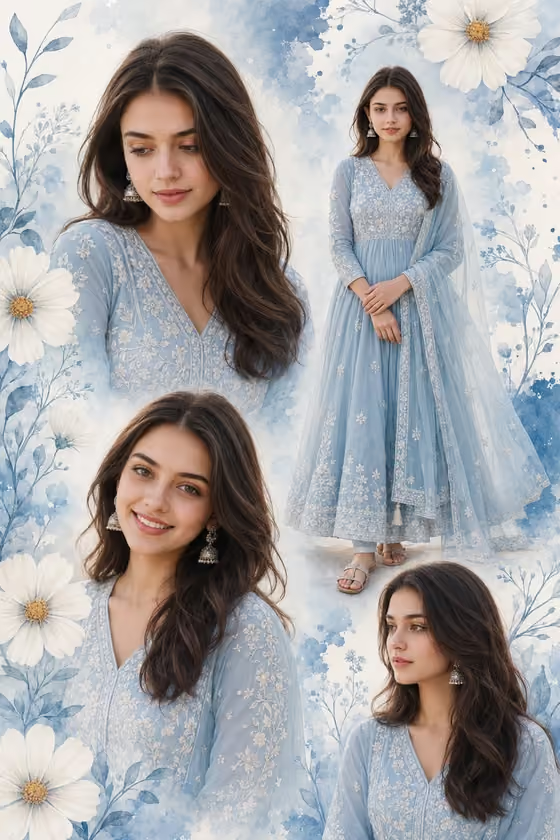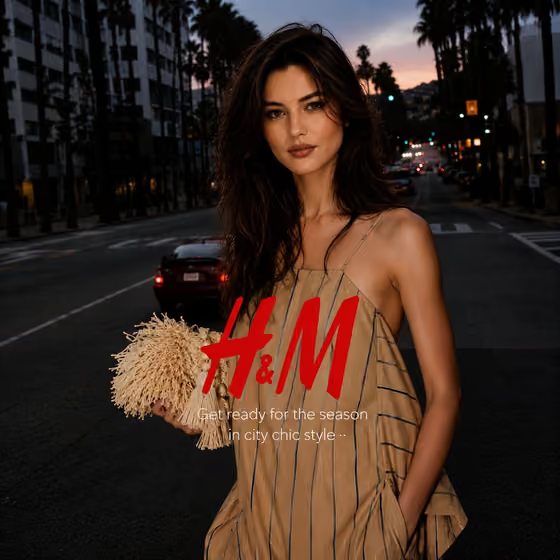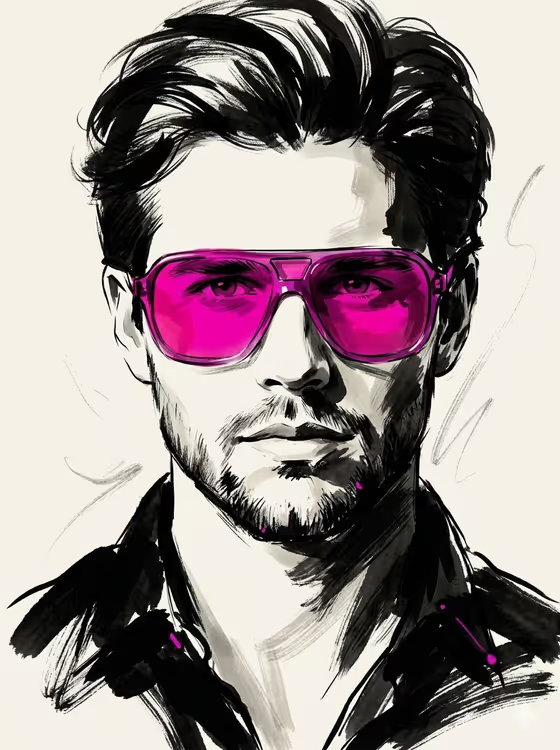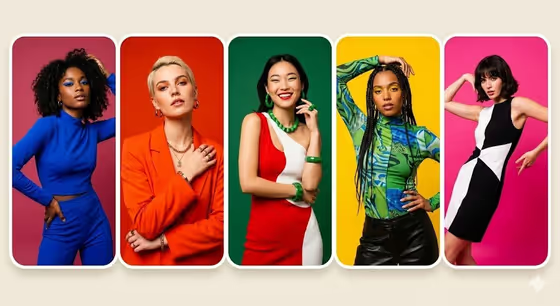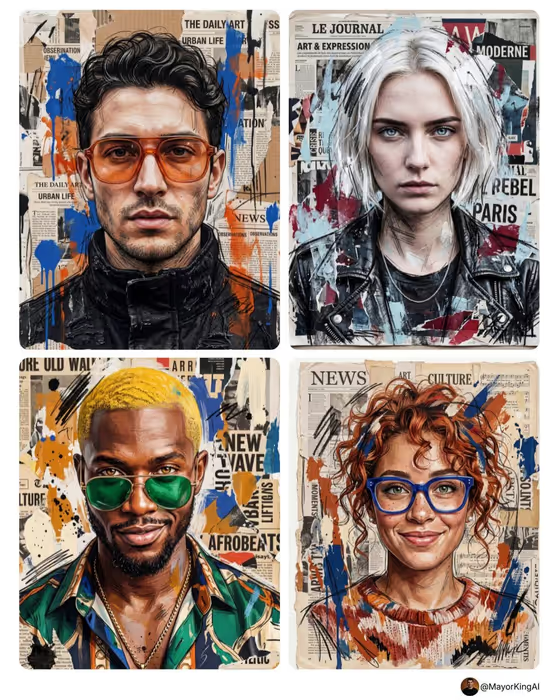
Torn Print Portrait turns a person into a mixed-media poster. The face stays detailed and lifelike while black sketch strokes, torn newspaper scraps, and acrylic paint splashes build up around it, as you can see in the cover examples with their headlines, drips, and bold eyewear.
It suits artists, musicians, creators, and brands who want an editorial, gallery-style portrait for a profile image, a poster, or a campaign visual. You pick who the portrait shows, the mood in their expression, and the two paint colors that drive the palette. The result is a 3:4 image.
What works best as input
- In the Poster Design Subject field you can add a portrait reference photo or simply describe the person. If you add a photo, choose one with a clear, front-facing view of the face.
- Pick a photo with even lighting and sharp eyes. The template keeps the face and eyes highly detailed, so a blurry or heavily shadowed reference gives it less to work with.
- Include the features that make the person recognizable, such as glasses, hairstyle, or jewelry. The cover examples show how details like tinted frames and bold hair color carry through into the collage.
- If you describe instead of upload, be specific about character, like the placeholder 'a defiant young artist' or 'a charismatic musician', rather than a single vague word like 'person'.
How to use it
- Open the Torn Print Portrait template in Phosphene.
- In Poster Design Subject, add a portrait reference or type a short description of the person.
- Choose an Expression (for example Defiant and direct or Quietly reflective) and a Paint Colors pair (for example Crimson and cobalt).
- Generate the image, then review the face, the paper texture, and the paint balance. Adjust your choices and generate again if you want a different feel.
Tips for a better result
- Match the Expression to the subject. Intense and focused suits a musician or artist, while Calm and distant gives a quieter, fashion-editorial mood.
- Try contrasting Paint Colors pairs such as Black and electric yellow or Emerald and hot pink for a bolder look, or a restrained pair like Crimson and cobalt for a more classic collage.
- Keep your subject description short and concrete. A clear role or attitude gives the portrait a stronger point of view than a long list of details.
- Generate the same subject with different color pairs to compare, then pick the one that fits your poster or profile best.
Common mistakes
- Using a small, dark, or angled reference photo. The face is the focus of this template, so a weak reference weakens the whole portrait.
- Writing a long, cluttered subject description. The collage layers already add a lot of visual noise, so a focused description works better.
- Expecting every color to dominate. Paint Colors sets a controlled primary and secondary palette, while the newspaper and black ink strokes stay part of the look.
FAQ
Do I have to upload a photo?
No. The Poster Design Subject field accepts either a portrait reference or a written description of the person.
What can I control?
You control the subject, the Expression, and the Paint Colors pair. The torn newspaper, sketch strokes, and mixed-media style are built into the template.
What shape is the output?
The template produces a 3:4 image, a portrait-oriented format that suits posters and profile visuals.
Will the portrait look like the person in my photo?
The template aims to keep the face and eyes detailed and recognizable, but results can vary, so review the output and regenerate if needed.