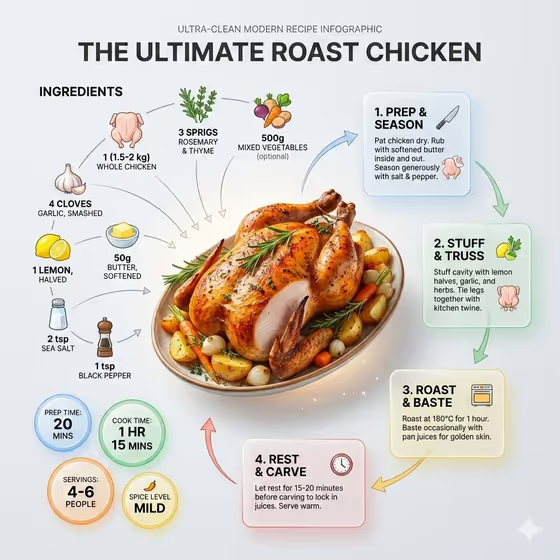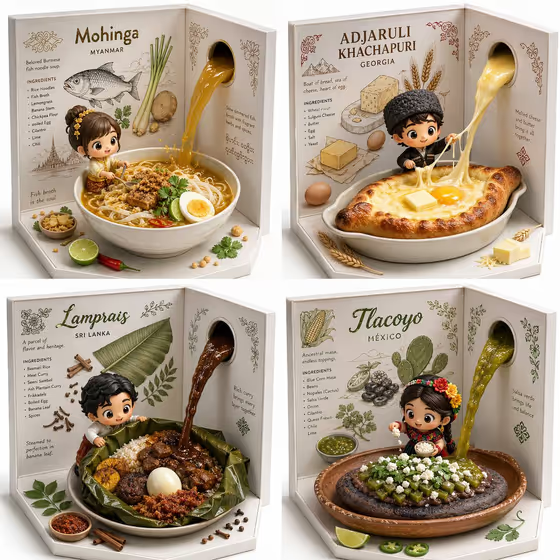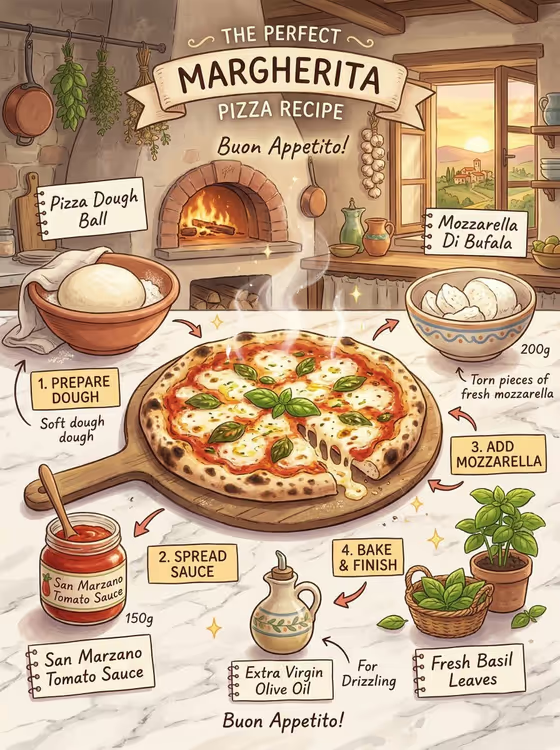
This template turns a finished pizza into a hand-painted recipe poster. The dish sits in the center of a 3:4 layout, with illustrated ingredients in small containers around it, notebook-style labels, quantities and a short numbered prep order.
It suits home cooks, food bloggers and anyone who wants a charming recipe card for a family favorite, a menu idea or a kitchen wall. The scene is a warm Italian kitchen with a sunset glow, soft pastel color and gentle steam over the dish.
What works best as input
- For the Food product or recipe field, you can type a dish name such as Margherita pizza or vegetable calzone, or use a matching reference photo. A clear, well-lit shot of the finished food gives the poster a better center piece.
- If you use a photo, pick one where the whole dish is visible from above or at a slight angle, without heavy shadows or clutter that could be mistaken for ingredients.
- Pick an Ingredient set that matches your dish, for example dough, tomato, mozzarella, basil and oil. The labels around the dish are built from this list, so it should describe what is actually on the pizza.
- Keep the Recipe title short and in capitals, like MARGHERITA PIZZA or BAKE IT WITH LOVE. A short title is easier for the banner to render readably.
How to use it
- Open the Whimsical Pizza Recipe template in Phosphene and look at the three fields: Food product or recipe, Ingredient set and Recipe title.
- Describe your dish or add a reference photo in Food product or recipe, choose the Ingredient set that fits it, and type your Recipe title.
- Run the generation and wait for the 3:4 image to finish.
- Review the result: check that the title banner, ingredient labels and numbered steps are readable, then adjust your inputs and generate again if something is off.
Tips for a better result
- Match the three fields to each other. A title, dish and ingredient set that all describe the same recipe produce a more coherent layout than mixed ones.
- Try the other example dishes, such as mushroom focaccia or vegetable calzone, with a matching ingredient set to get a different set of illustrated containers around the center.
- Use the my measured ingredients option when you want the poster to reflect your own quantities and recipe rather than a generic one.
- Change only the Recipe title between runs to test different wording while keeping the same dish and ingredients.
Common mistakes
- Choosing an ingredient set that does not fit the dish, such as a mushroom set for a plain Margherita, which makes the labels and the center dish disagree.
- Writing a very long Recipe title, which can crowd the banner and make the lettering harder to read.
- Using a dark, cluttered or cropped reference photo, which gives the generator little to build the central dish from.
FAQ
Do I have to upload a photo?
No. The Food product or recipe field accepts a typed dish name, and you can also use a matching reference photo if you have one. The other two fields are for choosing or typing, not for photos.
What size and format is the result?
The template makes a single image in a 3:4 portrait layout, suited to a recipe card or poster.
Can I use it for dishes other than Margherita pizza?
Yes. The examples include mushroom focaccia, vegetable calzone and your own Italian recipe, so you can adapt the dish, ingredient set and title to what you are making.
What if a label looks wrong or hard to read?
Shorten your Recipe title, make sure the dish and ingredient set agree, and generate again. Clearer, simpler inputs tend to give more readable labels.