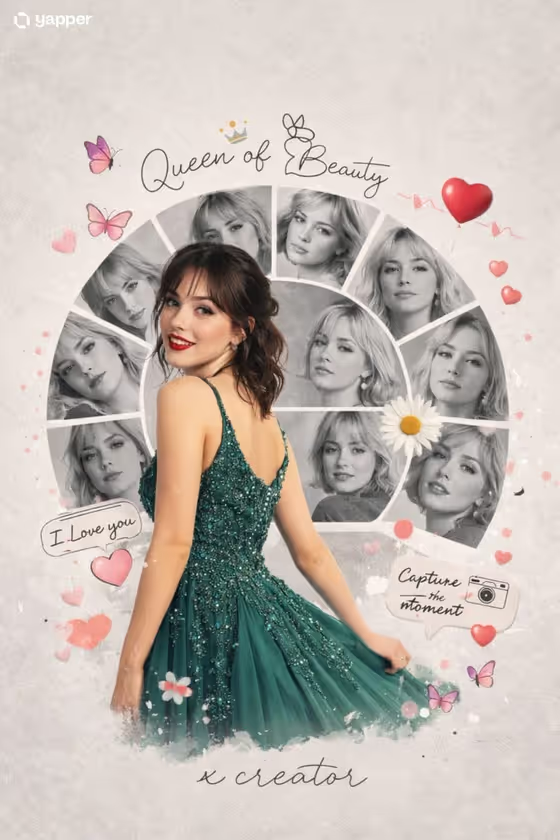
Romantic Portrait Collage turns one person into a scrapbook-style poster. A full-color, full-body cutout stands slightly left, while black-and-white portraits of the same identity fan out in curved segments behind them, decorated with butterflies, a daisy, heart balloons and small love stickers on a soft grey textured background.
It suits anyone making a tribute, a birthday or anniversary graphic, or a themed social post that needs a handwritten phrase like the one on the cover. The output is a 3:4 image, and the template expects at least two photos so the portraits can match the same person.
What works best as input
- Upload at least two clear photos of the same person, since the template needs 2 or more. A full-body shot helps the color cutout, and a few close-up portraits help the black-and-white segments.
- Use well-lit photos with the face fully visible and no heavy filters, so the repeated portraits stay recognizable as one identity.
- In Collage Design Subject, you can type a short description such as 'a smiling young woman' or 'a joyful couple', or add the exact portrait reference. Only use photos of people who are happy to be featured.
- In Statement Outfit, name a specific look like 'a peacock-green embellished dress' or 'a deep red formal suit', or add a clothing reference photo if you want a particular garment.
- For Love Note, keep the phrase short, like 'Queen of Beauty' or 'Forever in Bloom', because it appears as handwritten lettering on the collage.
How to use it
- Open the Romantic Portrait Collage template in Phosphene and add your photos (2 or more).
- Fill in Collage Design Subject with a short description of the person, or attach the portrait reference you want used.
- Enter your Statement Outfit and your Love Note. Be specific about outfit color and style, and keep the note to a few words.
- Generate the image, then check that the color cutout, the semicircle of monochrome portraits and the handwritten phrase all look right. Adjust your fields and run it again if something is off.
Tips for a better result
- Pick an outfit color that contrasts with the grey background, like the deep green dress on the cover, so the color cutout stands out from the monochrome portraits.
- Try the example love notes ('Capture the Moment', 'You Make Me Smile') or write your own short phrase to change the mood of the poster.
- Vary the subject wording, for example 'a romantic young man' or 'a joyful couple', to shift the style while keeping the same collage layout.
- Use photos with different head angles and expressions so the black-and-white segments feel varied rather than repeated.
Common mistakes
- Uploading only one photo or mixing photos of different people, which makes the repeated portraits look inconsistent. The template asks for 2 or more photos of the same person.
- Writing a long sentence as the Love Note. Short phrases fit the handwritten style much better.
- Leaving the outfit vague, such as 'nice clothes'. A specific color and garment gives the cutout a clearer look.
FAQ
How many photos do I need?
The template requires at least two photos. More clear photos of the same person give the portrait segments more to work from.
Can I describe the person instead of uploading a photo?
The Collage Design Subject and Statement Outfit fields accept text or a photo reference, but the template as a whole expects 2 or more uploaded photos.
What does the Love Note do?
It sets the handwritten phrase shown on the collage, like 'Queen of Beauty' on the cover. It is text only, so type it in rather than uploading anything.
What size is the result?
The output is an image in a 3:4 aspect ratio.