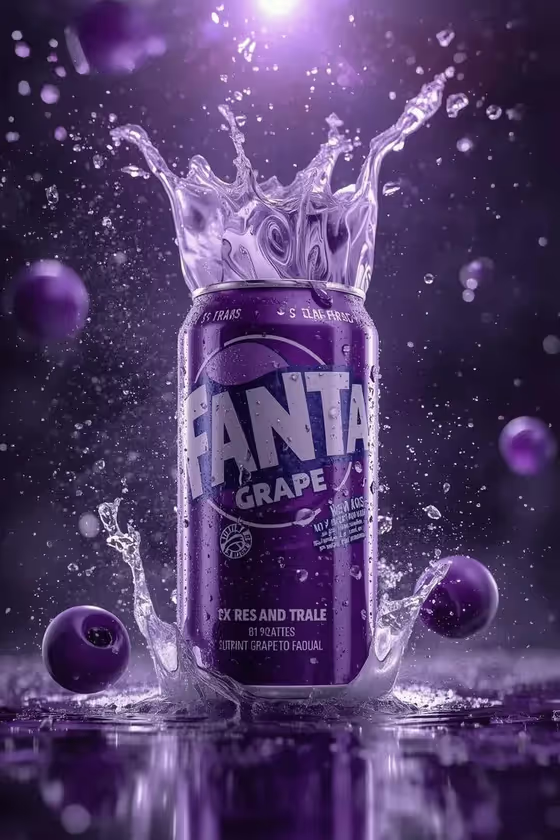
Purple Liquid Hero Freeze turns a beverage can into a high-speed product hero shot. The purple liquid is frozen mid-motion as a controlled sculpture around the can, with berries suspended in the air at different depths, against a dark black-purple backdrop with glossy reflections.
It suits anyone who wants a dramatic, ad-style image of a grape, berry or other purple drink without setting up a studio shoot. The output is a 3:4 image with no added headlines, logos or interface elements, so you can use it as a clean visual base.
What works best as input
- For the Beverage product or can field, you can either type a short description (for example, blackberry soda can or acai energy drink) or upload a matching reference photo of the product.
- If you upload a photo, use a clear, evenly lit shot of the can or bottle with the full package visible and sharp edges, so the shape and colors carry into the result.
- Pick a drink that fits a purple and berry look. Grape, blackberry, acai and similar flavors match the frozen purple liquid and the suspended berries best.
- Keep the product the single subject. A reference with one can on a plain background gives the template less clutter to interpret than a busy shelf or hand-held shot.
- In Rendered text policy, write a plain instruction such as No added text or Pure product image, which matches the template's visual-only direction.
How to use it
- Open the Purple Liquid Hero Freeze template in Phosphene.
- In Beverage product or can, describe your drink or upload a reference photo of it.
- Choose a Liquid sculpture option (the crown splash around the can is the default look), then fill in Rendered text policy, for example No added text.
- Generate the image, then review the can placement, the splash shape and the berries, and adjust your inputs if you want a different result.
Tips for a better result
- Try other Liquid sculpture options, such as an arched ribbon behind the can, a spiral wave around the base, or a frozen burst with suspended berries, to get several compositions from the same product.
- Be specific about the flavor in the product field. A phrase like grape sparkling water gives the template a clearer cue than just soda.
- Compare a typed description against an uploaded reference of the same product to see which keeps the packaging closer to what you want.
- Keep the text policy short and direct. The template is built around a clean image, so wording like Visual-only campaign reinforces that.
Common mistakes
- Leaving the product description vague, which gives the template little to match for color, shape and flavor.
- Uploading a cluttered or dim photo where the can is cropped or hard to separate from the background.
- Expecting readable packaging text or added headlines. Small label text on a generated can may not come out accurately, and the template is set to avoid extra copy.
FAQ
Can I use a photo of my own can?
Yes. The Beverage product or can field accepts an uploaded reference photo, or you can describe the product in text instead.
Will the image include text or a logo overlay?
The template is directed to leave out added text, titles, logos and transitions, and the Rendered text policy field is there to keep it that way.
Can I change the shape of the liquid?
Yes. The Liquid sculpture field lets you pick options like a crown splash, an arched ribbon, a spiral wave or a frozen burst with berries.
What format is the result?
It produces a single image in a 3:4 portrait aspect ratio.