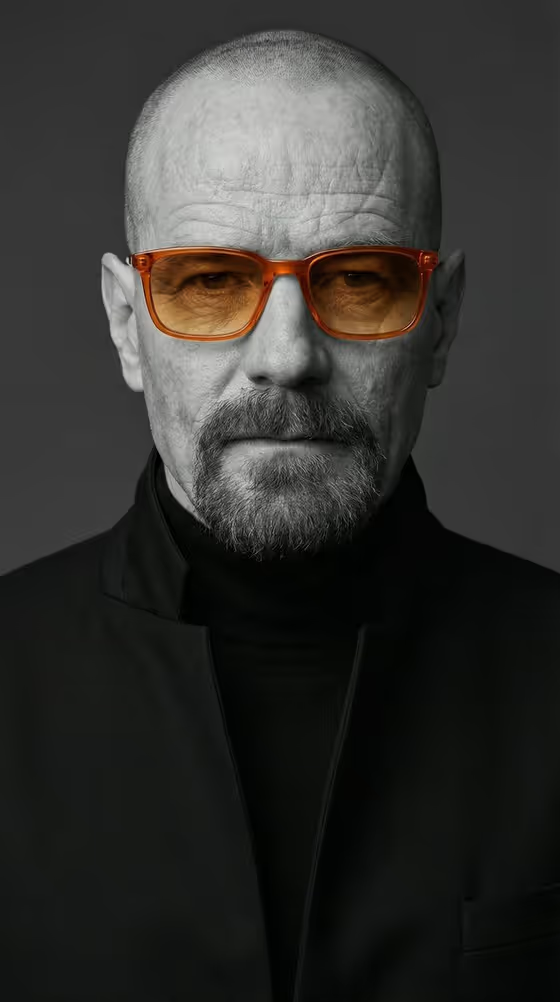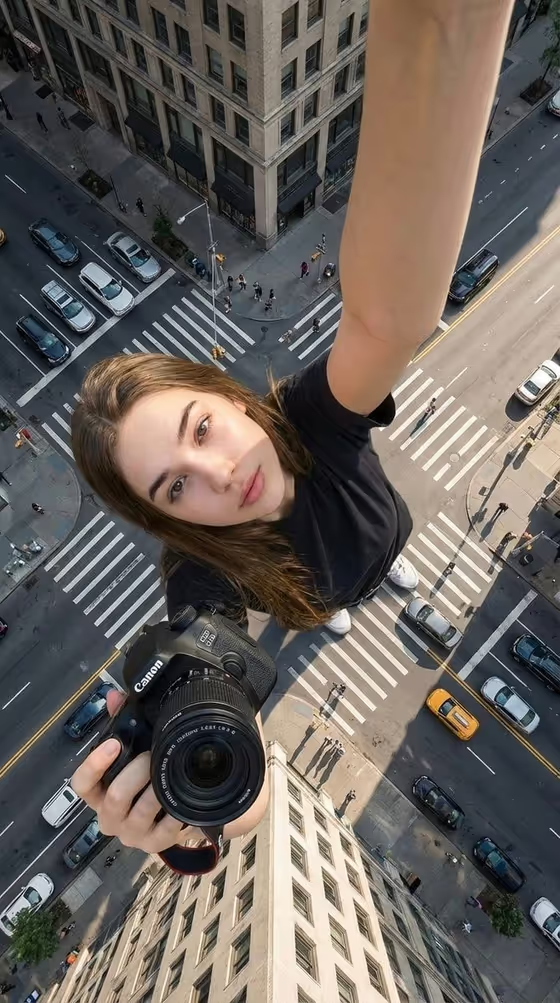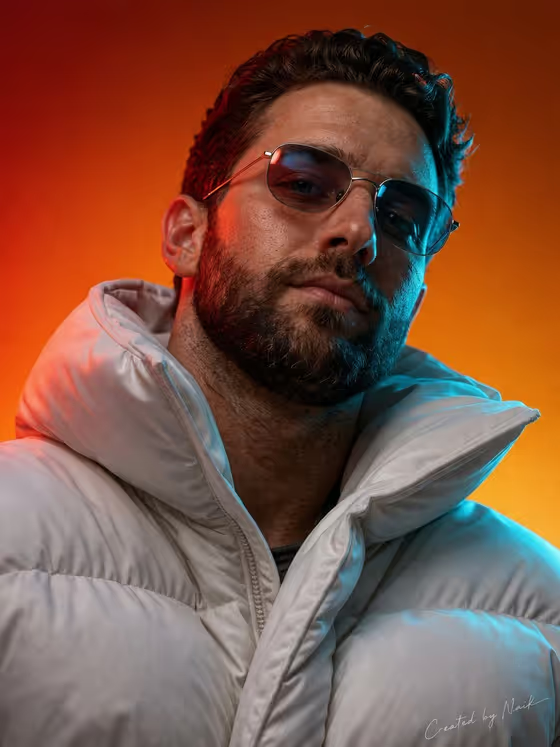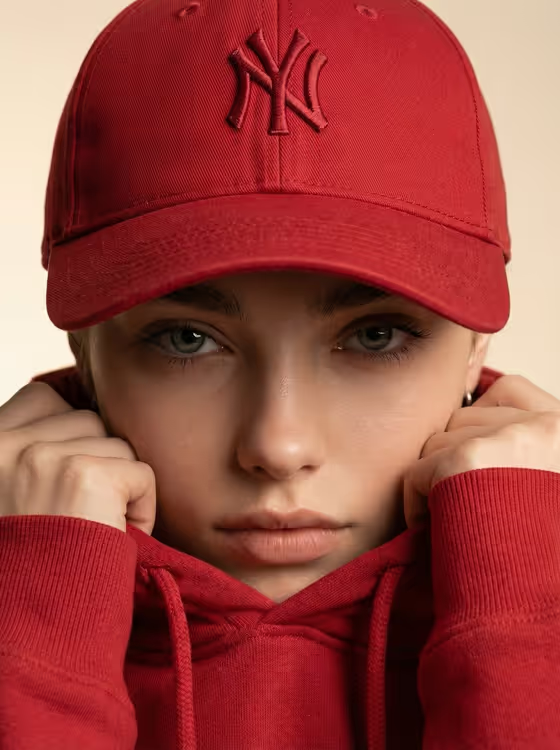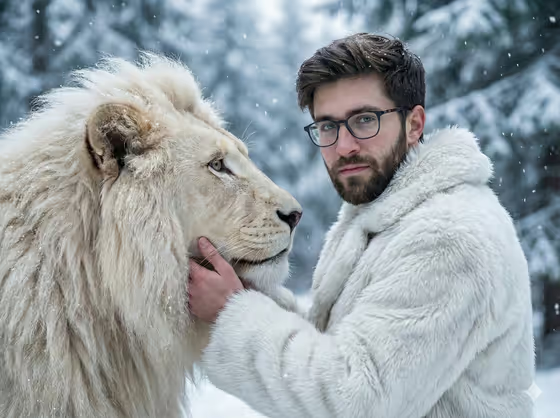
Snow Lion Bond creates a cinematic, photorealistic portrait of your subject standing face-to-face with a white lion in a snowy forest. The scene shows soft snowfall, frosted pines blurred behind them, and one hand resting calmly on the lion's face, with a cold, muted winter look.
It suits anyone who wants a dramatic portrait with a calm, trusting mood, such as profile pictures, creative self-portraits or story-style artwork. The result is a single 3:4 image built from one reference photo and a short pose description.
What works best as input
- Upload one clear photo of the person you want in the scene. The template takes a single reference, so choose the picture that best shows their face.
- Pick a photo where the face is well lit and not hidden by heavy shadows, sunglasses or a hand. Visible facial detail helps the portrait stay recognizable.
- A shot from the chest up with the face turned fairly toward the camera tends to give the model the most to work with.
- In the Portrait subject field you can also describe the person in words. The default style is a phrase like "an adult man matching my reference", and you can adjust the wording to fit your photo.
- Only use photos of yourself or people who have agreed to be included, and keep the description respectful.
How to use it
- Open the Snow Lion Bond template in Phosphene and add your photo to the Portrait subject field.
- Check or edit the Portrait subject description so it matches the person in your photo. Then fill in Pose or expression, either by keeping "the source pose and energy" or choosing another option.
- Generate the image and wait for the 3:4 portrait to finish.
- Review the result, looking at the face, the fur coat and the lion's fur. If something is off, adjust the two fields and generate again.
Tips for a better result
- Try the Pose or expression options one at a time, such as calm editorial stillness, confident direct presence or candid spontaneous energy, to see how the mood of the portrait changes.
- Keep the default "the source pose and energy" if you like the attitude in your photo and want the portrait to carry it over.
- Use a reference photo with a neutral or soft expression if you want the calm, trusting feel the scene is built around.
- Run the template a few times with the same inputs and compare. Small differences in the lion, snow and lighting can give you a version you like more.
Common mistakes
- Uploading a blurry, tiny or heavily filtered photo. The portrait relies on facial detail, so a low-quality source usually weakens the likeness.
- Writing a subject description that contradicts the photo. If the text and the image disagree, the result can drift from the person you meant.
- Leaving Pose or expression vague or overloaded with several moods at once. Pick one clear direction so the portrait reads as calm and focused.
FAQ
Do I need to upload a photo?
The template is set up around one reference photo in the Portrait subject field. You can also describe the subject in text, but a photo helps the portrait match a specific person.
What will the final image look like?
It is a photorealistic 3:4 portrait of your subject with a white lion in a snowy forest, wearing a white fur coat with one hand on the lion's face, in cold, muted winter tones.
Can I change the pose or mood?
Yes. The Pose or expression field lets you choose or describe a direction, for example calm editorial stillness or confident direct presence. The lion, snow and forest setting stay the same.
Can I use a photo of someone else?
Only if they have agreed to it. Use photos of yourself or people who are comfortable being included, and avoid using the likeness of public figures.