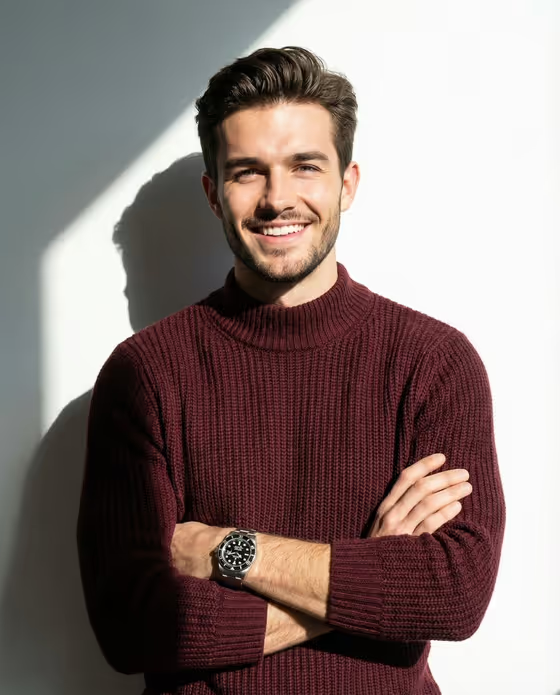
Sunlit Sweater Portrait turns a reference photo into a bright studio portrait. The subject stands against a clean white wall with arms crossed, wearing a maroon knitted high-collar sweater and a watch on the wrist, while harsh sunlight throws a sharp diagonal shadow behind them.
It suits anyone who wants a polished, editorial-style headshot for a profile, a personal site or a creative project. The output is a 3:4 image, so it fits portrait layouts well.
What works best as input
- Use a clear photo where the face is well lit and fully visible, since the Portrait subject field accepts a photo and uses it as the reference.
- Pick a front-facing or slightly angled shot without sunglasses, hats or heavy shadows across the face, so the likeness carries over cleanly.
- Keep the photo to one person only. The template is built around a single subject.
- If you would rather describe than upload, type a short description in the Portrait subject field, such as 'an adult man with a distinctive presence'.
- Use a sharp, uncropped image rather than a tiny or heavily compressed one.
How to use it
- Open the Sunlit Sweater Portrait template in Phosphene.
- In Portrait subject, upload your photo or type a short description of the person you want pictured.
- In Pose or expression, choose or describe the mood, for example 'calm confidence' or 'joyful natural expression'.
- Generate the image, then review it for likeness, the crossed arms and the diagonal shadow. Adjust the fields and run it again if needed.
Tips for a better result
- Try different moods in Pose or expression, such as 'serious direct gaze' or 'quiet introspection', to change the feel while the lighting and wardrobe stay the same.
- Keep the expression text short and concrete. A few words describing the mood work better than a long paragraph.
- If the first result misses the likeness, try a different reference photo with more even lighting.
- Generate a few versions and compare them, since small differences in expression and shadow placement can change which one you prefer.
Common mistakes
- Uploading a group photo or a heavily cropped face, which makes it harder to match a single subject.
- Writing a long scene description in the expression field. The setting, sweater and lighting are already fixed by the template.
- Expecting to change the wall, the sweater colour or the shadow direction. Those are part of the template's fixed direction.
FAQ
Do I have to upload a photo?
No. The Portrait subject field accepts a photo, but you can also type a description of the person instead.
Can I change the sweater or the background?
No. The maroon knit sweater, white wall and diagonal sunlight shadow are fixed by the template. You control the subject and the pose or expression.
What shape is the final image?
It is a 3:4 portrait image.
What should I put in Pose or expression?
A short mood or look, such as 'joyful natural expression', 'calm confidence', 'quiet introspection' or 'serious direct gaze'.