How to Create AI Art from a Text Prompt Online — Step-by-Step
Learn how to turn a text prompt into stunning AI-generated art online, without installing anything. This step-by-step tutorial walks you through the full process using Phosphene.
On this page
- What You'll Need
- Step 1: Set Up Your Account
- Step 2: Choose Your Starting Point
- Step 3: Write Your First Prompt
- Be specific about the subject
- Include atmosphere and style
- Mention the medium when it matters
- A complete example prompt
- Step 4: Pick Your Model
- Step 5: Set Aspect Ratio
- Step 6: Generate and Review
- Step 7: Iterate Systematically
- Step 8: Use the Graph for Complex Prompts
- Common Prompting Mistakes (and How to Fix Them)
- Where to Go From Here
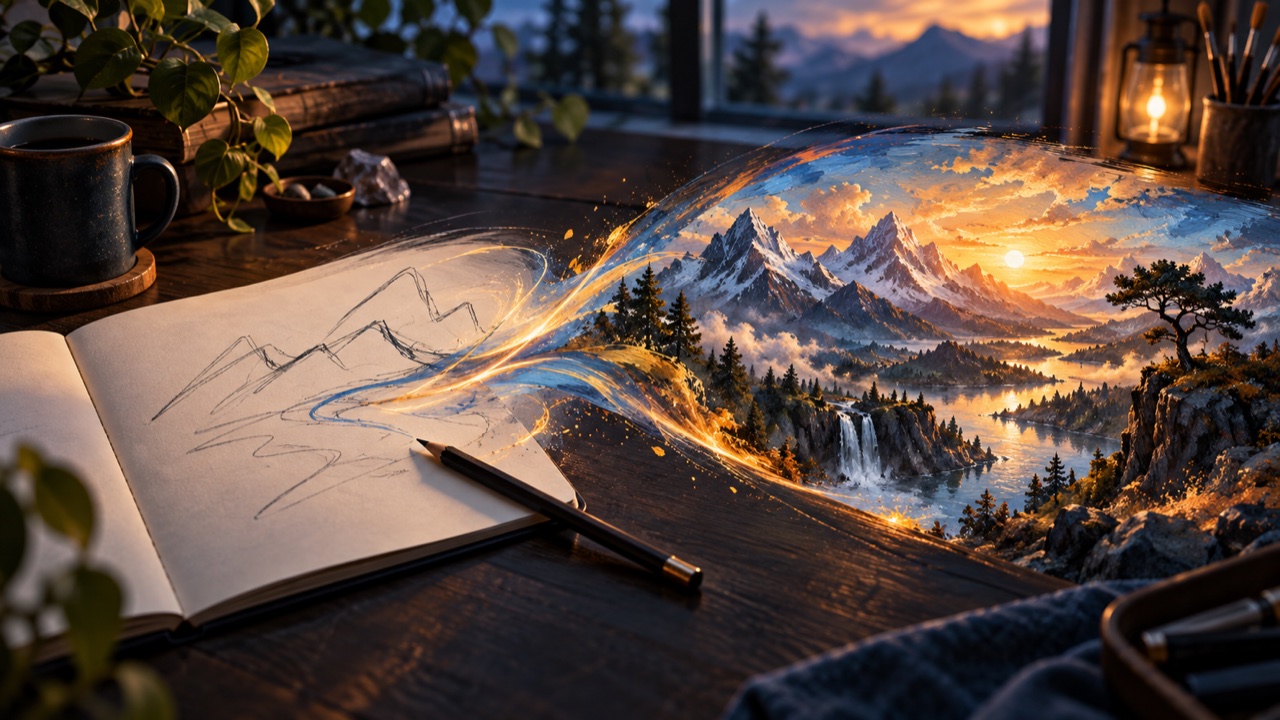
Turning words into images is one of those things that seems like it should be complicated — and not long ago, it was. You needed to set up local software, download multi-gigabyte model weights, and figure out configuration files before you ever saw a single result.
That era is over. Today, creating AI art from a text prompt online takes about two minutes and requires nothing but a browser. This tutorial walks you through the complete process, from blank canvas to finished image, using Phosphene.
What You'll Need
- A browser (Chrome, Firefox, Safari, or Edge — anything modern)
- A free Phosphene account (takes 30 seconds to create, no credit card required)
- An idea — even a rough one
That's it. No downloads. No GPU. No Python environment.
Step 1: Set Up Your Account
Head to Phosphene and create a free account. You'll start with a set of free credits — enough to experiment and generate several images before you need to think about topping up.
Once you're in, you'll land in the dream editor. This is your creative workspace.
Step 2: Choose Your Starting Point
Phosphene gives you a few ways to start:
Option A: Simple mode — A clean interface with a text box. Type your prompt, pick a model, and generate. This is the fastest path if you already know what you want.
Option B: Graph mode — An interactive visual canvas where you build your prompt by combining concept nodes. Subject, style, mood, environment — each becomes a node in a connected graph. This is more powerful for exploratory work.
For your first image, Simple mode is perfectly fine. You can always switch later.
Step 3: Write Your First Prompt
A prompt is a text description of the image you want. Here are a few practical principles:
Be specific about the subject
- Vague: "a dog"
- Better: "a golden retriever sitting in tall grass"
- Even better: "a golden retriever sitting in tall grass at dusk, looking toward the horizon"
Include atmosphere and style
The subject alone describes what is in the image. Adding atmosphere and style describes how it feels:
- "warm golden hour light, soft cinematic look"
- "dramatic storm clouds, high contrast"
- "flat illustration style, minimal color palette"
Mention the medium when it matters
If you want something that looks like a painting versus a photograph versus a drawing, say so:
- "digital painting"
- "photorealistic"
- "pencil sketch"
- "oil painting on canvas"
A complete example prompt
Here's a prompt that tends to produce strong results:
A lone lighthouse on a rocky coastal cliff, crashing waves below, stormy sky with a break of orange light at the horizon, dramatic cinematic composition, photorealistic, detailed
Step 4: Pick Your Model
This is where Phosphene differs from most online generators. You're not locked into one AI model — you can choose from over 20 options across multiple providers.
For beginners, here's a quick guide:
| Model | Best For |
|---|---|
| Gemini 2.5 Flash Image | Complex instructions, detailed scenes |
| FLUX.2 Pro | Rich detail, photorealistic quality |
| Imagen 4.0 Fast | Clean aesthetic results, faster output |
| GPT Image 1.5 | Designs with text, product mockups |
| Seedream 4.5 | Stylized and illustrated looks |
If you're not sure, start with Gemini 2.5 Flash Image — it handles a wide range of prompts well and is the default.
Step 5: Set Aspect Ratio
Before generating, choose your aspect ratio:
- 1:1 — Square. Good for social media, profile pictures, icons
- 16:9 — Landscape. Good for backgrounds, banners, desktop wallpapers
- 9:16 — Portrait. Good for mobile wallpapers, story formats
- 4:3 — Classic. Good for general-purpose scenes
The aspect ratio affects composition significantly. A wide landscape prompt will look better in 16:9 than in a square crop.
Step 6: Generate and Review
Hit Generate. Depending on the model, your image will appear in a few seconds.
Now comes the iterative part. AI generation is almost never a one-shot process. Look at your result and ask:
- Is the composition right? Too much empty space, or the wrong element centered?
- Is the lighting what I wanted? More dramatic, softer, different time of day?
- Is the style correct? Does it feel painterly when you wanted photorealistic?
- Is the subject clearly readable? Is the main thing in the image identifiable at a glance?
Adjust your prompt based on what you see, and generate again. The gap between your first result and your best result is usually 3-5 iterations.
Step 7: Iterate Systematically
The most common mistake beginners make is changing everything at once when a result isn't quite right. This makes it hard to know what improved the image.
Instead, change one thing at a time:
- If the subject is wrong — clarify the subject description only
- If the lighting is wrong — add or change lighting language only
- If the style is off — adjust style modifiers only
After a few rounds, you'll develop an intuition for what language produces what results — and that skill transfers across all AI image generators you'll ever use.
Step 8: Use the Graph for Complex Prompts
Once you've done a few simple generations, try switching to Graph mode. This is where Phosphene's approach becomes more powerful.
In the graph, you select concepts visually. Click a subject. Add a style node. Connect a mood node. The graph shows you the relationships between your prompt elements, which makes it easier to:
- Add or remove one concept without rewriting the whole prompt
- Explore "what if I change just this element?" very quickly
- Keep track of what you've tried across multiple sessions
Your sessions are saved automatically, so you can return to a previous creative direction anytime.
Common Prompting Mistakes (and How to Fix Them)
Too short: "a cat" — gives the AI too little to work with. Add subject detail, environment, and atmosphere.
Too contradictory: "minimalist maximalist composition" — pick one or find a middle-ground word like "refined."
Wrong model for the job: If you want text legible in the image, use GPT Image 1.5. Other models tend to hallucinate or distort text.
Ignoring aspect ratio: A portrait subject in a 16:9 frame will have a lot of empty space unless your prompt accounts for it.
Where to Go From Here
You've got the fundamentals. Here's how to keep developing:
- Browse the community gallery to see what prompts other creators are using and what results they're getting
- Read our prompt engineering guide for advanced techniques like weighting and style mixing
- Try different models on the same prompt to see how they interpret it differently — it's one of the fastest ways to understand what each model is good at
Start creating for free — no credit card, no downloads, no waiting. Open Phosphene now →