How to Make AI Generated Images — A Complete Beginner's Guide
New to AI image generation? This beginner's guide explains everything you need to know — how it works, how to write good prompts, which tools to use, and how to get consistently great results.
On this page
- How AI Image Generation Actually Works (Simple Version)
- Your First Image: Getting Started
- Writing Good Prompts
- Think in layers
- Example: Building a prompt in layers
- Common Beginner Mistakes
- "My results look nothing like what I described"
- "The image is distorted or weird-looking"
- "All my results look the same"
- Choosing the Right Model
- Aspect Ratio: A Bigger Deal Than It Seems
- Iteration: The Real Skill
- Saving and Organizing Your Work
- What to Make First
- Sharing and Getting Inspired
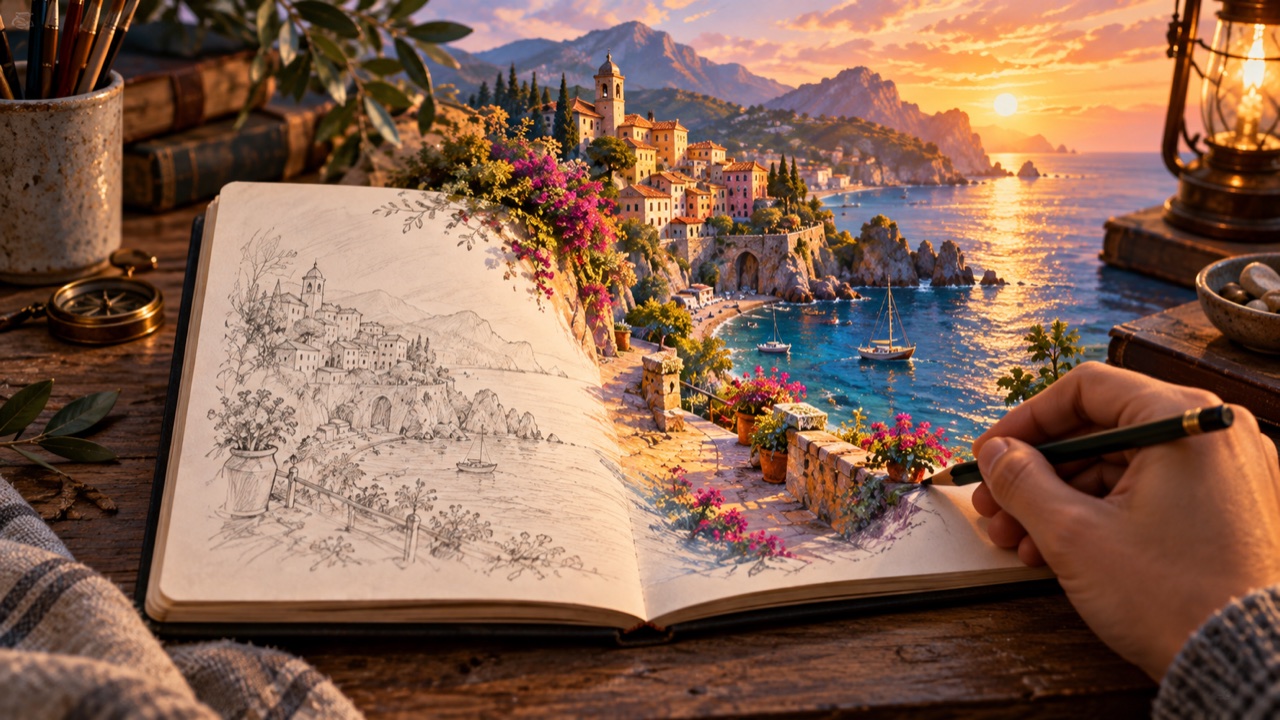
A few years ago, making AI-generated images was the domain of machine learning researchers and developers. Today, it takes a browser and a few sentences of text.
If you're new to this, you probably have a mix of curiosity and confusion. What's a "prompt"? Why do some people get stunning results and others get distorted messes? What's FLUX, what's Stable Diffusion, what's Gemini, and which one should you actually use?
This guide answers all of that in plain language — no prior experience needed.
How AI Image Generation Actually Works (Simple Version)
You don't need to understand the math to use these tools, but knowing the basic concept helps you work with them more effectively.
Modern AI image generators are trained on massive datasets of images paired with text descriptions. Through this training, they learn associations: what "golden hour lighting" looks like, what "photorealistic" means versus "watercolor," what a "fog-covered mountain" looks like.
When you type a prompt, the AI doesn't "draw" like a human would — it doesn't start with a sketch and refine it. Instead, it starts from visual noise and gradually shapes that noise into something matching your description, guided by what it learned in training.
This is why:
- Very specific prompts tend to get better results than vague ones
- Slightly different phrasing can produce noticeably different images
- Results are non-deterministic — the same prompt can produce different images each time
Understanding this makes you a better prompt writer. You're not "commanding" the AI; you're describing a scene and the AI is interpolating from everything it's learned.
Your First Image: Getting Started
The fastest way to understand AI image generation is to make something.
Step 1: Go to Phosphene and create a free account. You'll get free credits on signup — no credit card needed.
Step 2: Choose Simple mode (easiest to start with).
Step 3: Type a short prompt and hit Generate.
Don't overthink your first prompt. Something like:
A forest path in autumn, warm sunlight filtering through orange leaves, peaceful and quiet
That will produce something. It might not be exactly what you imagined, but it gives you a starting point to react to.
Writing Good Prompts
This is the skill that separates great AI image generation from mediocre results. The good news: it's learnable, and it improves quickly with practice.
Think in layers
A strong prompt describes your scene in layers:
- Subject — the main thing in the image
- Action/context — what's happening, where
- Atmosphere — lighting, mood, weather, time of day
- Style — artistic medium, aesthetic, reference points
- Technical quality — resolution feel, composition
You don't need all five every time. But knowing these layers helps you identify what's missing when results aren't what you wanted.
Example: Building a prompt in layers
Layer 1 (subject only):
a woman
Add context:
a woman standing in a doorway
Add atmosphere:
a woman standing in a doorway, backlit by afternoon sunlight, long shadows
Add style:
a woman standing in a doorway, backlit by afternoon sunlight, long shadows, cinematic photography, film grain
Add quality:
a woman standing in a doorway, backlit by afternoon sunlight, long shadows, cinematic photography, film grain, highly detailed, 35mm
Each layer adds specificity. You're not adding more words for the sake of length — you're reducing ambiguity.
Common Beginner Mistakes
"My results look nothing like what I described"
This usually means the prompt was too vague or used abstract words the model can't interpret visually. "Interesting," "beautiful," and "cool" don't mean anything specific to an AI — replace them with concrete descriptors.
Vague: "a beautiful landscape" Concrete: "rolling green hills with a farmhouse, overcast sky, long grass moving in wind"
"The image is distorted or weird-looking"
A few common causes:
- Hands and faces are notoriously difficult for AI models. Add "well-defined features" or "detailed face" to your prompt. Some models handle this better than others — FLUX.2 Pro tends to produce more anatomically coherent results.
- Complex compositions with many elements sometimes get confused. Simplify or break it into a primary and secondary element.
- Conflicting instructions confuse the model. Avoid contradictory terms like "dark but bright" or "small but vast."
"All my results look the same"
You might be over-relying on a single prompt template. Try:
- Switching models — each has a distinct character
- Changing your style descriptors
- Varying aspect ratio (portrait vs landscape compositions read very differently)
- Removing quality modifiers and letting the model's natural aesthetic show
Choosing the Right Model
One of the most important things Phosphene lets you do is switch AI models. Here's a practical introduction:
Gemini 2.5 Flash Image — Good at following complex, detailed instructions. Start here if you're not sure. It handles multi-element scenes and unusual creative concepts well.
FLUX.2 Pro / Max — Excellent for photorealistic images with high detail. Handles complex compositions and lighting well. Tends toward naturalistic aesthetics.
Imagen 4.0 Fast — Produces clean, polished images quickly. Good for a more "finished" aesthetic without heavy prompting.
GPT Image 1.5 — Unusually good at incorporating readable text into images. Useful for mockups, posters, and designs where text is part of the visual.
Seedream 4.5 / Hunyuan 3.0 — Stylized outputs, often with a distinctive illustrated quality. Good for artwork and character designs.
A useful exercise: take the same prompt and run it through 3 different models. Compare the results. You'll quickly develop a feel for which model suits which kind of work.
Aspect Ratio: A Bigger Deal Than It Seems
Most beginners ignore aspect ratio and stick with the default. This is worth paying attention to.
- 1:1 (square): Balanced compositions, works for portraits, products, and abstract images
- 16:9 (landscape): Natural for scenes — environments, buildings, landscapes
- 9:16 (portrait): Character-focused images, vertical scenes, mobile formats
- 4:3: Classic photographic ratio, often feels grounded and real
The AI interprets composition differently based on the canvas shape. A landscape prompt in a square crop tends to produce a crowded composition; the same prompt in 16:9 gives it room to breathe.
Iteration: The Real Skill
Here's something important to internalize early: your first result is almost never your best result.
Professional AI artists — people who make a living with these tools — almost always iterate. The workflow looks like this:
- Generate with your initial prompt
- Identify specifically what you'd change
- Adjust one thing and regenerate
- Repeat
The reason to change one thing at a time is feedback. If you adjust your subject, style, and lighting all at once and the result improves, you don't know which change made the difference. Incremental iteration builds understanding faster.
Saving and Organizing Your Work
Phosphene saves your sessions automatically. Each session (called a "dream") preserves your prompt graph and generated images, so you can return to a creative direction you explored earlier.
This is more useful than it sounds. AI generation often involves revisiting a direction you abandoned — you generate something you didn't quite like, try another approach, and later realize the original direction was closer to what you wanted. With automatic saving, you can always go back.
What to Make First
If you're not sure where to start creatively, here are some prompts that tend to produce satisfying results for beginners:
Landscape/Environment:
Ancient stone temple half-consumed by jungle vines, shafts of golden light, mysterious atmosphere, detailed digital painting
Portrait:
Close-up portrait of an elderly fisherman, weather-worn face, blue eyes, soft afternoon light, photorealistic, dignified
Abstract:
Liquid metal shapes floating in deep space, iridescent surface, dark void background, cinematic, highly detailed
Object/Product:
Minimalist ceramic coffee mug on a wooden table, soft morning light, shallow depth of field, clean product photography
Fantasy:
Dragon made of glowing crystal perched on a mountain peak at night, stars visible through its translucent wings, epic fantasy digital art
Sharing and Getting Inspired
Once you've generated something you're happy with, share it in the Phosphene community gallery. Browsing the gallery is also one of the fastest ways to improve — you can see what prompts and models other creators are using to get their results.
Ready to try it? Make your first AI image free →
No downloads, no setup, no credit card. Just a browser and an idea.